
File Previews
Files in a conversation open in place: the ones you attach and the ones the chat produces. A click on a file shows its content in a preview window, so you can check a document, read a CSV or play a sound without downloading it first.
Where files appear
A file shows up as a card in two places, and both open the same preview:
- Above the message box — a file you attach gets a card with its name, its size and a status: Uploading, Processing, then Ready. Click the card to preview the file. The cross in its corner removes it before you send.
- In the conversation — once sent, attached files sit with your question, and files the chat creates (for example with Code Execution) sit with the answer. Images are shown as thumbnails; every other file is a row with its name, its type (PDF, DOCX, CSV…) and an eye icon. Click the thumbnail or the row to open the preview.
What each file type shows
The preview depends on the kind of file:
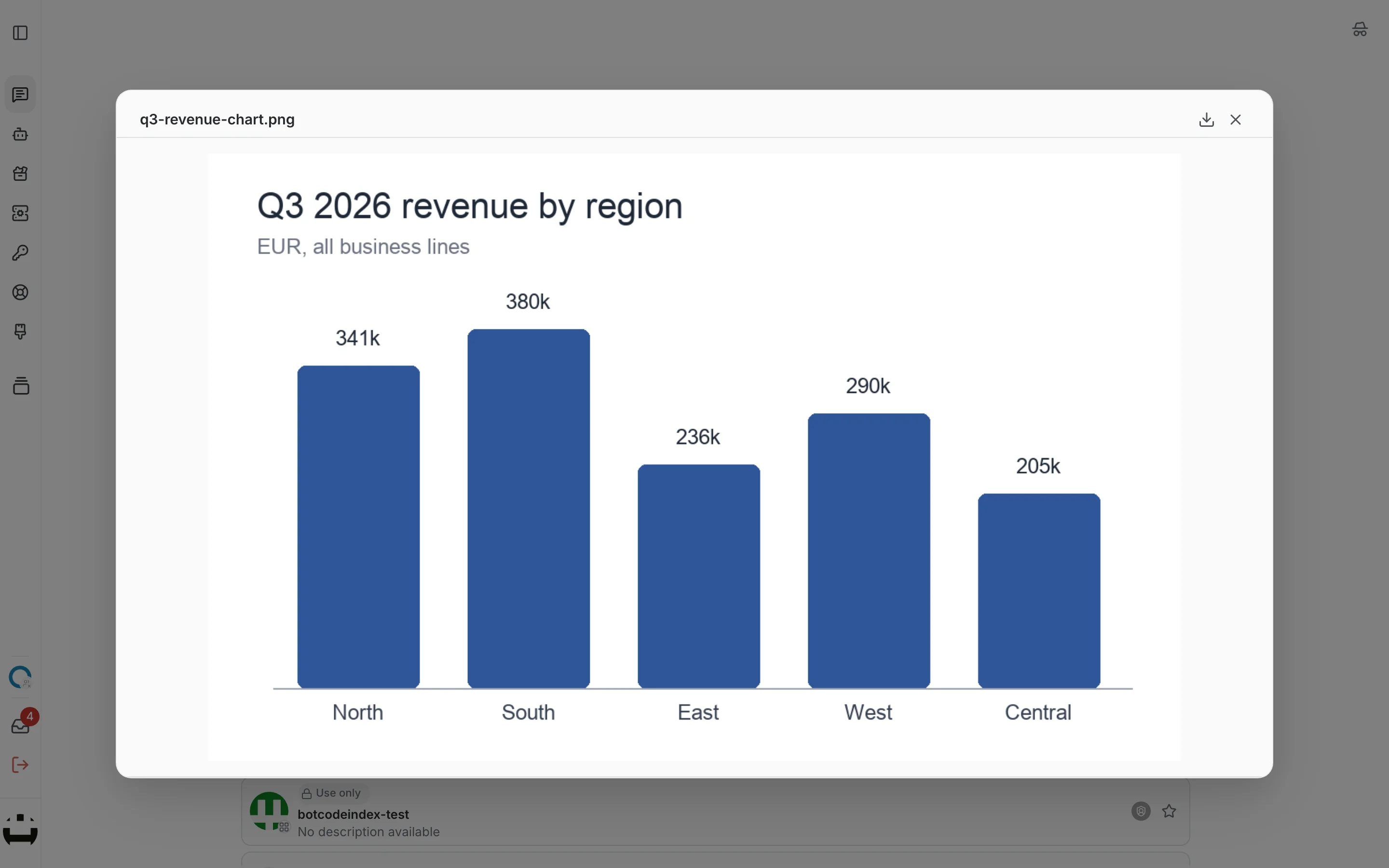
- Images (PNG, JPG, GIF, WebP, SVG) — the picture itself appears in the chat as a thumbnail, with a download button in its top-right corner. Click it to see it at full size.
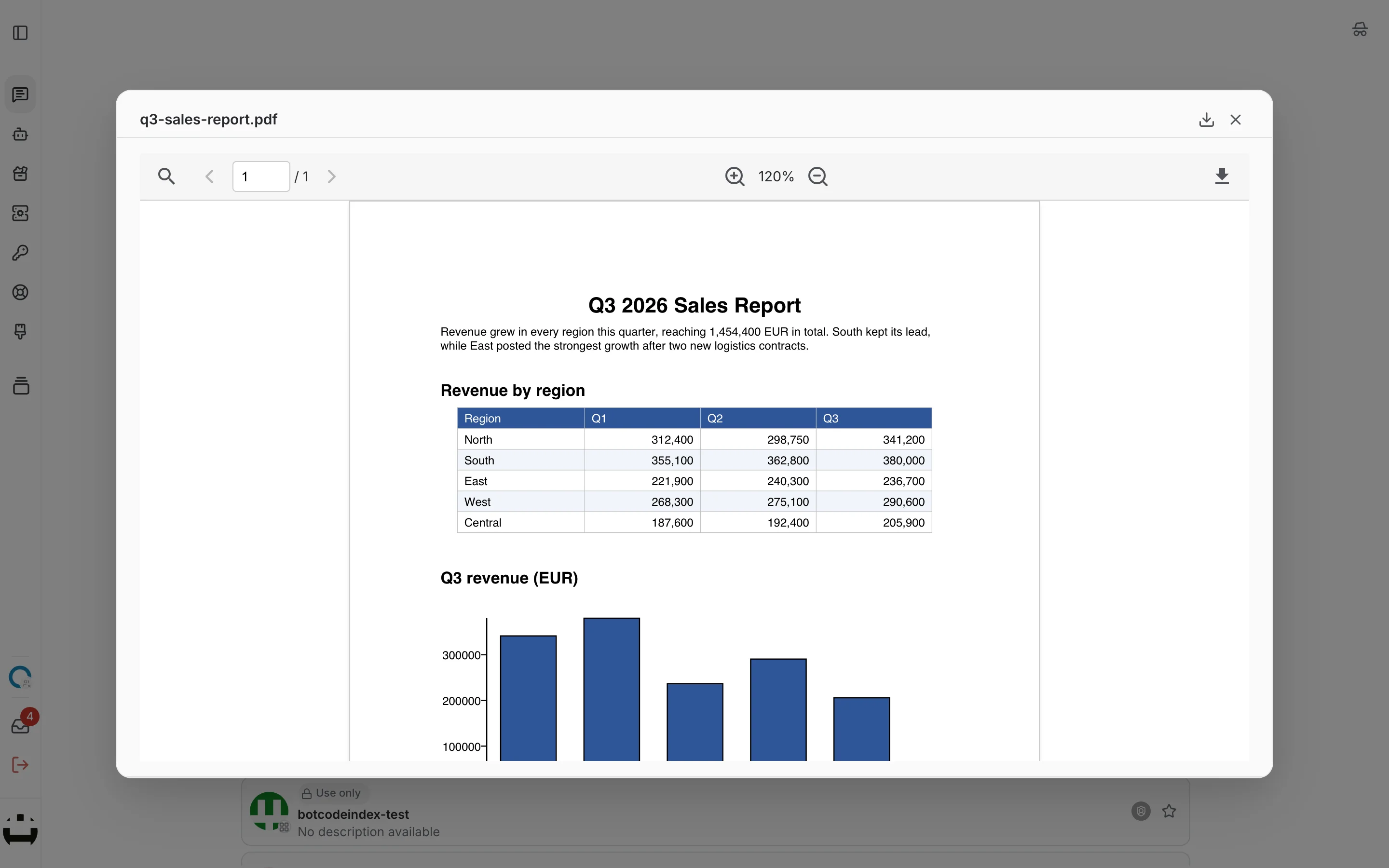
- PDF — opens in the same PDF viewer as the citations of an answer, where you can page through, zoom and search the document.
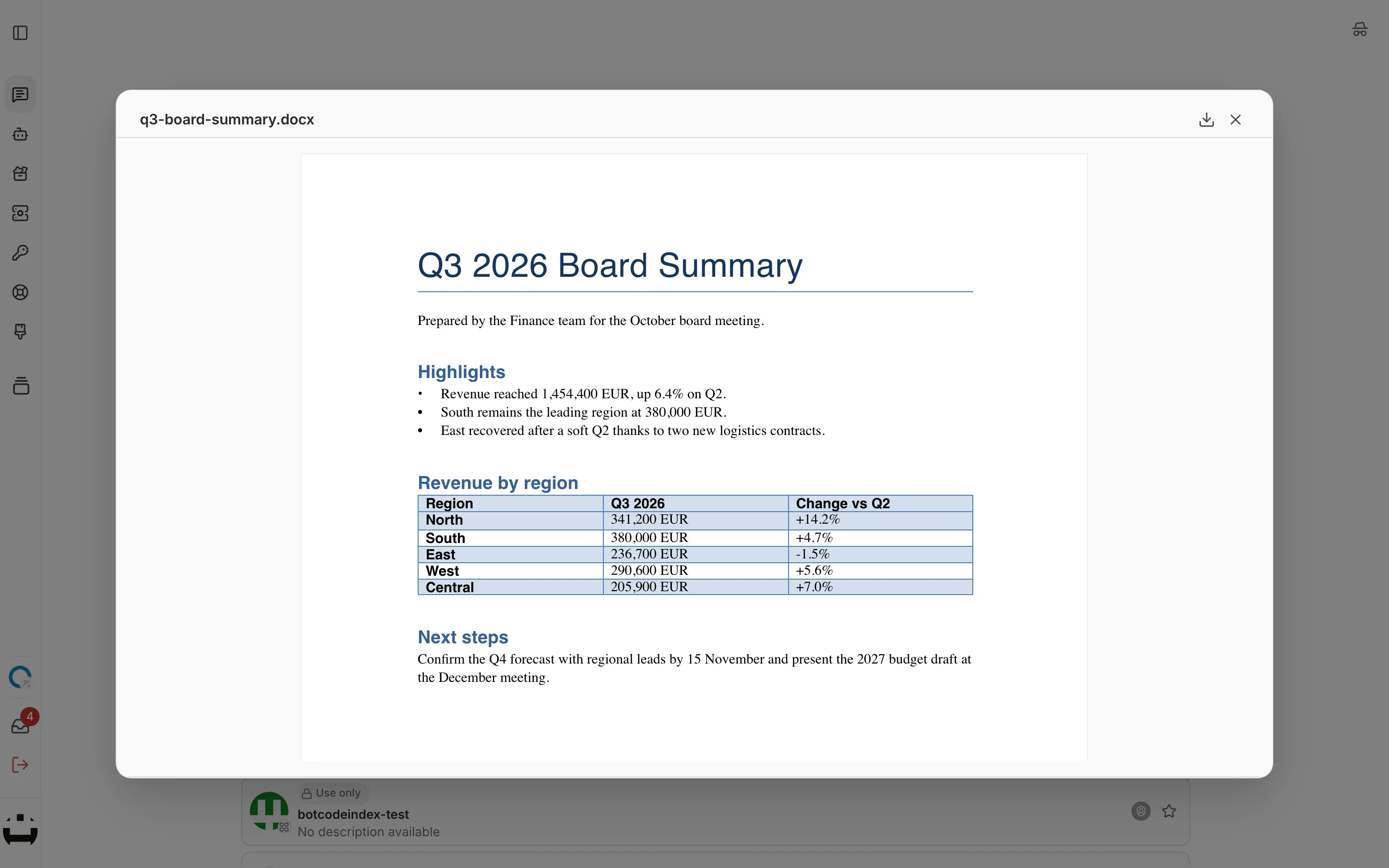
- Word documents (.docx, .docm) — rendered as a Word document, with its layout, by the same engine as the Report Generator — not converted to PDF.
- CSV and TSV — parsed and shown as a grid of rows and columns, the same grid as a spreadsheet.
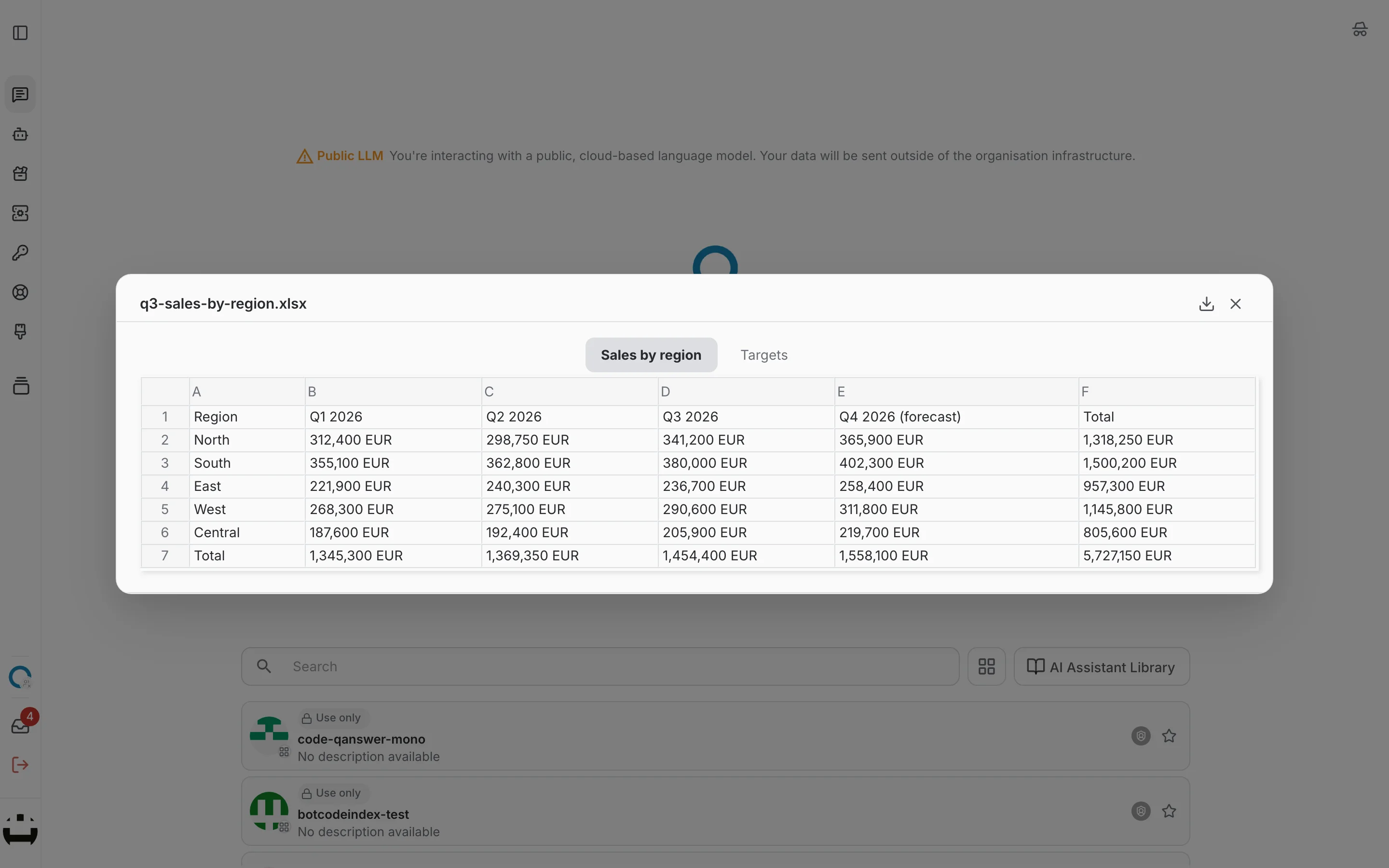
- Spreadsheets (.xlsx, .xlsm, .xls, .ods) — shown as a grid, sheet by sheet. The preview window also offers to open the file in the AI Spreadsheet task, see Open in AI Excel.
- Text (.txt, .md, .log, .xml, .yaml) and JSON — the text as it is, in a monospaced font. A JSON file is indented so it can be read, even when it is stored on a single line.
- HTML — for example a report the chat generated. The page is displayed as it renders, in an isolated frame. Switch between Preview and Source at the top of the window to read its HTML code.
- Audio — a sound the chat produced (WAV, MP3, OGG, M4A, FLAC, AAC) plays in a player with its waveform. An audio file you uploaded is transcribed, so its card opens the transcription viewer instead, described in Audio.
- Other files — presentations (.pptx, .ppt, .odp), legacy documents (.doc, .odt, .rtf), archives and other binary files have no preview: their card has no eye icon and a click downloads the file.
The preview window
The window shows the file name at the top, the content below, and these buttons in its header:
- Download — saves the original file to your computer.
- Close — closes the window and brings you back to the conversation.
- Open AI Excel — only for spreadsheets, when the AI Spreadsheet task is available to you.
SVG images
SVG images can be attached to a message like PNG or JPG images: drop them on the chat, paste them, or pick them with Upload Images. As for any image, the selected model must accept image input.
Because an SVG file is code as much as a picture, it is checked when you upload it. A file that is not a valid SVG, or that contains scripts, links, references to external content or DOCTYPE/ENTITY declarations, is refused and never sent. An ordinary drawing or icon passes unchanged.
Troubleshooting
- The card does not open. A file that failed to upload (red card) cannot be previewed: remove it and attach it again. In the conversation, a message that is still being sent opens its files once it is saved.
- "Unable to read this file" or "Unable to render this document". The file is damaged or not in the format its name suggests. Use Download to open it in another application.
- "Couldn't load this image." The image could not be retrieved, for example because it was deleted. The rest of the conversation is unaffected.
- An SVG is refused at upload. It contains one of the elements described above. Export it again without scripts or external references, or convert it to PNG.