
Administration
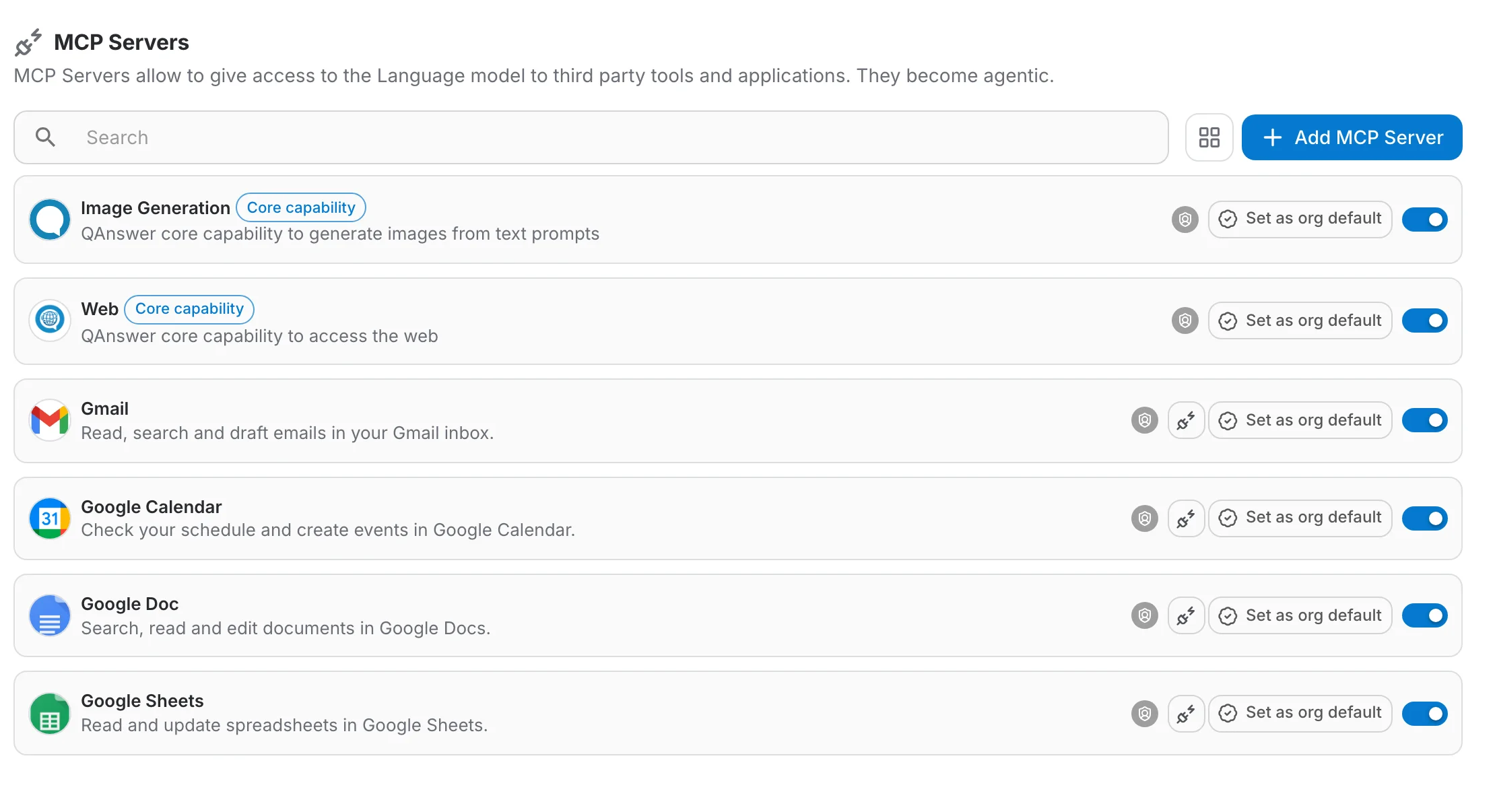
MCP servers exist at a scope — a user, a team, an organization or the whole platform. Administrators decide which servers each scope can use and how they behave by default.
Scopes at a glance
- Personal — servers a user creates on the MCP page; visible only to them (and whoever they share with).
- Organization / Team — servers managed in the organization or team settings; members see them in their Actions list.
- Platform — system servers such as the core capabilities, managed by platform administrators.
Enable servers for an organization or team
In the organization settings, open MCP. Each team has the same page in its own settings, managed by the team's administrators and by the organization's. From here administrators control what members can use:
- The switch activates or deactivates a server for the scope. Switched off for the organization or a team, it disappears from its members' MCP page — unless it was shared with them personally — and from their Actions list. Members can also switch a server off for themselves on their own MCP page.
- Click Pre-select to have a server selected in members' new conversations. Several servers can be pre-selected; click Pre-selected to undo it. Pre-selecting a server resets the tool selections saved for the scope.
Tool behaviour defaults
On a server's page, every tool carries chips under its description. Click a chip to turn the behaviour on (ticked and tinted) or off (a plus sign):
- Ask for Confirmation — every run pauses and asks the user first. Turn it on for tools that modify data or spend money.
- Explain Actions — before the tool runs, the assistant writes one short line about what the call does, in the user's language. It is shown on the tool step while the call runs and stays there, with a check mark, once the result is in. It is on by default for every tool, including the tools of servers added later. Turn it off for tools that answer instantly, where the extra line adds nothing.
- Require Tool — shown to those who can edit the server: the tool is always on when the server is enabled and cannot be switched off on its own. Everyone else sees a Required chip.
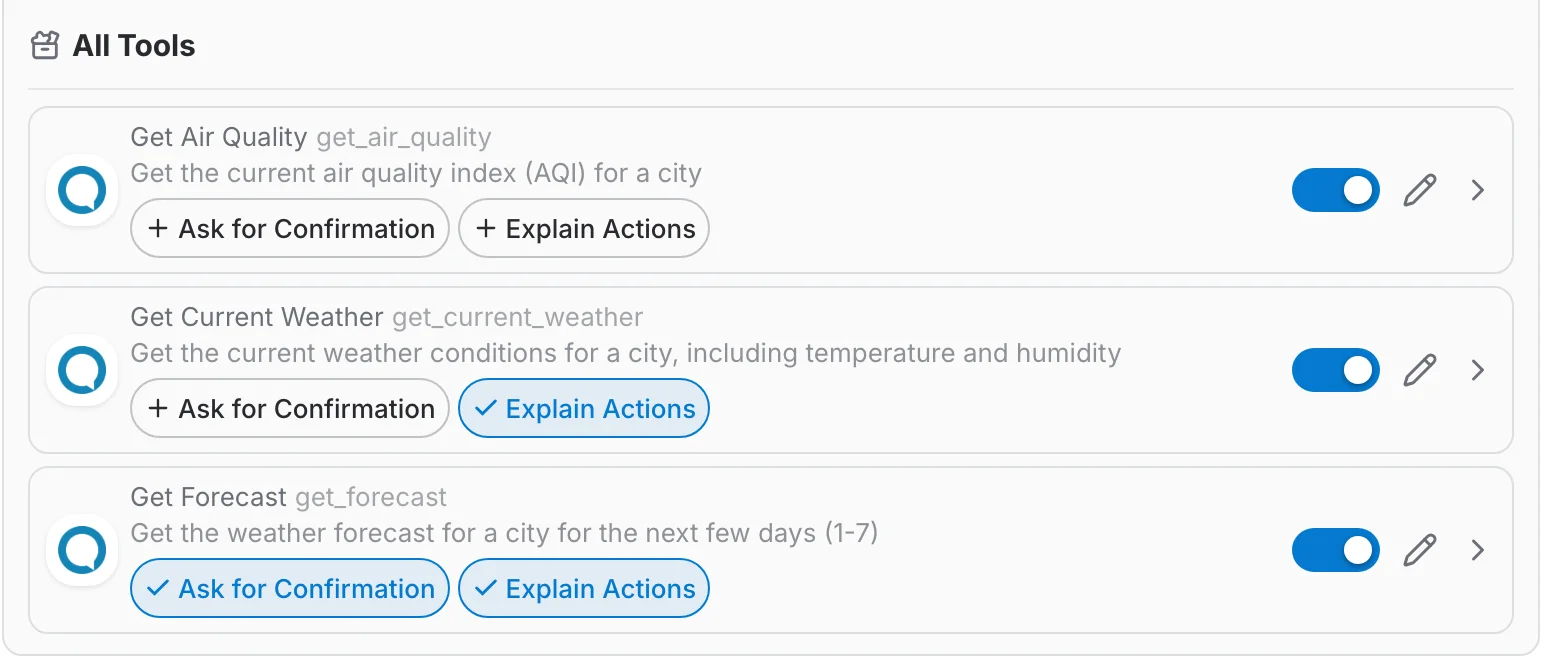
Each flag is set per scope: a platform administrator sets it for everyone, an organization administrator for the organization, a team administrator for the team, a user for themselves. A flag turned on at a higher scope wins: lower scopes see it ticked with a lock — This setting is managed by your administrator — and cannot turn it off. Every new tool starts with Explain Actions on at the scope of the server's owner, so on an organization's or the platform's servers members get it on and locked.
Who can do what
All users
- Create, edit and delete their own MCP servers, when the platform allows it — otherwise the MCP entry is not in their navigation.
- Create and delete their own connections.
- Choose which enabled servers each of their conversations uses.
Organization & team administrators
- Activate or deactivate servers for their organization or team. Organization administrators also manage the MCP page of every team in it.
- Pre-select servers for the scope and manage the servers it owns.
Platform administrators
- Manage system servers and core capabilities.
- Full access to every server and every scope.
Sharing a server with an organization or a team you do not administer sends a request to its administrators instead of sharing it right away. Removing an organization or team share of an MCP server is reserved for platform administrators.
Editing a server from any list
The same server can show up in several lists: your own MCP page, an organization's or a team's MCP page, and the platform list. The edit button (gear) appears on its tile in whichever list you are looking at, as long as you may manage that server:
- a server owned by an organization — the administrators of that organization;
- a server owned by a team — the administrators of that team and of the organization the team belongs to;
- a personal server — its owner;
- any server — platform administrators.
Opening a server you may manage, from its tile or its edit button, always takes you to its owner's settings: an organization's server opens on that organization's MCP page, a team's server on the team's MCP page, a personal server on your own MCP page, and a system server in the platform administration. The change is made once, at the source, and applies everywhere the server is shared.
Best practices
- Enable confirmation by default for every tool that writes, sends or deletes.
- Keep tool selections minimal — fewer, well-described tools make the AI more accurate.
- Prefer per-user secret fields over shared all-users headers for anything sensitive.
- Review the connections and tools of shared servers regularly.
- Keep Explain Actions on for tools that take more than a few seconds, so the wait is never a blank card; turn it off only for tools that answer instantly.