
My Account
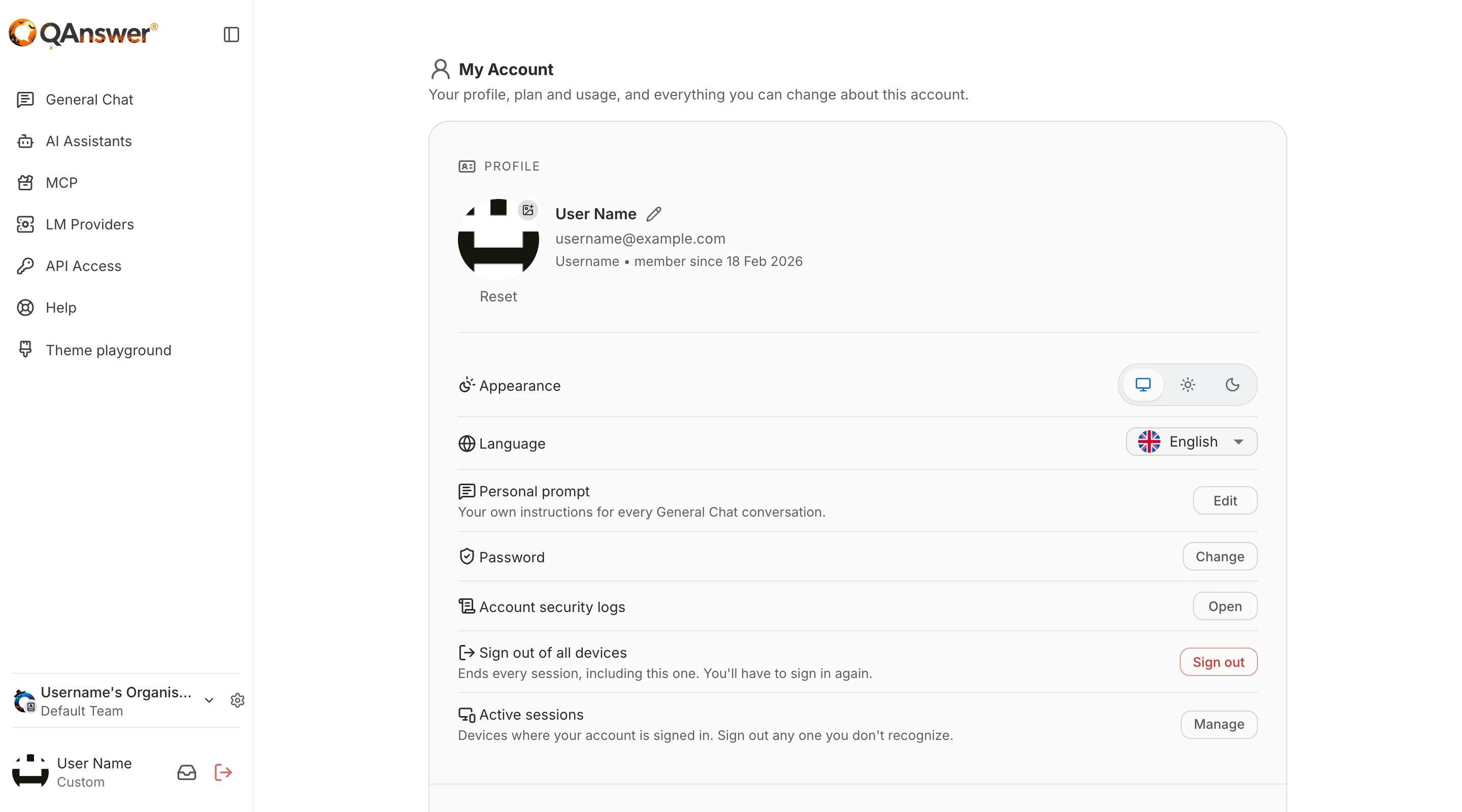
My Account gathers everything about your own account: who you are, how the app looks and speaks to you, the instructions you give the General Chat, your password and sign-in history, your plan and usage, and the actions that delete your data.
To open it, click your name at the bottom of the left sidebar.
Your profile
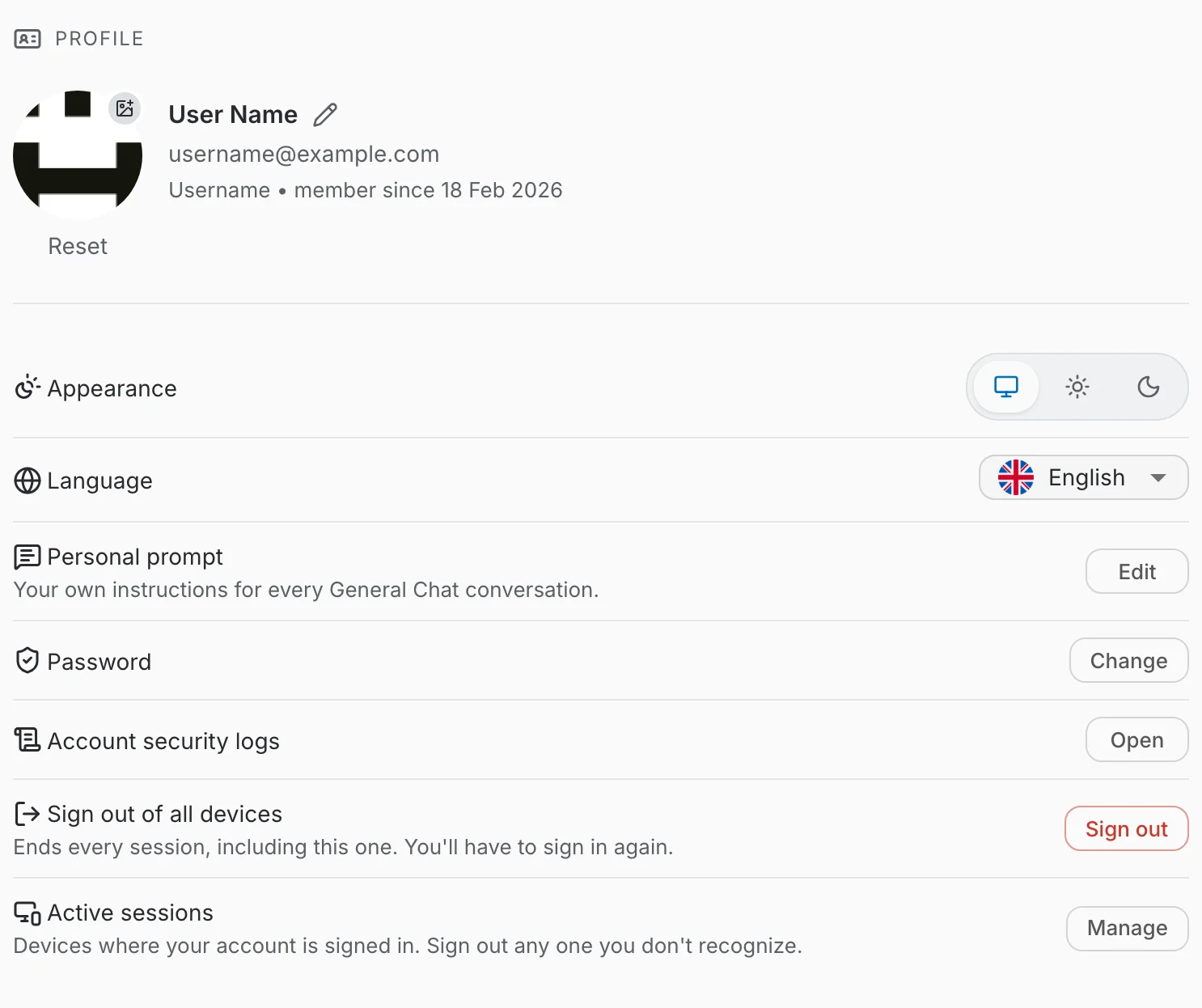
The top of the Profile section shows your name, your email address, your username and the date you joined.
- Avatar — click the picture to upload a new one. Reset, below it, brings back the default picture.
- Name — the pencil next to your name lets you change the display name shown across the app. It is missing when your administrator has turned name changes off.
- Username — the name you sign in with. Nobody can change it after registration.
Appearance and language
- Appearance — follow your system's theme, or force the light or dark theme.
- Language — the language of the interface. The change applies at once and is saved with your account, so it follows you on every device.
Personal prompt
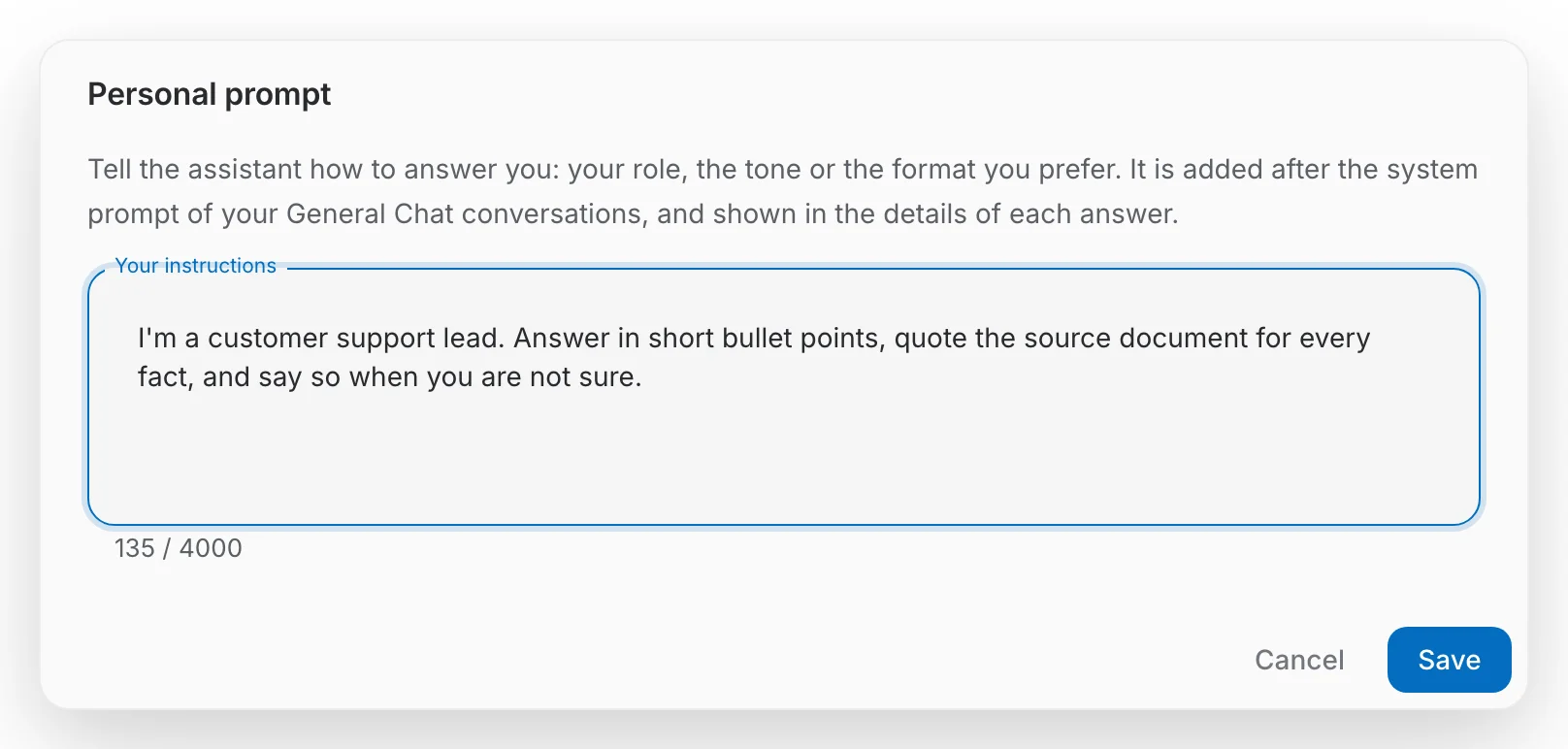
Your personal prompt is a set of instructions the General Chat follows in every conversation: your role, the tone you like, the format you want the answers in. Click Edit on the Personal prompt row, write your instructions, and click Save.
- It applies to the General Chat only. AI Assistants keep their own instructions.
- It is added after the system prompt, so the platform's instructions come first and win when the two disagree.
- The details of each answer show it as a Personal Prompt section of the prompt used, so you can check what the model received.
- It holds up to 4,000 characters. Empty the field and save to stop using it.
Changing your password
Click Change on the Password row. The dialog asks for your current password, then the new one twice.
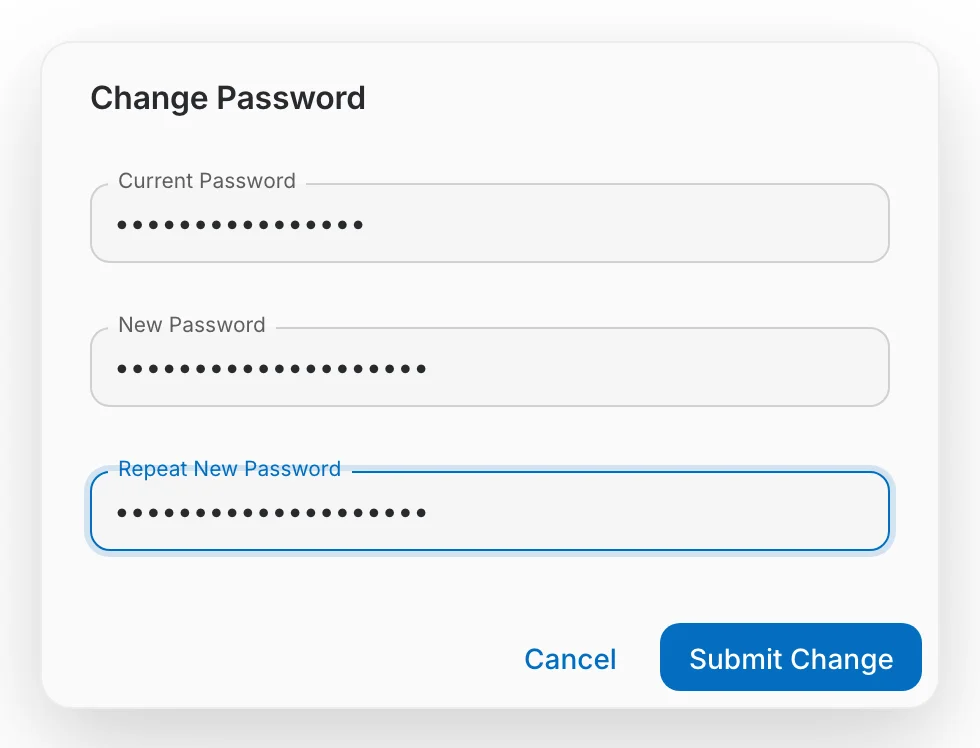
- The new password is checked against the platform's password rules as you type, and the message under the field says what is missing.
- If the current password is wrong, nothing changes, an error says so, and the failed attempt is recorded in your security logs.
- Once the change is saved, every other session is signed out. You stay signed in on the device you used.
The Password row is missing when your account has no password of its own, because you always sign in with an external provider such as Google or Microsoft, or when your platform only allows those providers. Change the password with that provider instead.
Account security logs
Click Open on the Account security logs row to see what happened on your account: every sign-in attempt, sign-out and failed password change, along with switches of organization or team, AI requests and API key changes. Each line gives the date, the event, the IP address it came from and, for some events, a parameter such as the organization concerned.
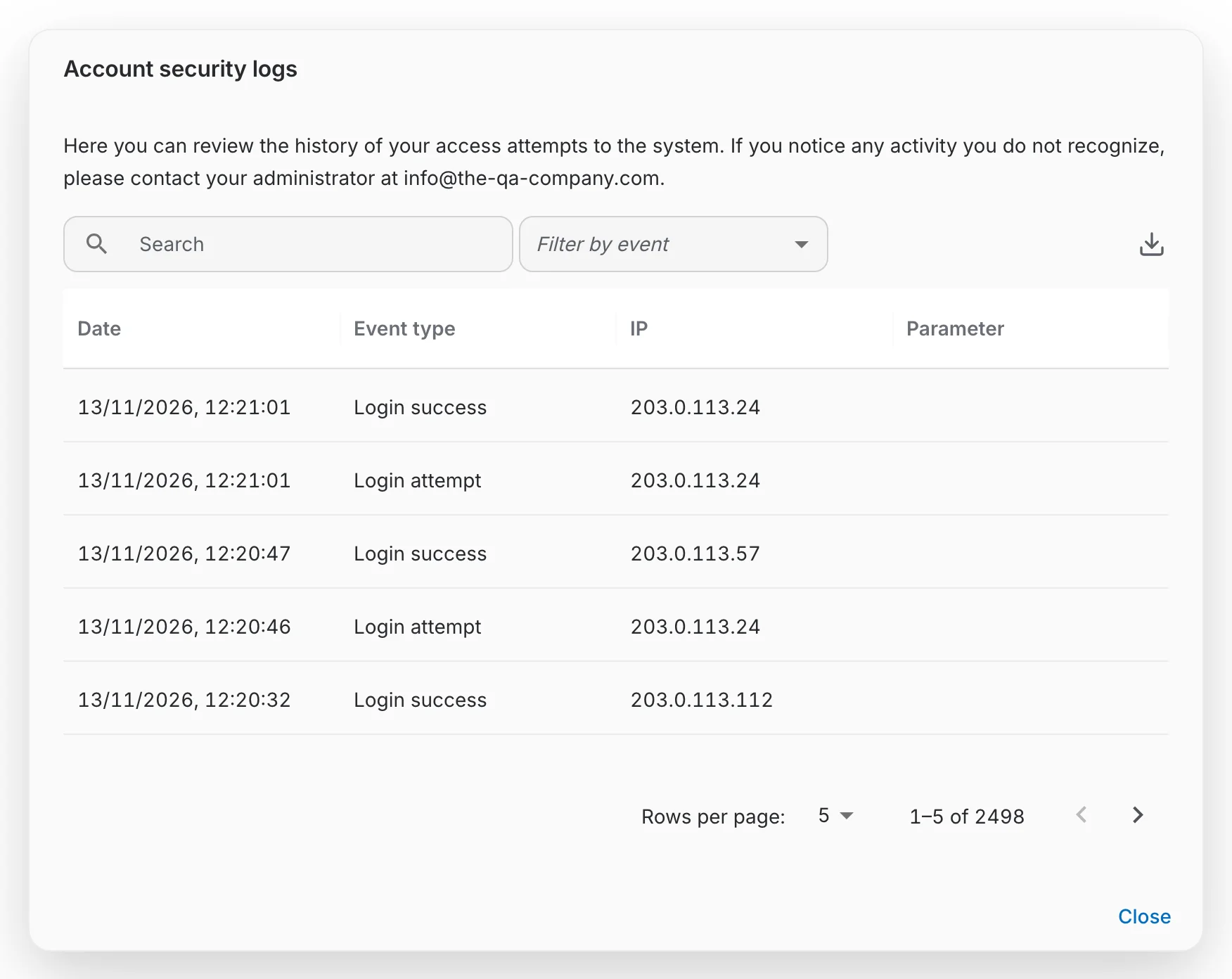
- Search — narrows the list to lines that contain the text you type.
- Filter by event — keeps one kind of event, such as failed logins.
- Download — the icon on the right saves the lines that match the search and filter as a CSV file.
Signing out
- Sign out of all devices — click Sign out to end every session, this one included. You have to sign in again everywhere.
- Active sessions — click Manage to see each device where you are signed in and sign out only the ones you choose. See Active Sessions.
Plan and usage
Below the Profile section, Current plan shows the plan your account runs on and Usage what you have consumed against it. Both are explained in Quotas.
Danger zone
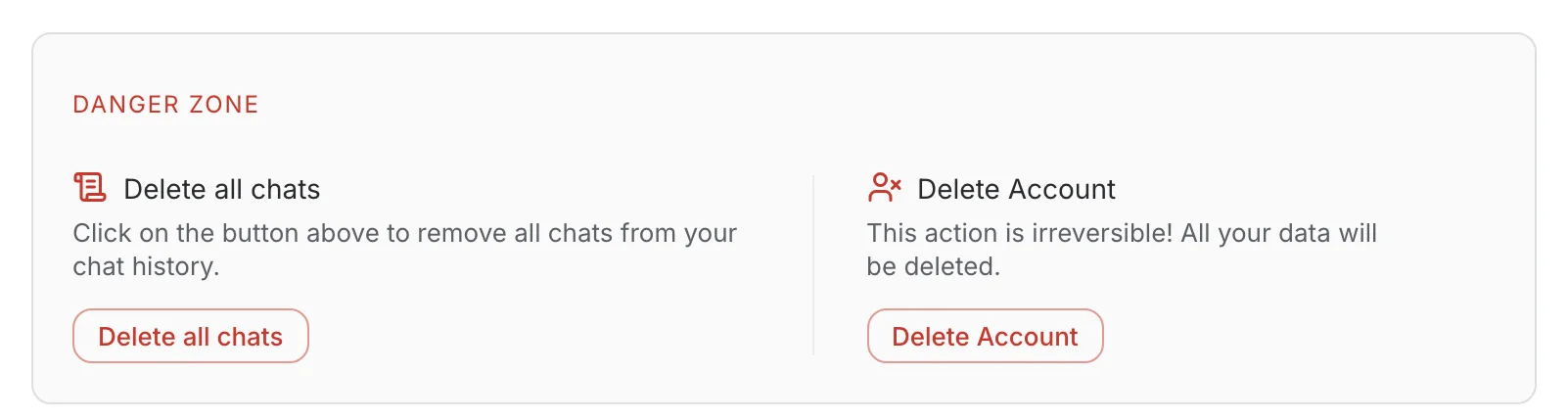
The last section holds the two actions that delete data. Neither can be undone.
Deleting your chats
Despite its name, Delete all chats asks how much to keep. Set Keep last to a number of days, months or years: the line below shows the date before which your conversations will be deleted. Click Delete to remove them.
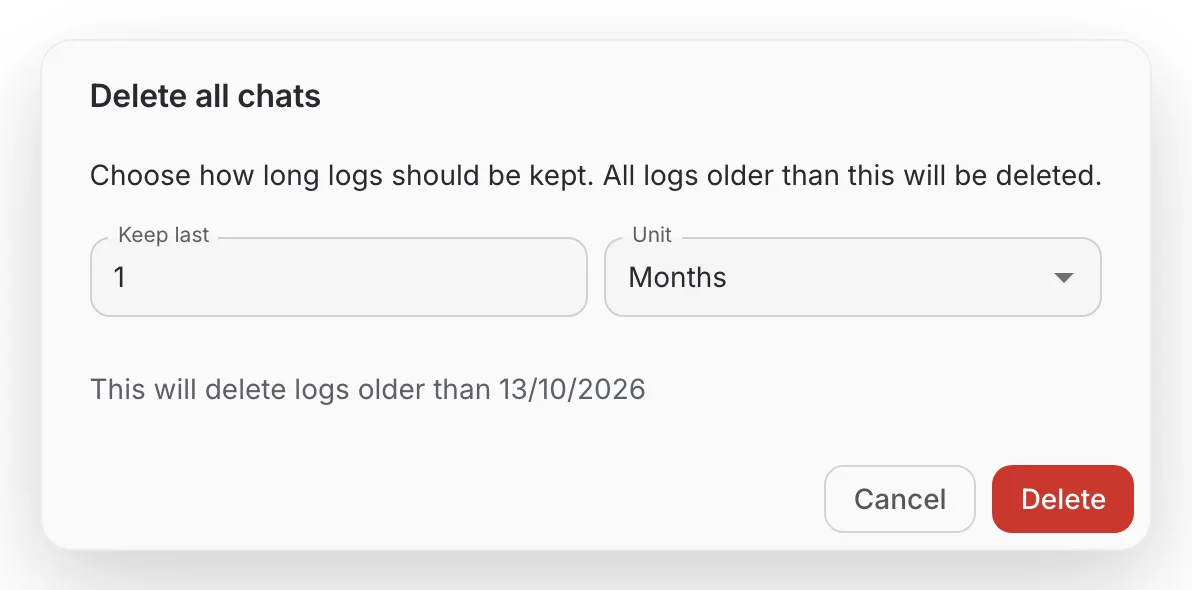
The shortest you can keep is the last day, so conversations from the past 24 hours always stay.
Deleting your account
Click Delete Account, type your username to confirm, and click Delete Account again. Your account and all its data are deleted and you are taken back to the login page.