
Open in AI Excel
Spreadsheets in a chat, whether you attached them or the chat produced them, can be previewed in place and opened in the AI Spreadsheet task in one click. There you keep working on the same data with AI formulas, without downloading and re-uploading the file.
Spreadsheets in a chat
A spreadsheet reaches a conversation in one of two ways, and both show up as the same file card:
- Files you attach — click + → Document below the message box, pick the file, then send your message. The card appears above your question.
- Files the chat creates — when you ask for an Excel file, the chat writes it with Code Execution and attaches it to its answer.
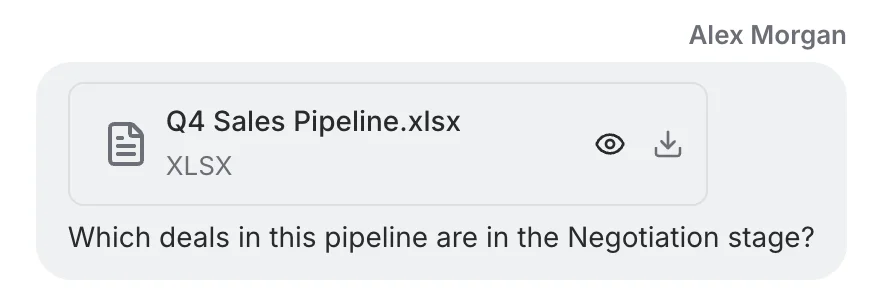
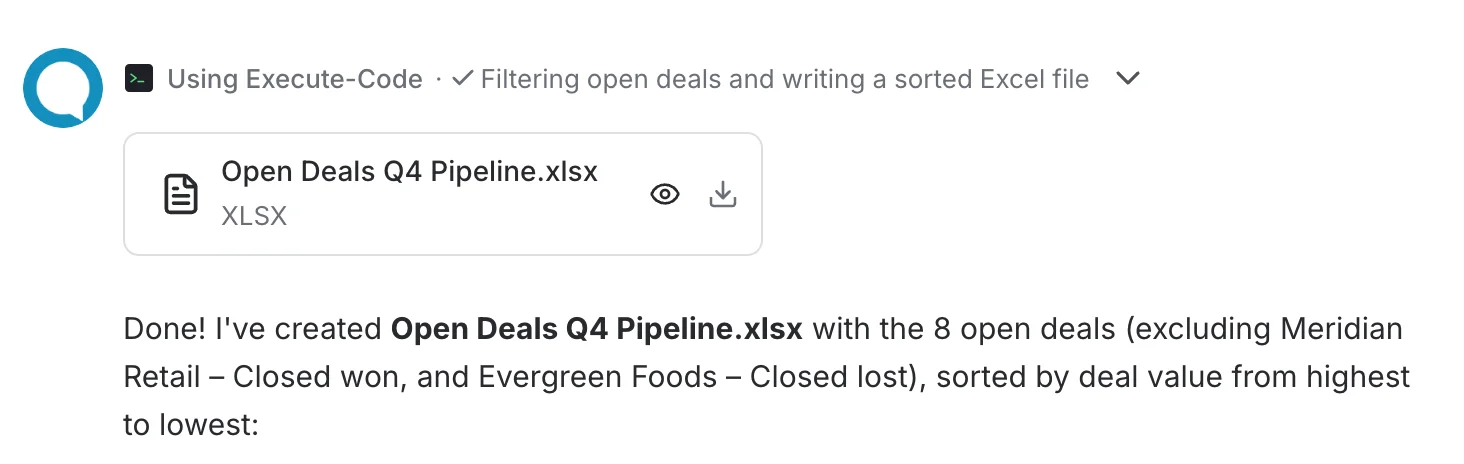
The preview and the Open AI Excel button are offered for Excel and OpenDocument spreadsheets (.xlsx, .xlsm, .xls and .ods). CSV files get a plain table preview without the button.
Preview the sheet
Click the file card, or the eye icon on it, to open the preview. The sheet is drawn as a read-only grid with column letters and row numbers. Each column is sized to the text it holds, so long values such as company names stay readable while short codes take little room.
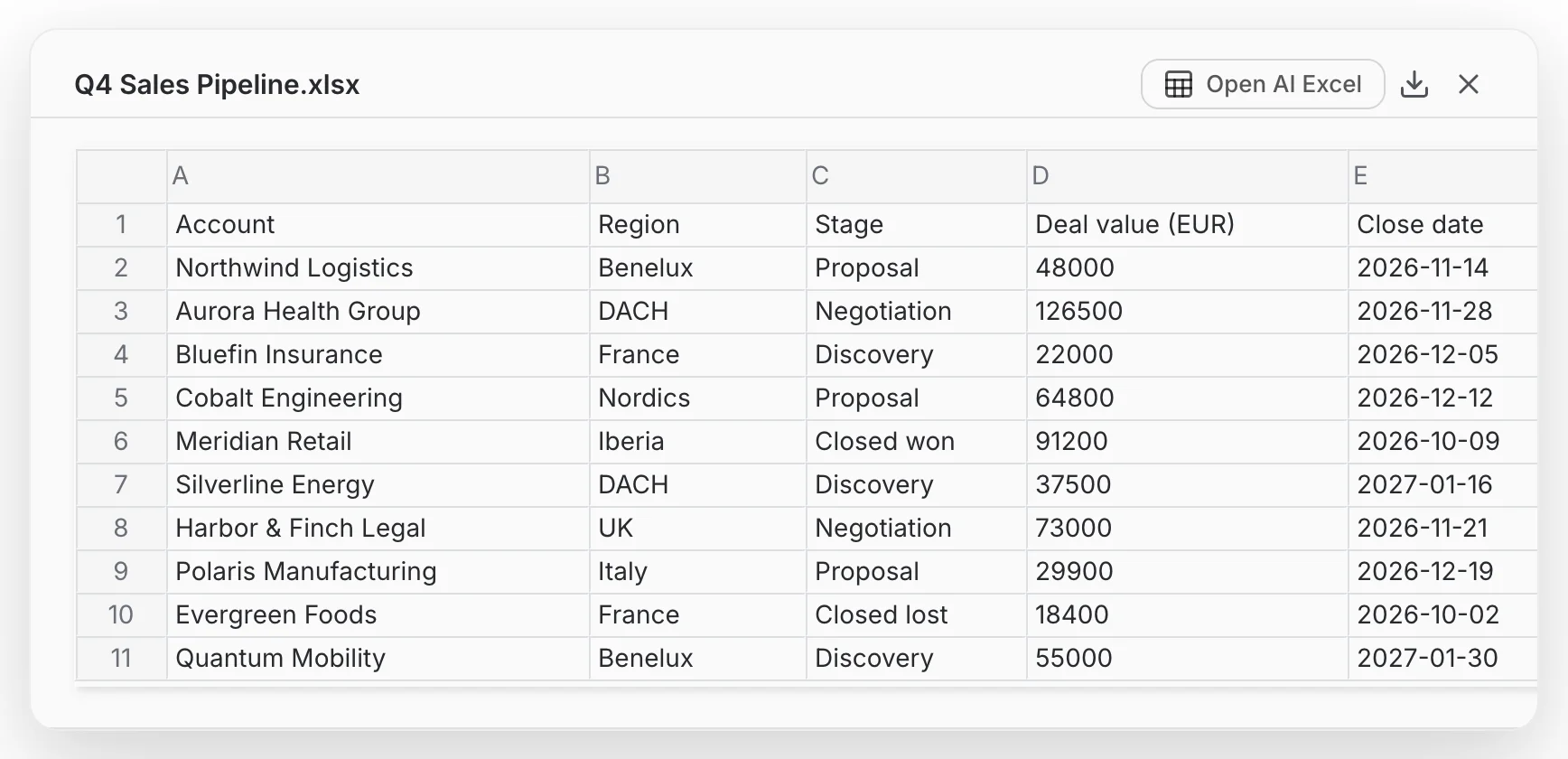
The header of the preview holds three actions:
- Open AI Excel — opens the file in the AI Spreadsheet task, in a new browser tab.
- Download — saves the original file to your computer.
- Close — returns to the conversation.
Open it in AI Spreadsheet
- Open the preview of the spreadsheet you want to work on.
- Click Open AI Excel. A new tab opens on the AI Spreadsheet task; your conversation stays open in the first tab.
- The file is loaded into the grid, every sheet included, and the title bar takes the file's name without its extension (Q4 Sales Pipeline.xlsx becomes Q4 Sales Pipeline).
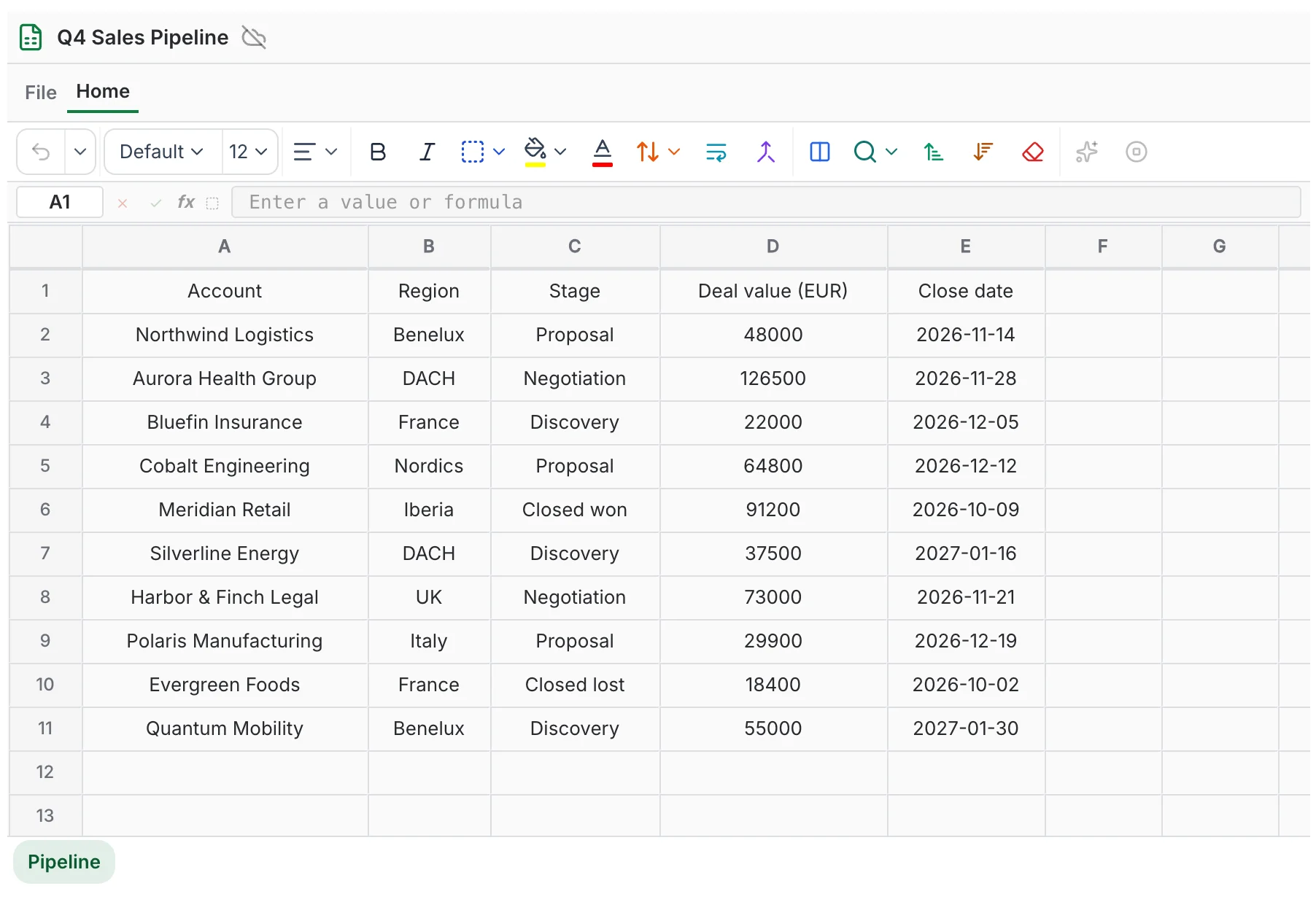
From here the spreadsheet behaves like any other: add columns, write prompts in cells and let the assistant fill them. See AI formulas.
Which assistant answers
The spreadsheet opens in the context of the chat the file came from. A file from General Chat uses General Chat; the first time you open one, its AI Spreadsheet settings are created for you, so there is nothing to configure. A file from an AI Assistant chat uses that assistant, so AI formulas answer from the assistant's data and settings.
Saving your work
- The tab works on a copy. Edits you make there don't change the file in the chat, and the chat's file doesn't update the spreadsheet.
- Nothing is stored until you use File → Save . Until then the crossed-out cloud next to the title marks the spreadsheet as unsaved. Saving creates a new spreadsheet; it never overwrites one you saved earlier.
- Reloading the tab doesn't import the file a second time, so an unsaved copy is lost on reload. Save first if you want to keep your changes.
Troubleshooting
- There is no Open AI Excel button. The AI Spreadsheet task is not available to you, or the file is not a spreadsheet the preview can read (see the formats above). The button is also absent from the preview of a file you have not sent yet; send the message first.
- The button is greyed out. The file is still being processed. Wait for the message to finish, then try again.
- "Invalid spreadsheet file" appears in the new tab. The file could not be read as a spreadsheet, or it contains no sheet. Download it and check that it opens in Excel or LibreOffice.