
Active Sessions
Every browser or app where you sign in to QAnswer opens a session. Active sessions lists them all, so you can check where your account is in use and sign out any session you no longer need, such as a shared computer or a lost phone.
Open your sessions
- Open your profile page: click your name at the bottom of the left sidebar.
- In the Active sessions row, click Manage. The list is loaded fresh each time you open it.

Reading the list
The dialog groups your sessions in two parts:
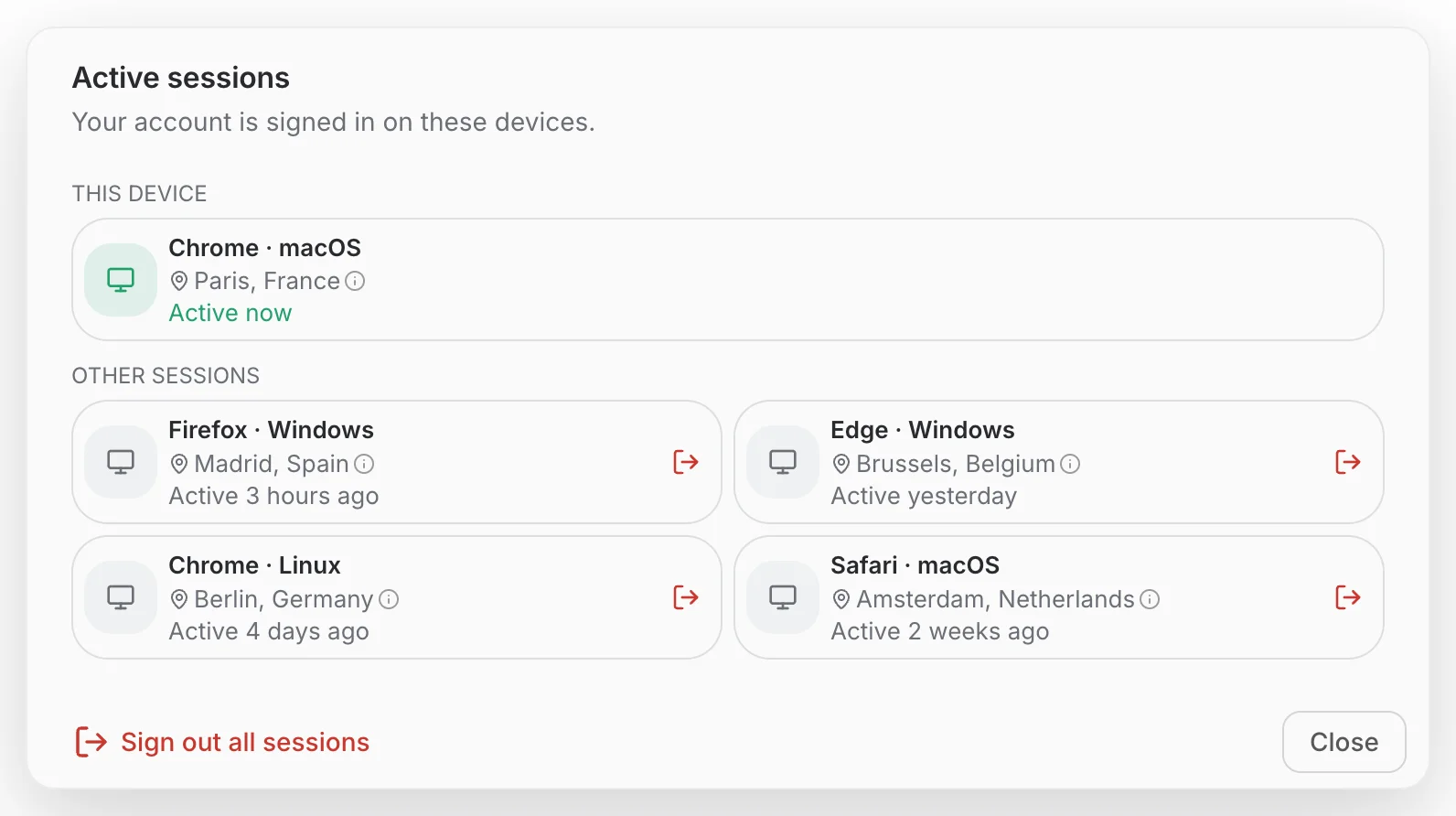
- This device — the session you are using right now, highlighted in green. It has no sign-out button here; use Sign out of all devices or the sign-out button in the sidebar instead.
- Other sessions — every other place your account is signed in, newest first. When there are none, the dialog says You're not signed in anywhere else.
What each card shows
- Device — the browser and operating system, for example Firefox · Windows. Phones and tablets show the device model when the browser reports it, with a phone icon instead of a screen.
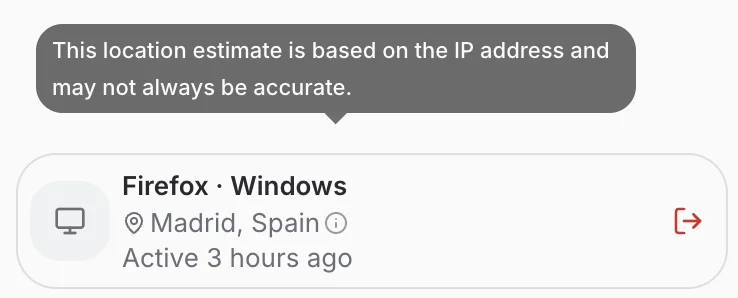
- Location — the city and country estimated from the IP address the session signed in from. It is an approximation: a VPN, a company proxy or a mobile network can place you in another city.
- Activity — when the session last renewed its sign-in, such as Active 3 hours ago. Hover over it to see the exact date and time.
The small info icon after each location is a reminder of this. Hover over it, or tap it on a phone, to read the note.
Sign out a session
- Find the session in Other sessions.
- Click the red sign-out icon on its card, then confirm with Sign out.
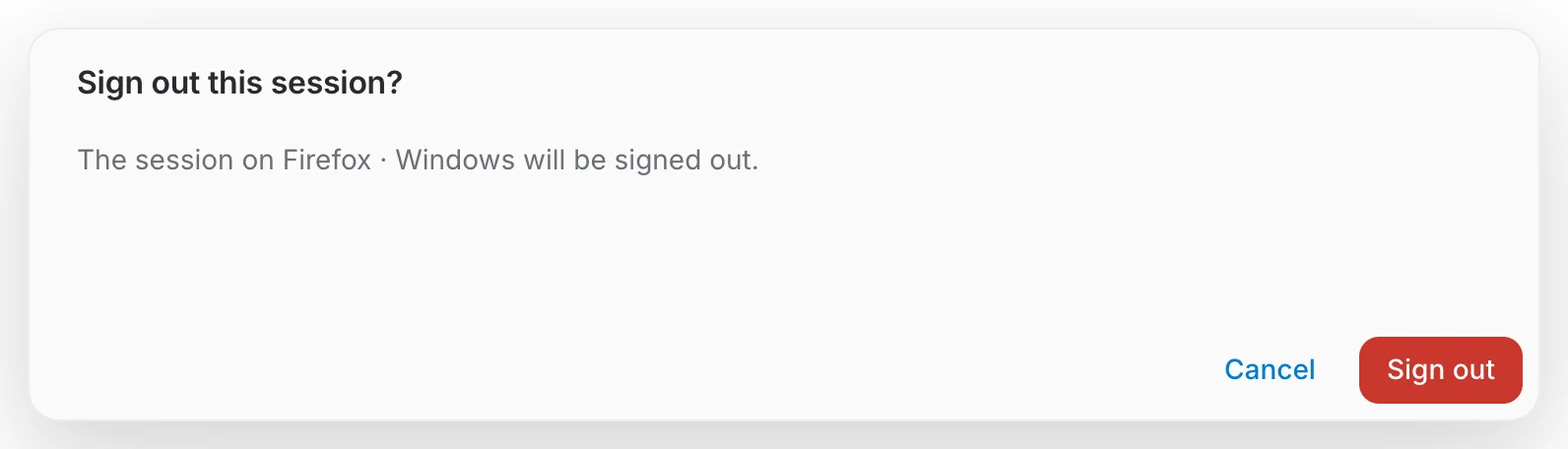
The session disappears from the list. The device it belonged to is signed out on its next request and has to sign in again; your other sessions are not affected.
Sign out all sessions
To end every session except the one you are using, click Sign out all sessions at the bottom of the dialog. The confirmation tells you how many sessions will end.
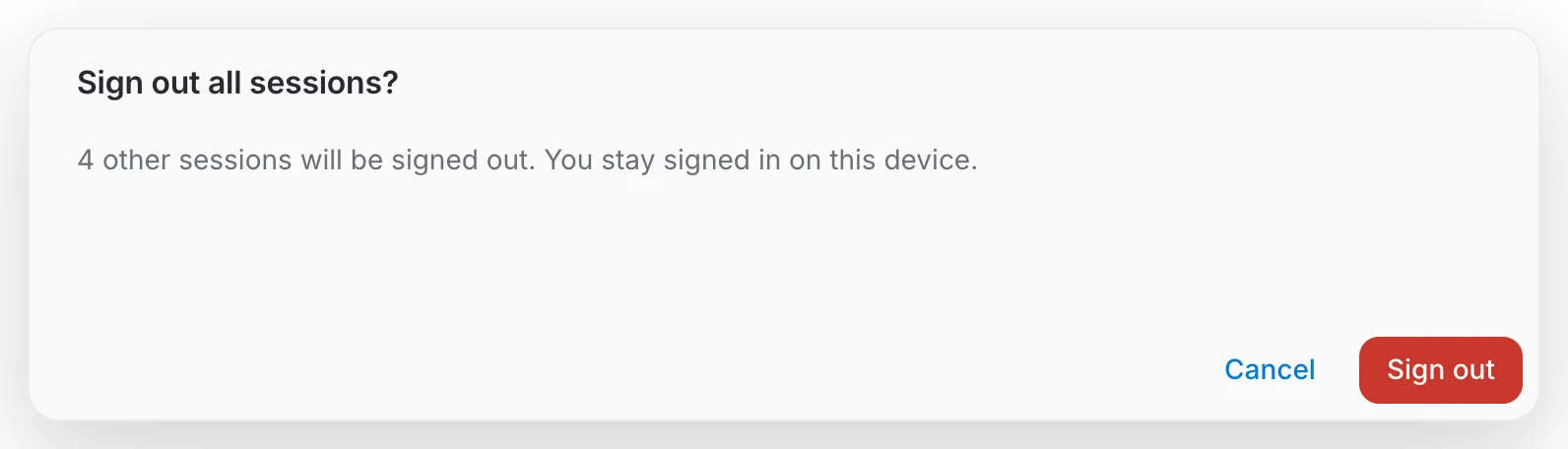
Despite its name, this button keeps you signed in on this device: only the other sessions end. It only appears when there is at least one other session and QAnswer has recognized which session is yours. To end this session too, use Sign out of all devices on the profile page.
Troubleshooting
- There is no This device section. QAnswer could not tell which session is yours, so all sessions are shown in one list and Sign out all sessions is hidden. Reload the page; if it persists, sign out and sign in again.
- A card says Unknown device. The browser or app that signed in did not identify itself. This is common for API clients and scripts.
- Couldn't load your sessions. The list could not be fetched. Click Retry in the message; if it keeps failing, check your connection or contact your administrator.