
Use in Other Clients
Every remote MCP server in QAnswer that needs no authentication can also be used outside QAnswer — from Claude Code, Cursor, VS Code or any other MCP client — with a QAnswer API key. QAnswer checks the key and passes each tool call on to the server.
Connect a client
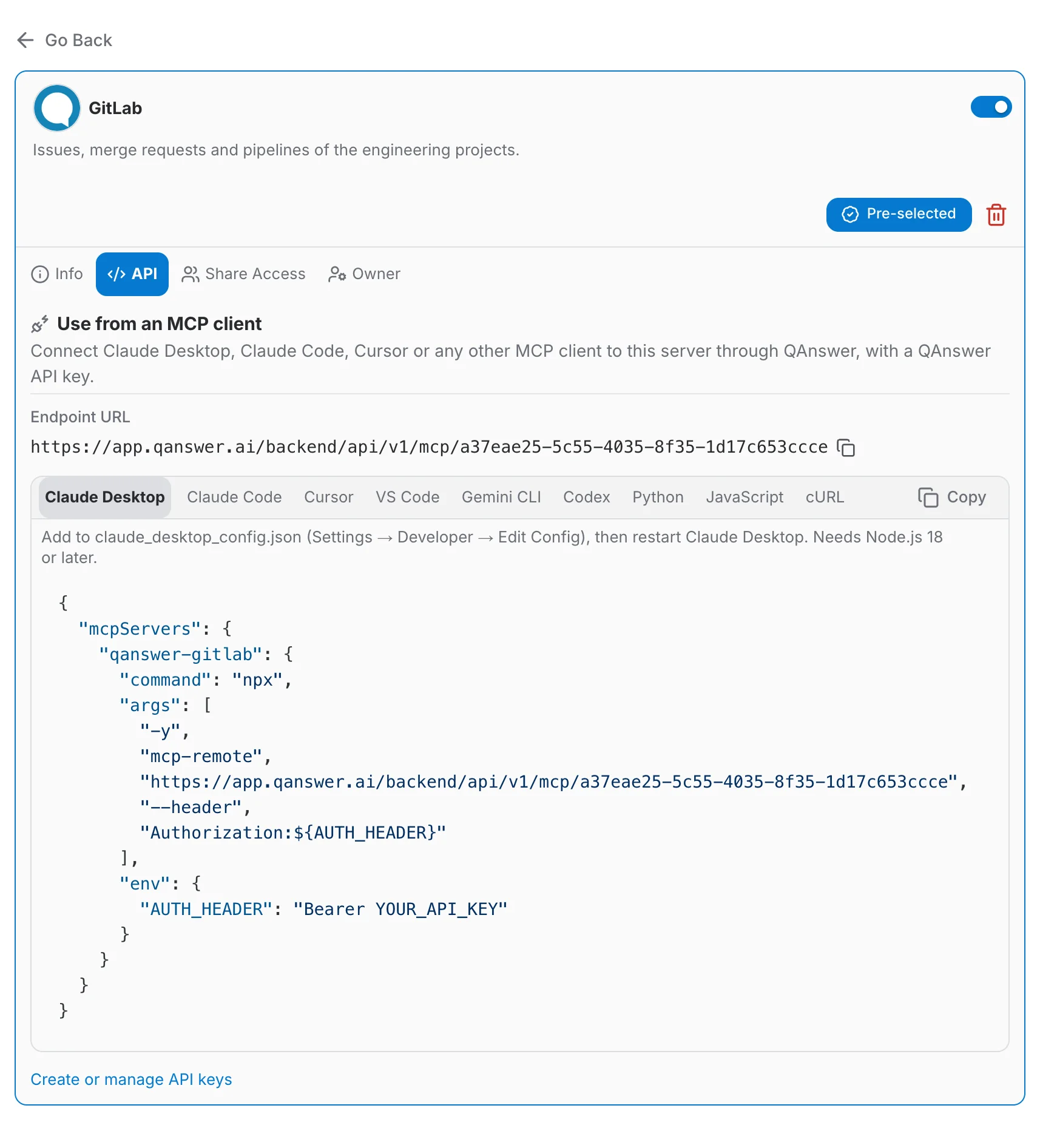
- Open the MCP server and select its API tab. Only servers whose authentication is set to None have one: servers that use an API key or OAuth, and QAnswer's built-in servers such as Web, have no API tab.
- Copy the endpoint URL, or the ready-made setup for your client: Claude Desktop, Claude Code, Cursor, VS Code, Gemini CLI, Codex, Python, JavaScript or cURL. The line above each one says where it goes.
- Create a key on the API Access page and put it in place of YOUR_API_KEY. The key's API tab has the same snippets, with the key already filled in.
What the client gets
- The server's tools that are switched on in QAnswer, with the descriptions set in QAnswer.
- Remote servers without authentication only: servers set to API Key or OAuth are not offered, and Web, Image Generation, Code Execution and the other built-in servers stay inside QAnswer.
- Approving tool calls is up to the client: QAnswer's ask-for-confirmation setting applies to its own chat only.
For the endpoint itself — authentication, keys bound to one server, limitations and errors — see MCP Server Endpoint.