
Speech-to-Text Providers
Overview
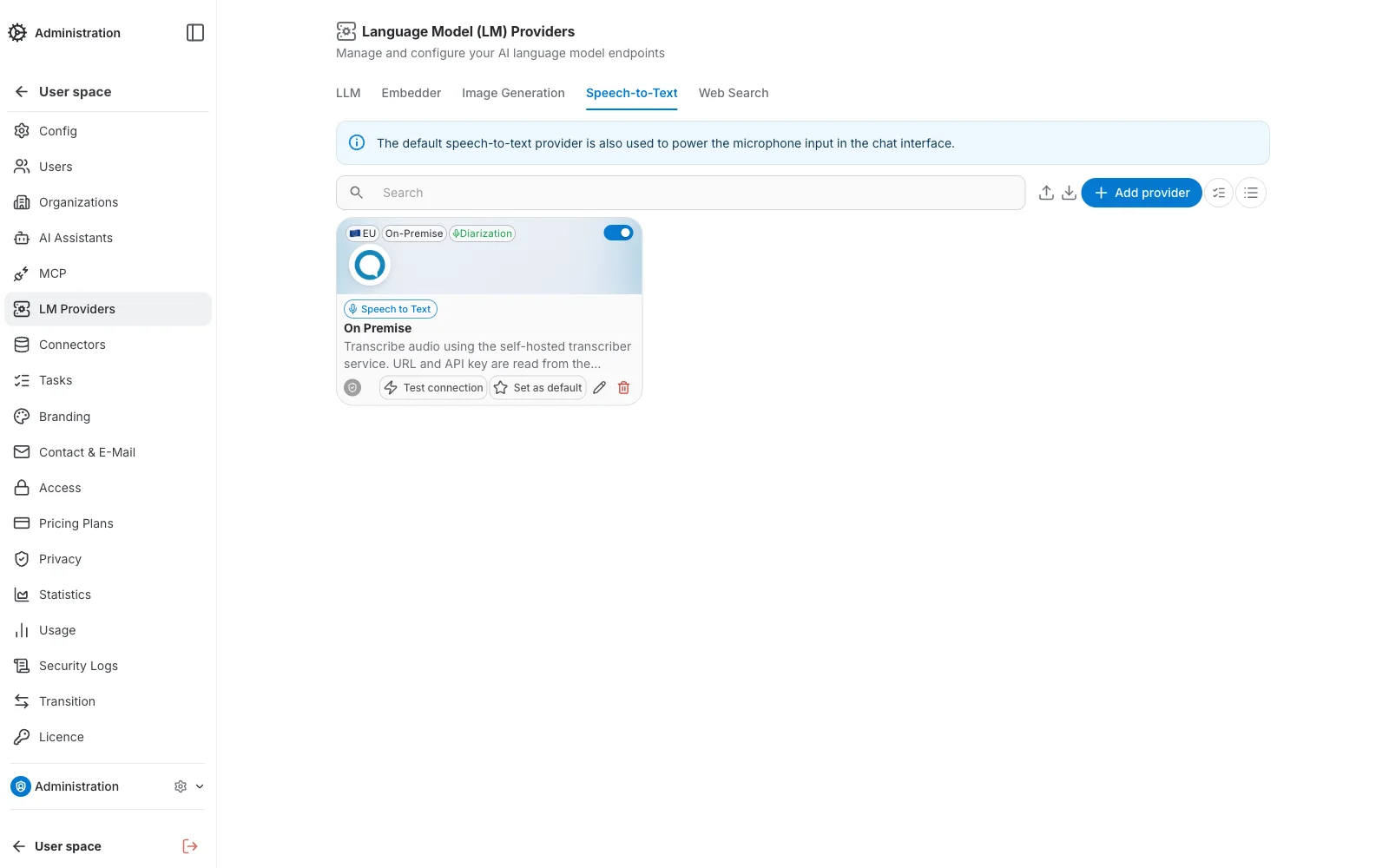
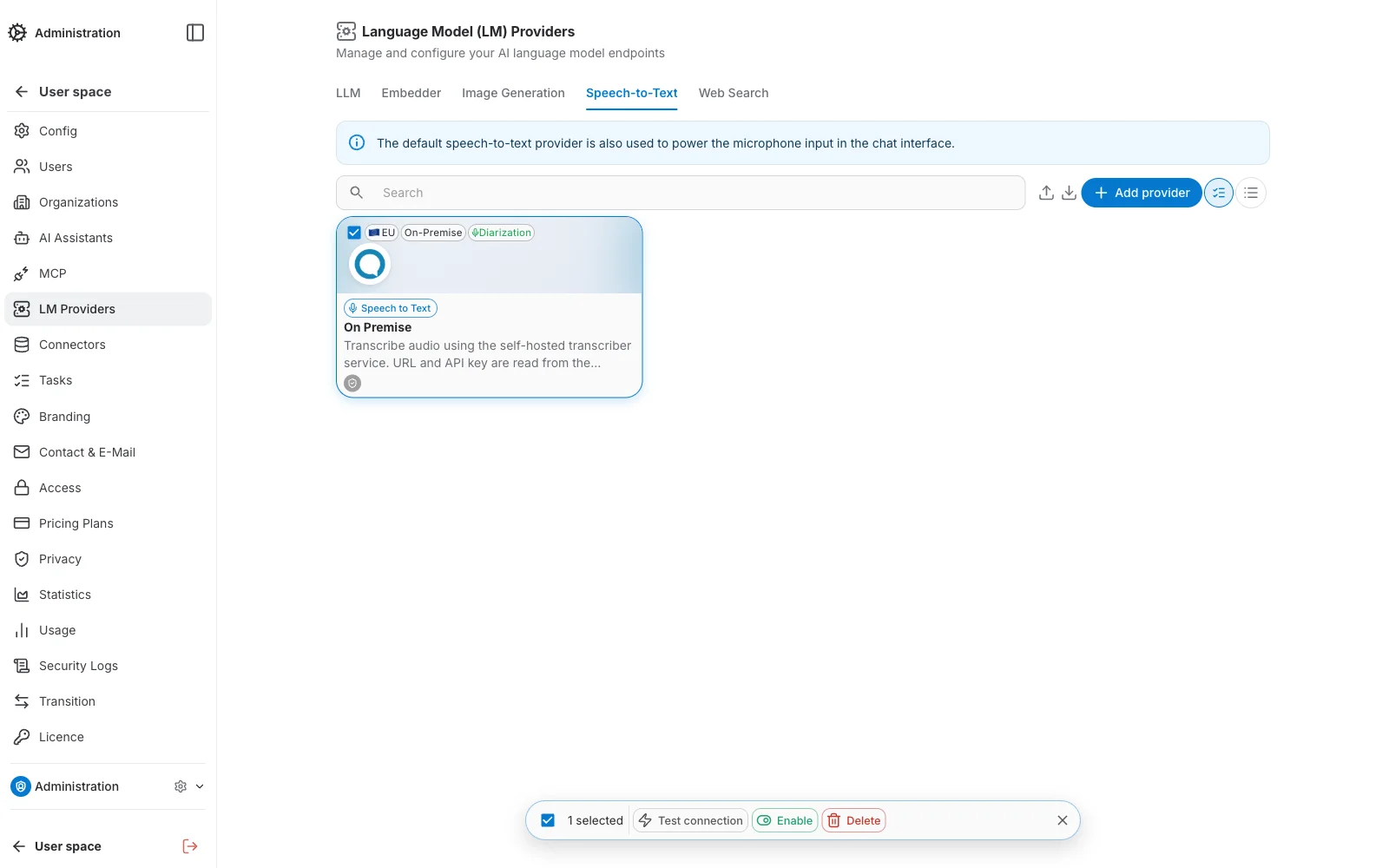
The Speech-to-Text tab, under LM Providers, manages the providers QAnswer uses to transcribe audio — this powers the microphone input in the chat interface:
Adding a Provider
Click Add provider to open the two-step creation wizard.
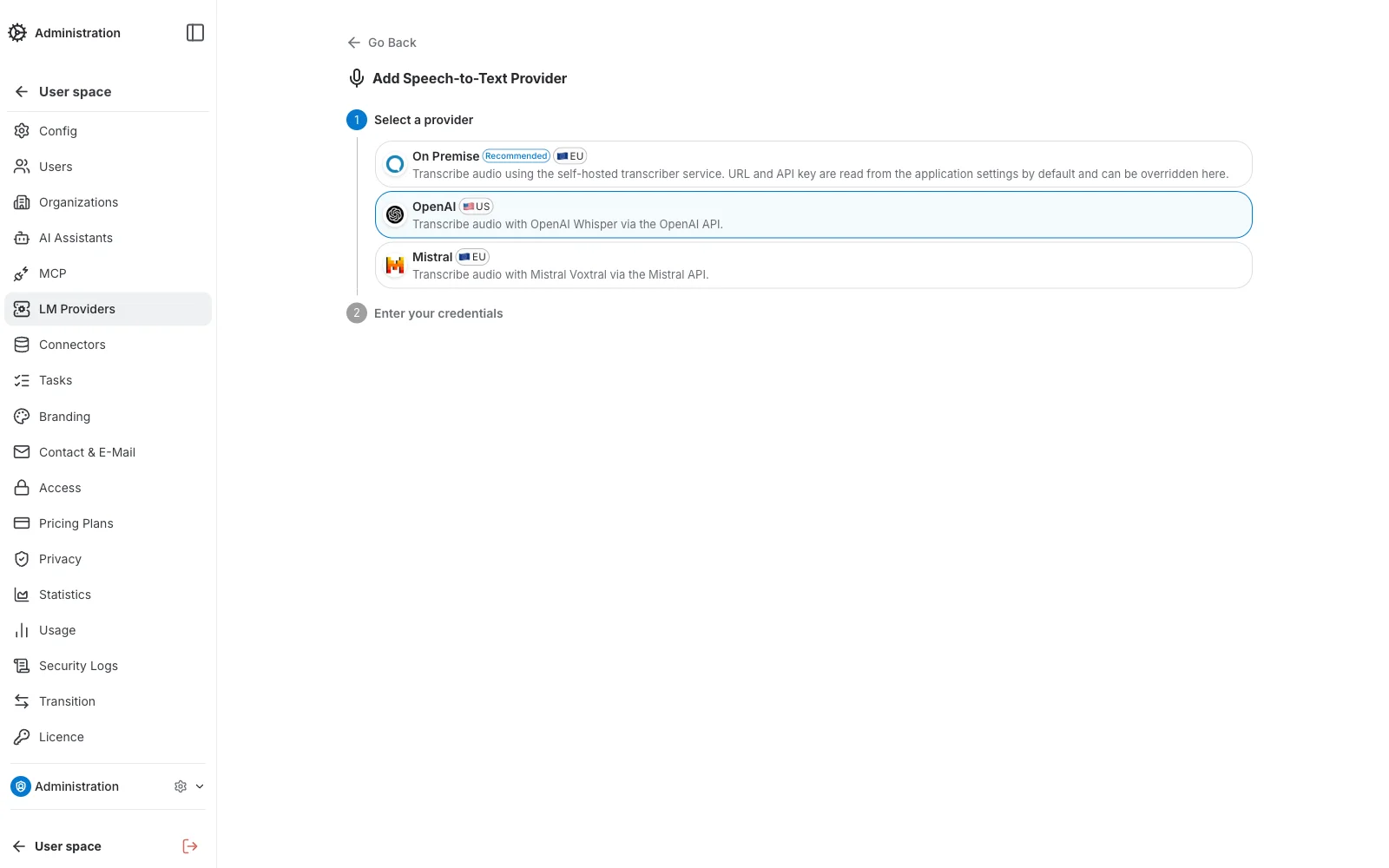
Step 1 — Select a provider
Pick a provider tile. On Premise offers speaker diarization support and reads its URL/API key from the application settings by default. The available providers are:
- On Premise — 🇪🇺 EU-hosted · RecommendedTranscribe audio using the self-hosted transcriber service. URL and API key are read from the application settings by default and can be overridden here. Supports speaker diarization.
- OpenAI (Whisper) — 🇺🇸 US-hostedTranscribe audio with OpenAI Whisper via the OpenAI API.
- Mistral (Voxtral) — 🇪🇺 EU-hostedTranscribe audio with Mistral Voxtral via the Mistral API.
Step 2 — Configure credentials
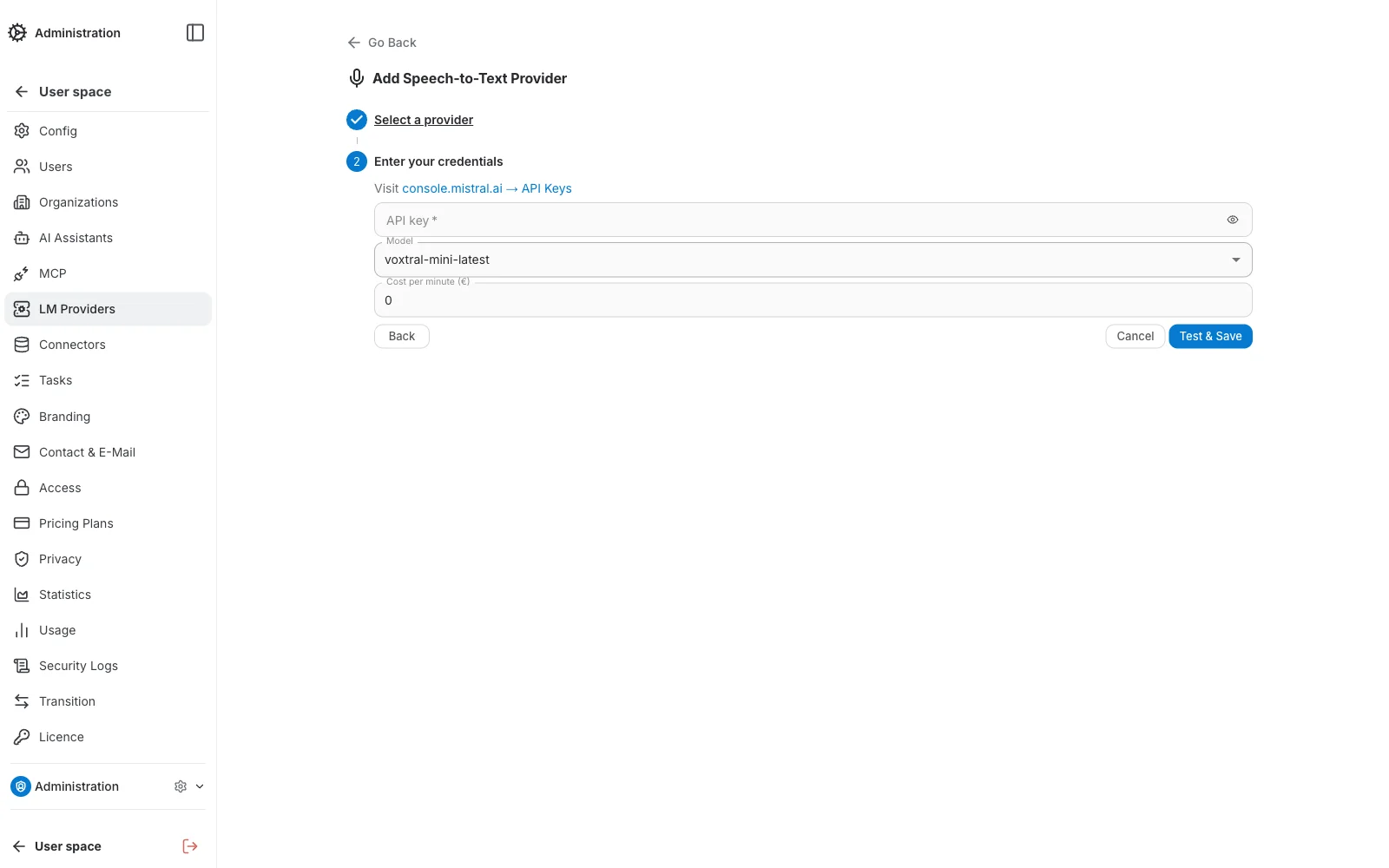
Unlike LLM/Embedder providers, Speech-to-Text providers have no internal/display name — the form is a single short section:
- API key — the provider's credential (not required for On Premise, which falls back to the application's own settings).
- Model — the transcription model to use, picked from the models the provider actually supports.
- Cost — cost per minute of transcribed audio, used for usage reporting.
Required-field validation
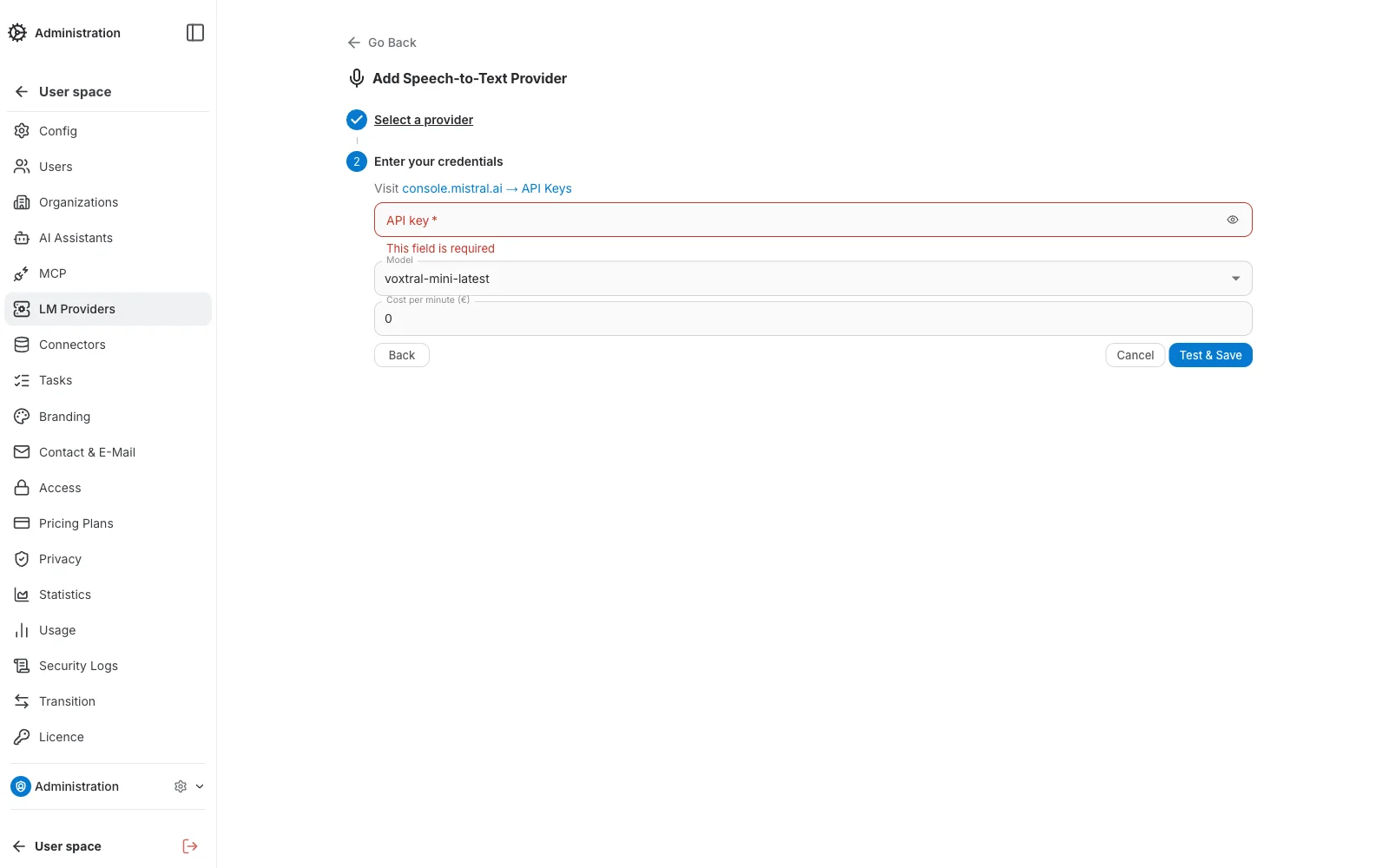
Submitting the form with a required API key empty highlights it in red with an inline error message, so it's easy to spot before saving.
Managing Existing Providers
Each provider card lists its Test connection, Set as default, Edit, and Delete actions. Above the list, a few tools help manage larger sets of providers:
- Search — filters the list by name as you type.
- Grid / List toggle — switches between a card grid and a compact list layout.
- Select mode — checks off multiple providers to run a bulk Test connection, Enable, or Delete from the batch bar that appears at the bottom of the screen.
- Edit — opens the provider on a dedicated page, read-only until you click Edit; the same form as creation.
Import and Export
You can import or export the list of speech-to-text providers of your organization in JSON format using the toolbar buttons above the list.
Use the search box before exporting to only include the providers matching your current search filter — handy for exporting a subset of a large list.