
Embedder Providers
Overview
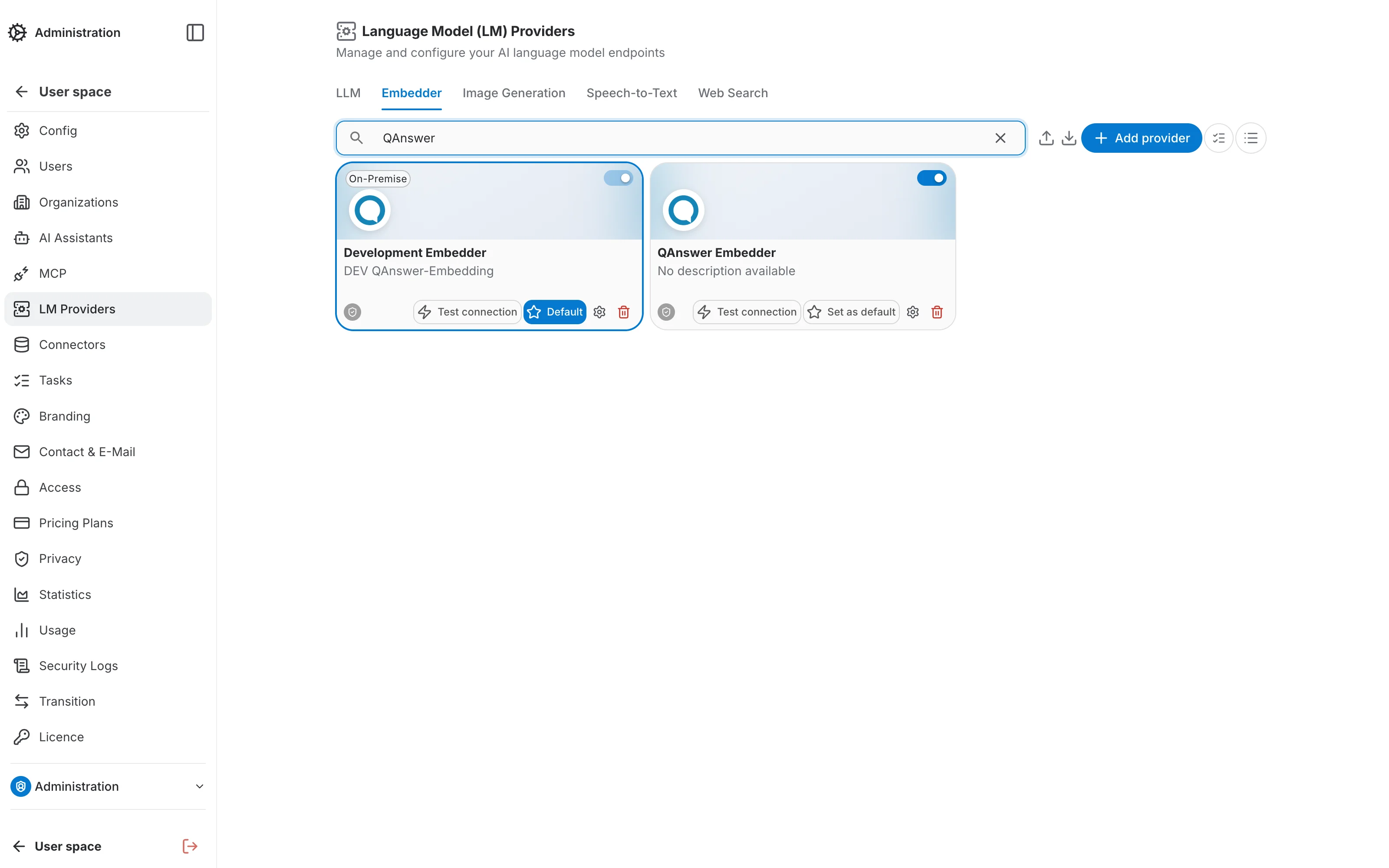
The Embedder tab, under LM Providers, manages the text embedding models QAnswer uses to index and search your data:
Adding a Provider
Click Add provider to open the two-step creation wizard.
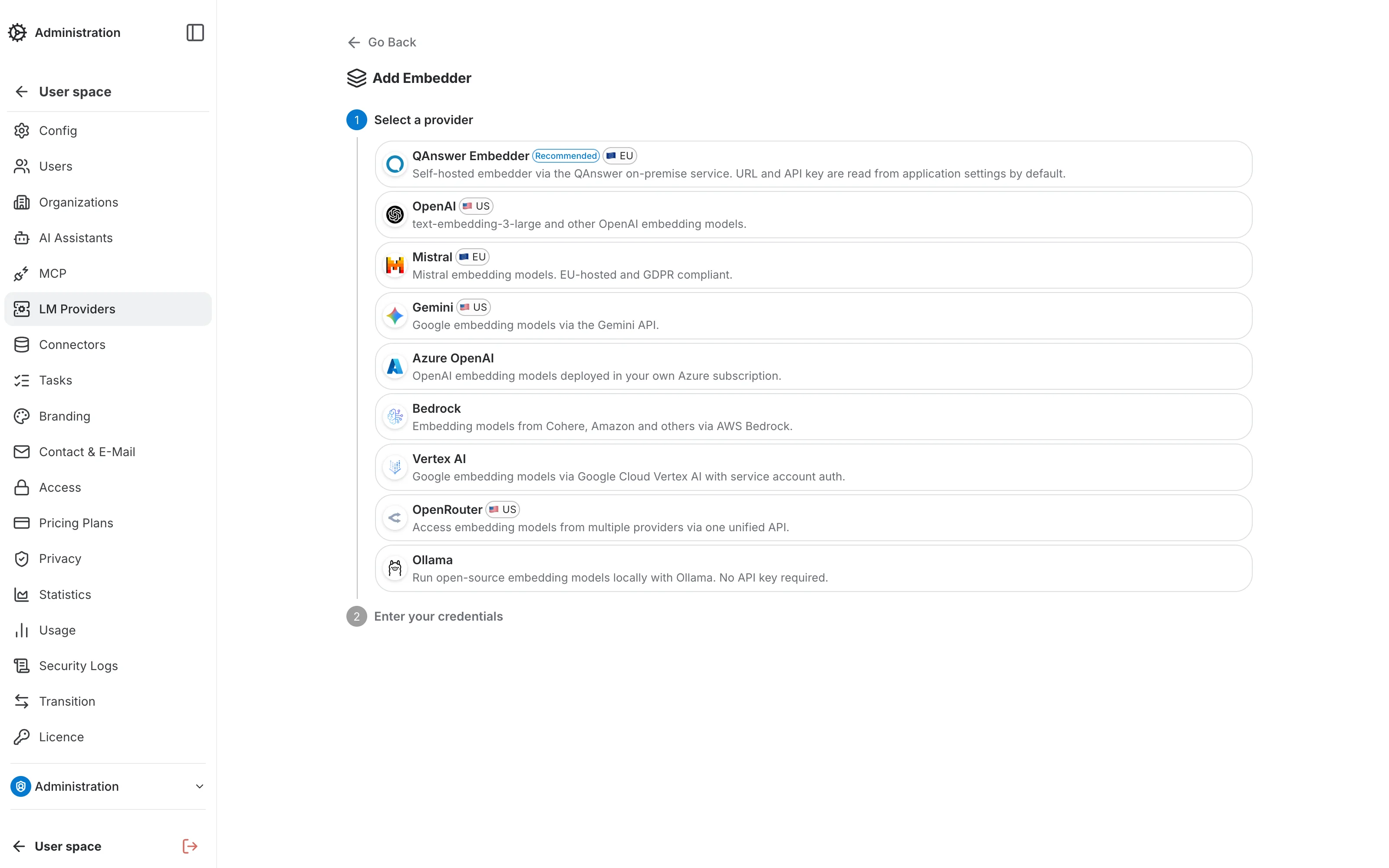
Step 1 — Select a provider
Pick a provider tile. The "QAnswer Embedder" tile is recommended for self-hosted, on-premise models — its URL and API key are read from the application settings by default. The available providers are:
- QAnswer Embedder — 🇪🇺 EU-hosted · RecommendedSelf-hosted embedder via the QAnswer on-premise service. URL and API key are read from application settings by default.
- OpenAI — 🇺🇸 US-hostedtext-embedding-3-large and other OpenAI embedding models.
- Mistral — 🇪🇺 EU-hostedMistral embedding models. EU-hosted and GDPR compliant.
- Gemini — 🇺🇸 US-hostedGoogle embedding models via the Gemini API.
- Azure OpenAIOpenAI embedding models deployed in your own Azure subscription.
- BedrockEmbedding models from Cohere, Amazon and others via AWS Bedrock.
- Vertex AIGoogle embedding models via Google Cloud Vertex AI with service account auth.
- OpenRouter — 🇺🇸 US-hostedAccess embedding models from multiple providers via one unified API.
- OllamaRun open-source embedding models locally with Ollama. No API key required.
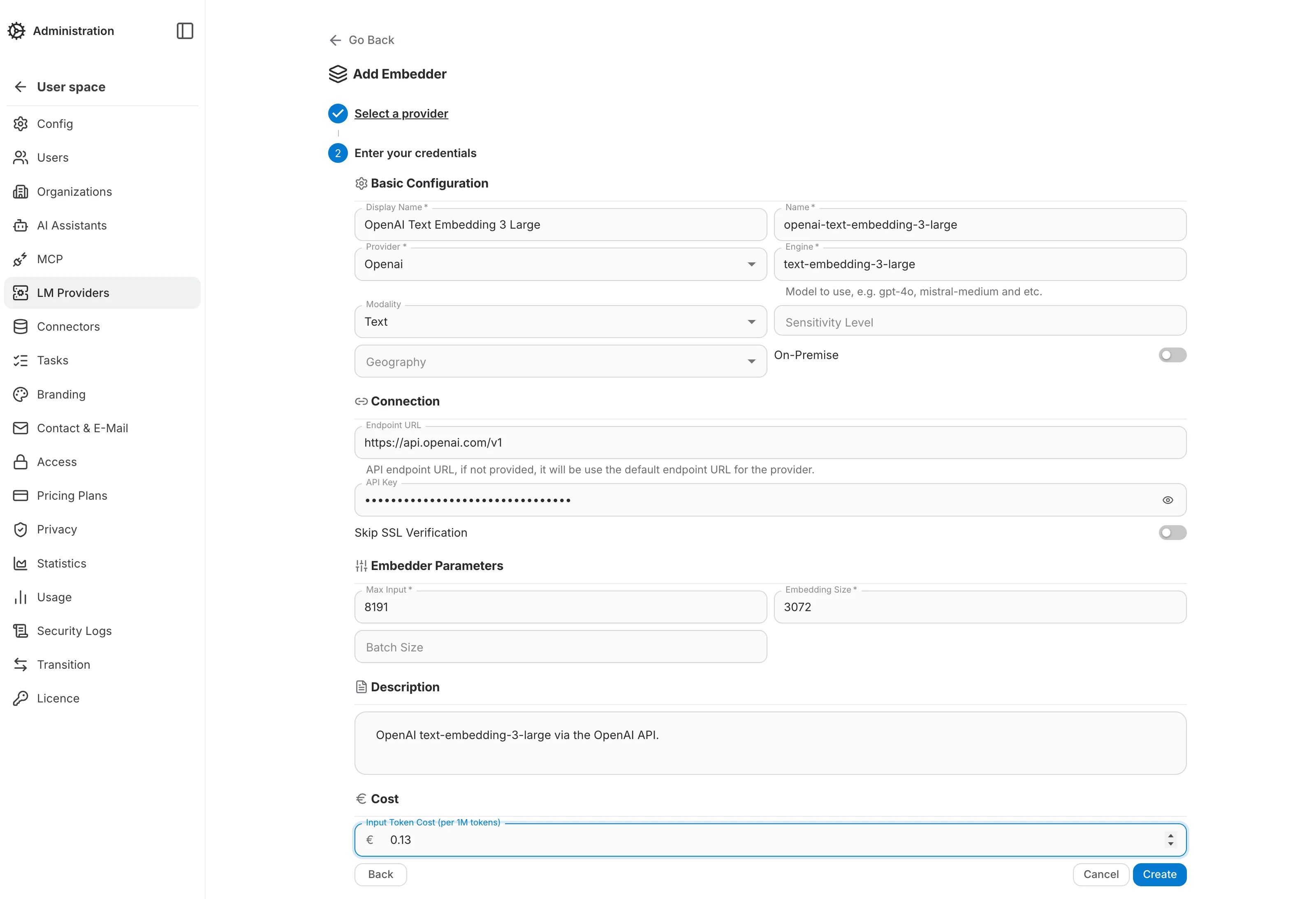
Step 2 — Configure the endpoint
The form adapts to the chosen provider and is organized into the following sections:
- Basic Configuration — internal name, display name, provider, the engine (model identifier, e.g. text-embedding-3-large), modality, sensitivity level, geography, and the On-Premise switch.
- Connection — endpoint URL and API key. See the LiteLLM Documentation for provider-specific endpoint conventions.
- Embedder Parameters — max input (the largest text chunk the model accepts), embedding size (the output vector's dimension), and an optional batch size.
- Cost — input token cost per million tokens, used for usage reporting.
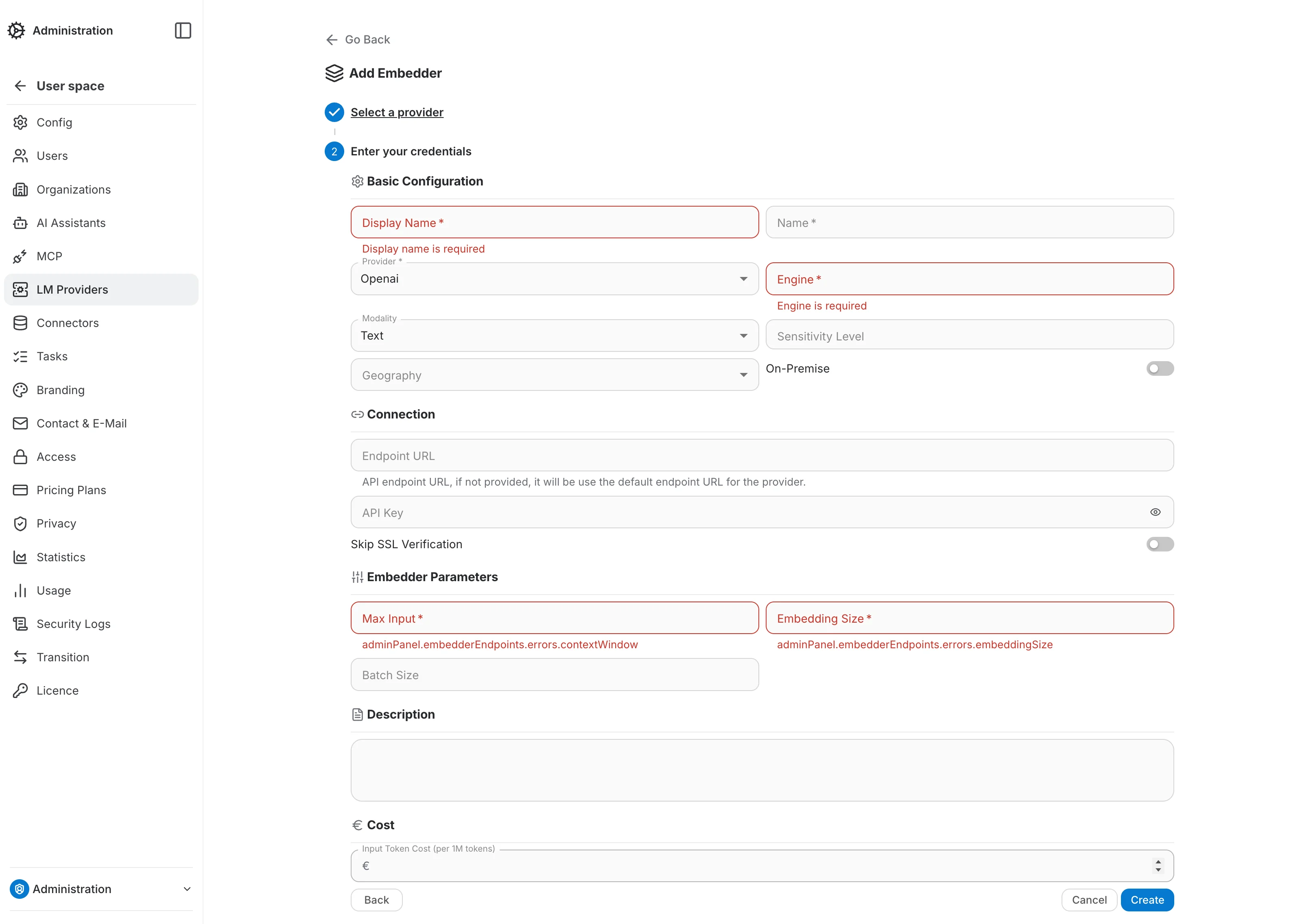
Required-field validation
Submitting the form with required fields empty highlights each one in red with an inline error message, so missing fields are easy to spot before saving.
Managing Existing Providers
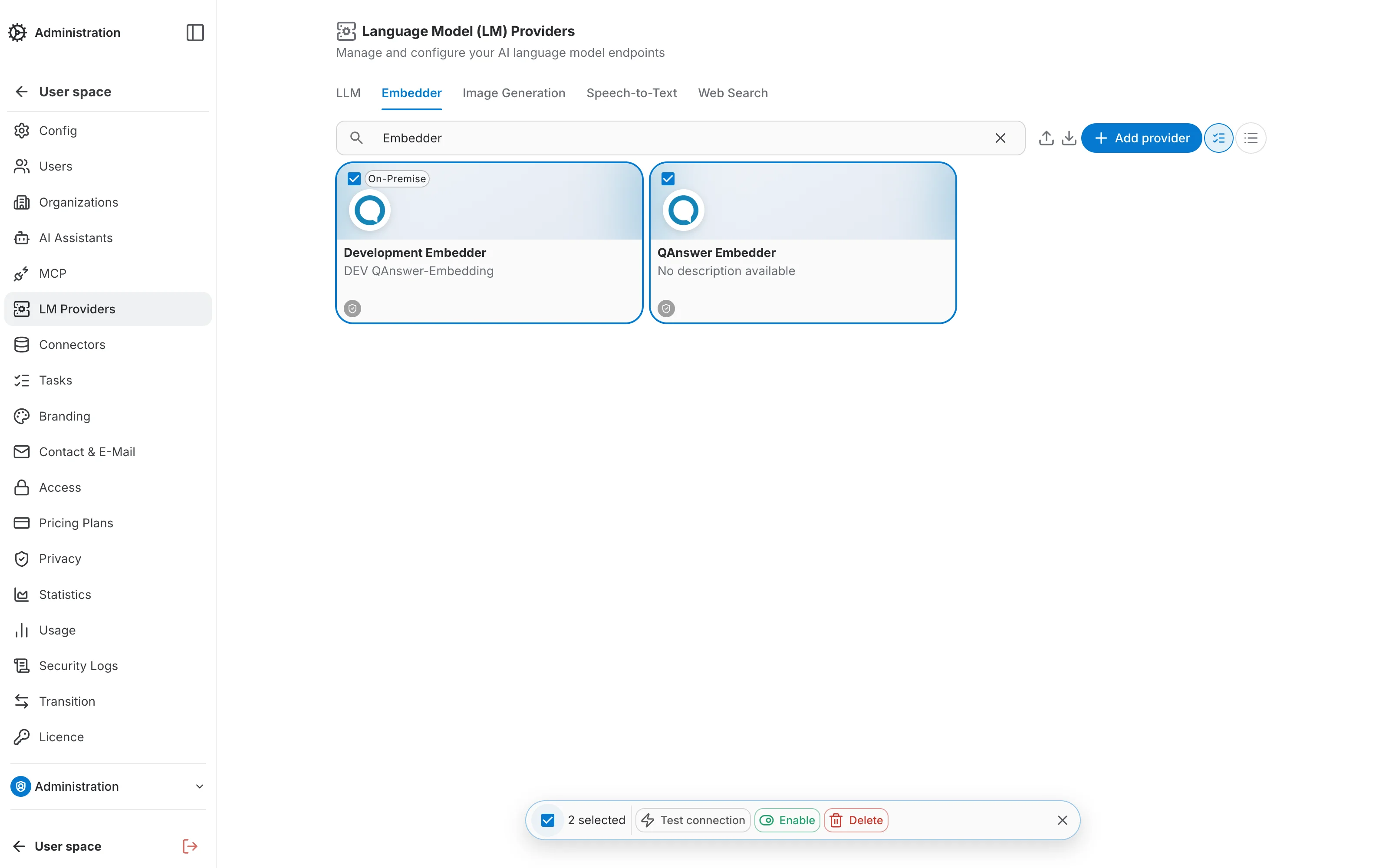
Each provider card lists its Test connection, Set as default, Edit, and Delete actions. Above the list, a few tools help manage larger sets of endpoints:
- Search — filters the list by name as you type.
- Grid / List toggle — switches between a card grid and a compact list layout.
- Select mode — checks off multiple endpoints to run a bulk Test connection, Enable, or Delete from the batch bar that appears at the bottom of the screen.
- Edit — opens the endpoint on a dedicated page, read-only until you click Edit; the same sectioned form as creation.
Import and Export
You can import or export the list of embedding models of your organization in JSON format using the toolbar buttons above the list. The export is generated as a zip file and also contains the logos and cost metadata of the embedders.
Use the search box before exporting to only include the endpoints matching your current search filter — handy for exporting a subset of a large list.