
Quota & Capabilities
Quota & Capabilities is where an organization admin decides what each member is entitled to: the pricing plan they sit on, how far they may draw on the organization's shared credits and storage once their own plan runs out, and which features they may use. It lives in the organization settings under Billing → Quota & Capabilities.
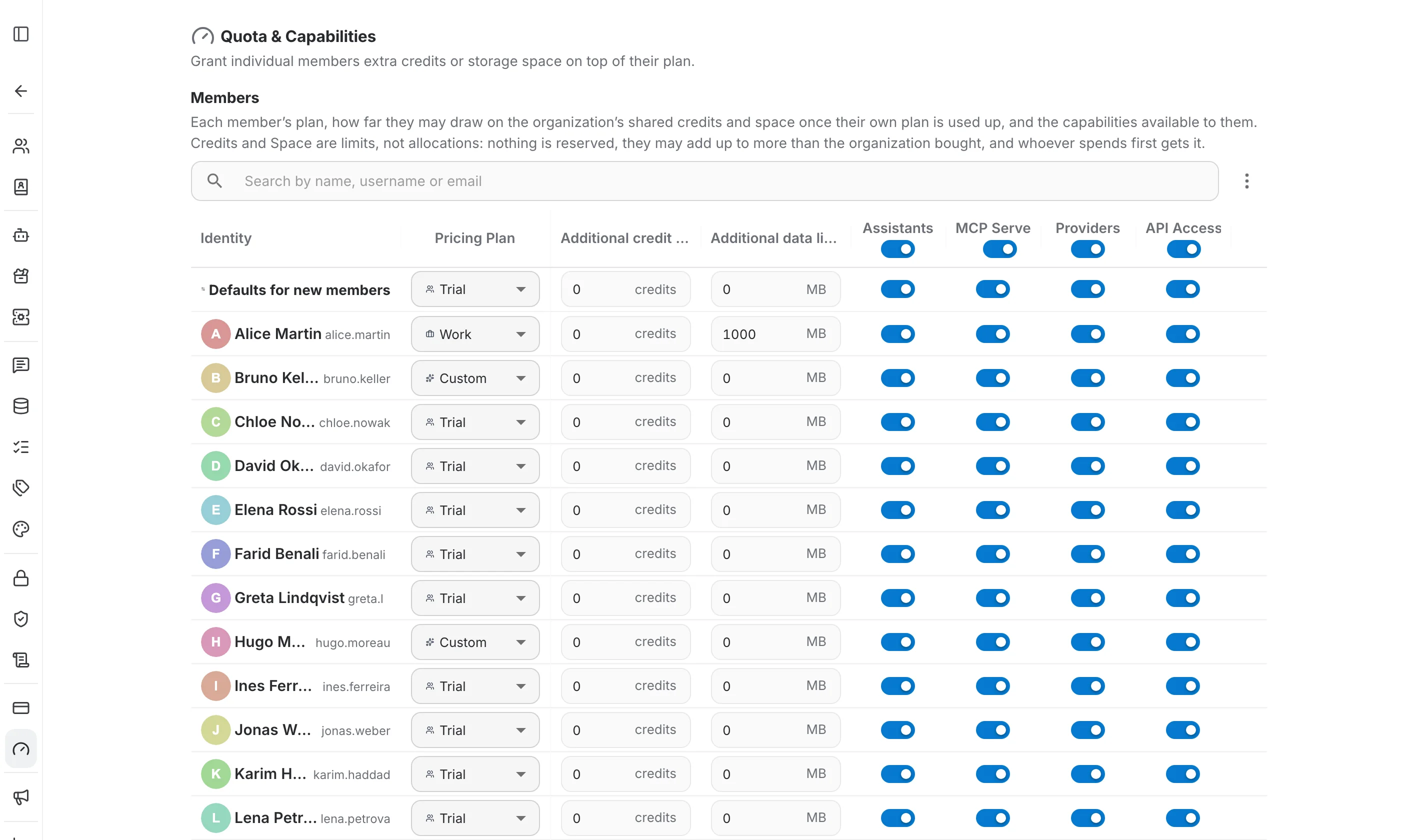
The members table
Every member of the organization gets one row. The columns are:
- Identity — the member's display name and username.
- Pricing Plan — the plan assigned to that member; changing it moves them onto another plan straight away.
- Additional credit limit — how many of the organization's credits this member may spend once their own plan is used up. 0 means they are held to their plan.
- Additional data limit — how much extra storage, in MB, this member may use from the organization's data packs beyond their own plan.
- Assistants, MCP Servers, Providers, API Access — one toggle per capability, switching that feature on or off for the member.
Edits are applied to the member as you make them — there is no separate save button. Use the pagination at the bottom of the table to reach members further down the list.
Defaults for new members
The first row of the table is not a member but a template. Whatever plan, credit limit, data limit and capabilities you set there are applied automatically to anyone who joins the organization from that point on.
Turning a capability off for the whole organization
Each capability column has a toggle in its header, above the rows. Switching it off removes that capability from the organization as a whole, no matter what the individual rows say. The four capabilities exposed as columns are:
- Assistants — allow members to create new AI assistants.
- MCP Servers — allow members to create new MCP servers.
- Providers — allow members to create new LLM, embedder and other providers.
- API Access — allow members to generate and manage personal API keys.
Choosing a pricing plan
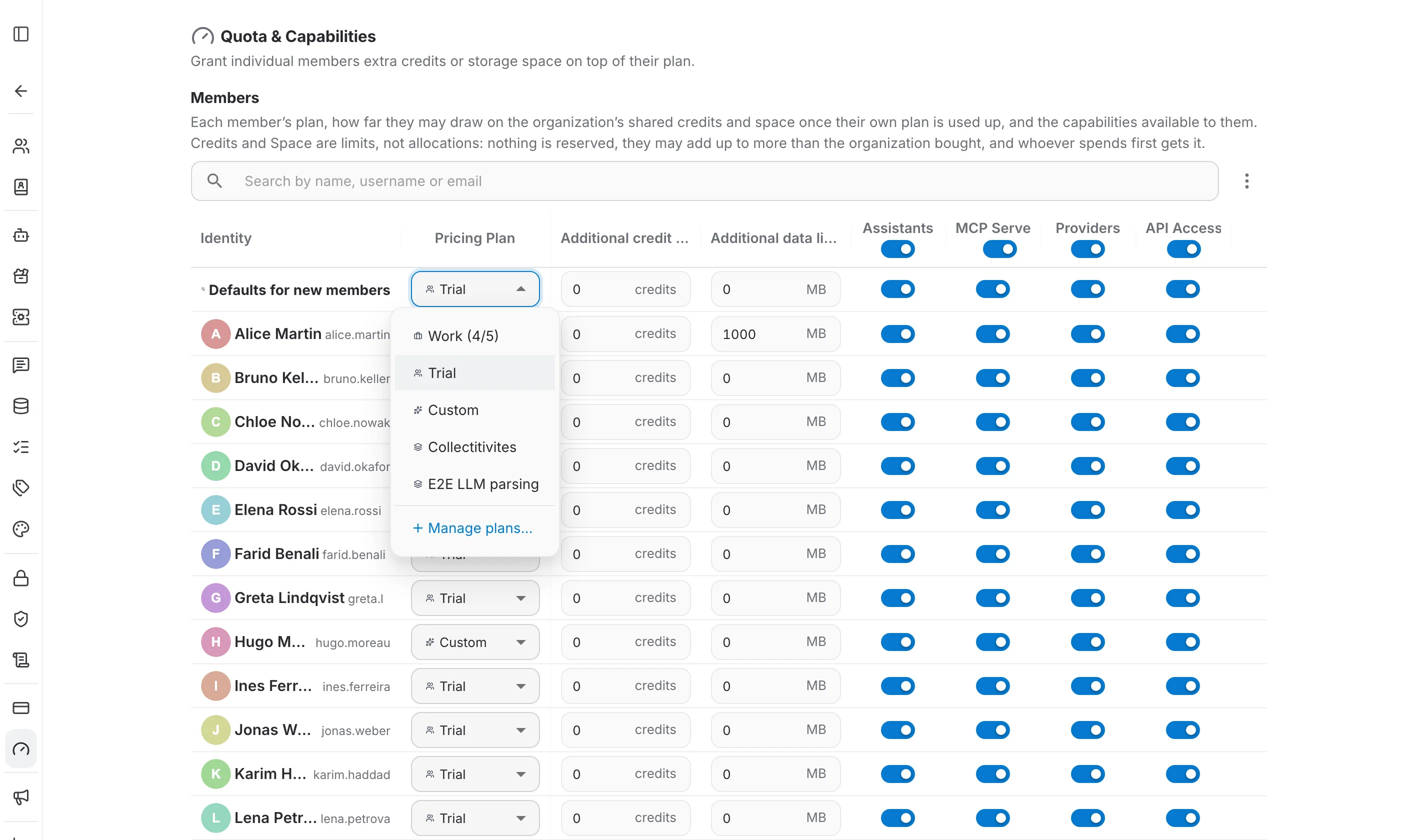
The Pricing Plan dropdown lists every plan the organization has, along with its seat usage — Work (4/5) means four of the five seats on that plan are taken. Manage plans… at the bottom of the list opens the Pricing Plans page, where the plans themselves are created and edited.
Editing several members at once
Open the ⋮ menu to the right of the search field and pick Select to enter selection mode. Tick the members you want — or use Select all loaded to take everyone currently loaded in the table — and a bar appears at the bottom with three batch actions:
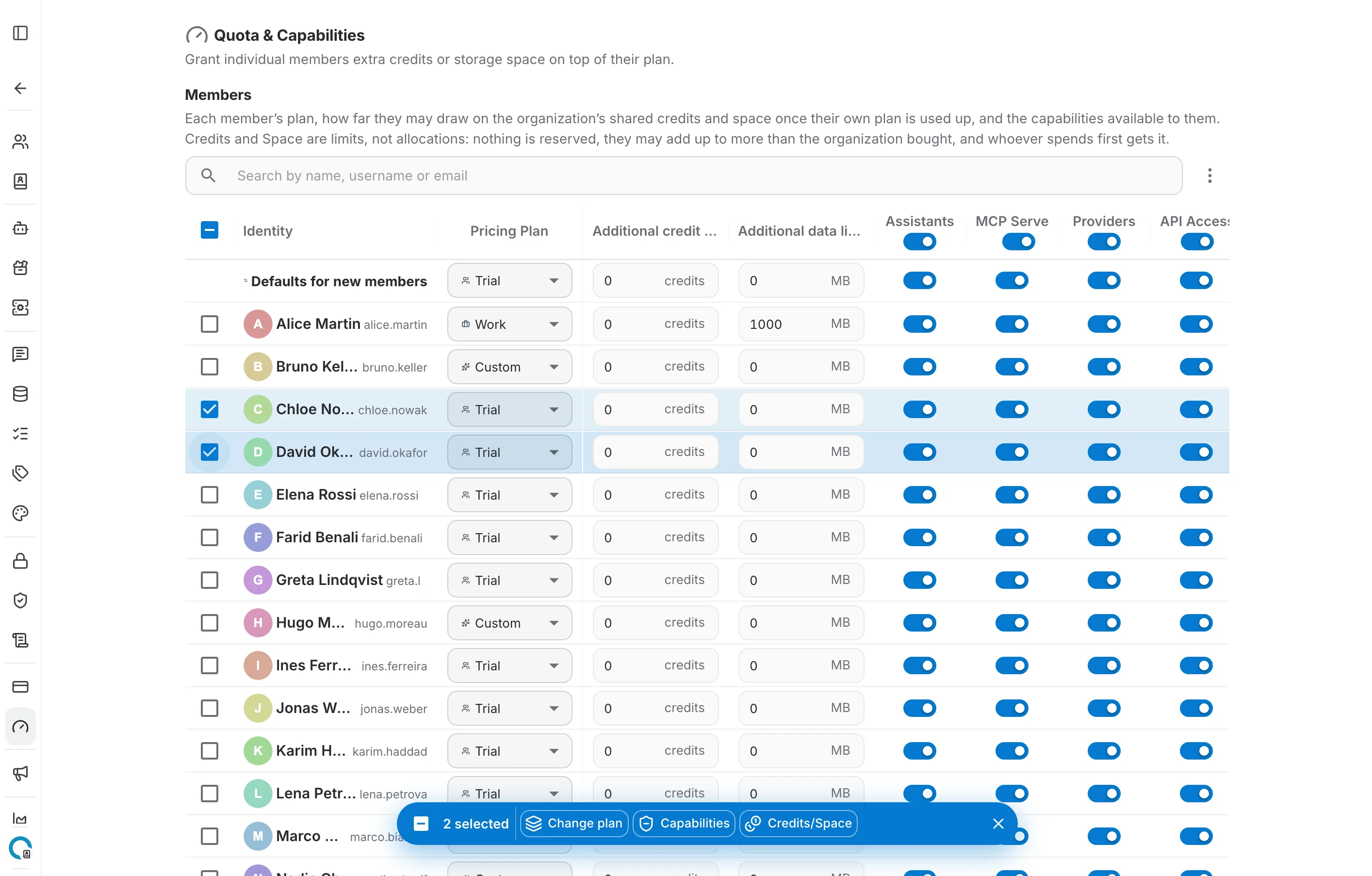
- Change plan — assign one pricing plan to every selected member.
- Capabilities — set capabilities for every selected member at once.
- Credits/Space — give every selected member the same additional credit and data limits. Leaving a field blank leaves that value untouched.
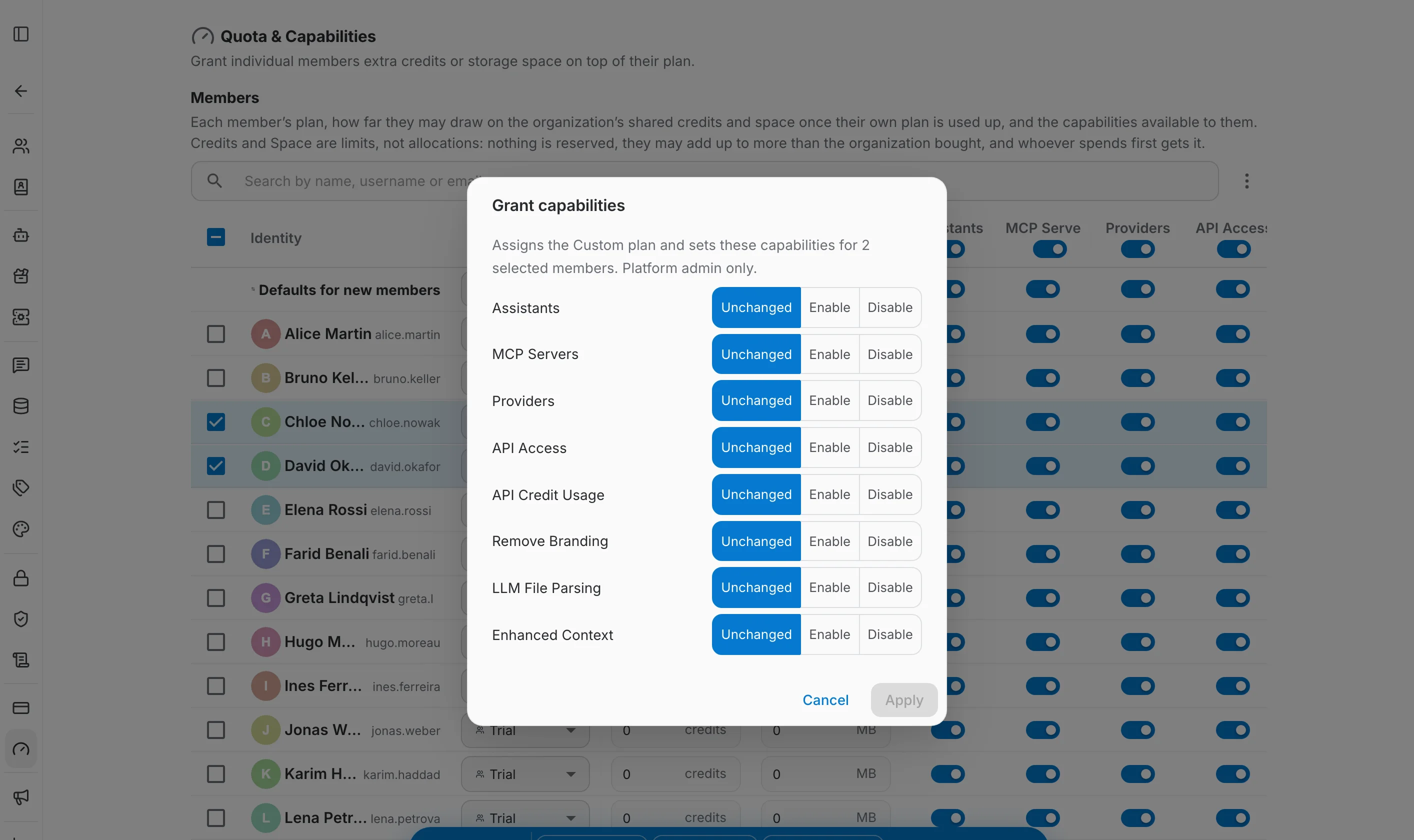
The Capabilities dialog covers more than the four columns of the table: alongside Assistants, MCP Servers, Providers and API Access it also offers API Credit Usage, Remove Branding, LLM File Parsing and Enhanced Context. Each one is set to Unchanged, Enable or Disable, so you can change a single capability without disturbing the rest.
Finding a member
The search field above the table filters the members by name, username or email — the quickest way to reach one person in a large organization.