Cvent
Video Tutorial
Cvent
Watch on Tutorials page →
Info
Before following this section, add data to your AI Assistant as described in the Data Sources Section and test it in the AI Task Section.
Follow these steps to embed your AI Assistant as a chatbot widget in Cvent.
Customize
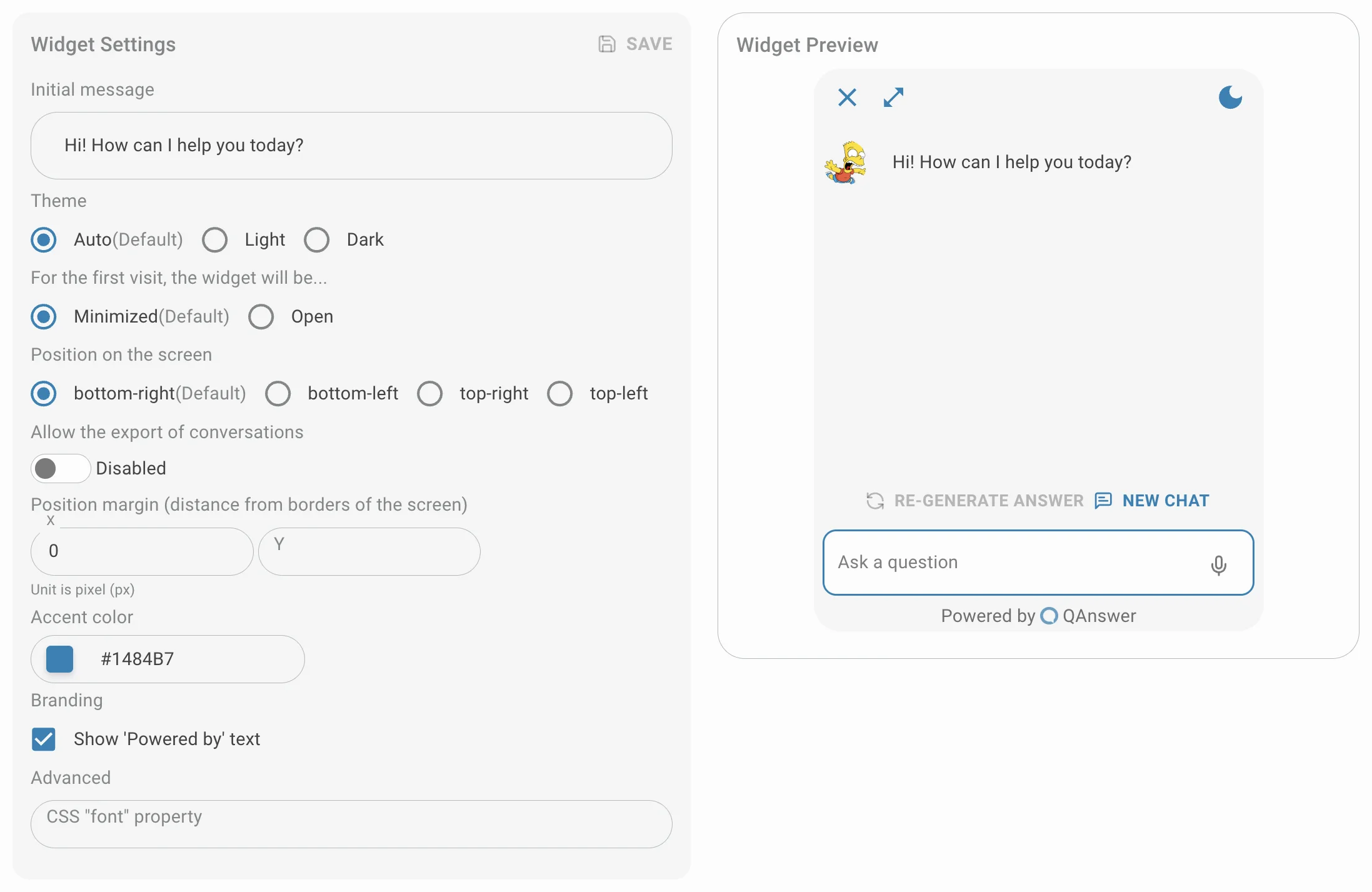
Customize the widget and save it.
Make public
In the Choose your access step, select Public. To keep the assistant private, select Only with an API key and pick or generate a key for the widget instead.

Setup
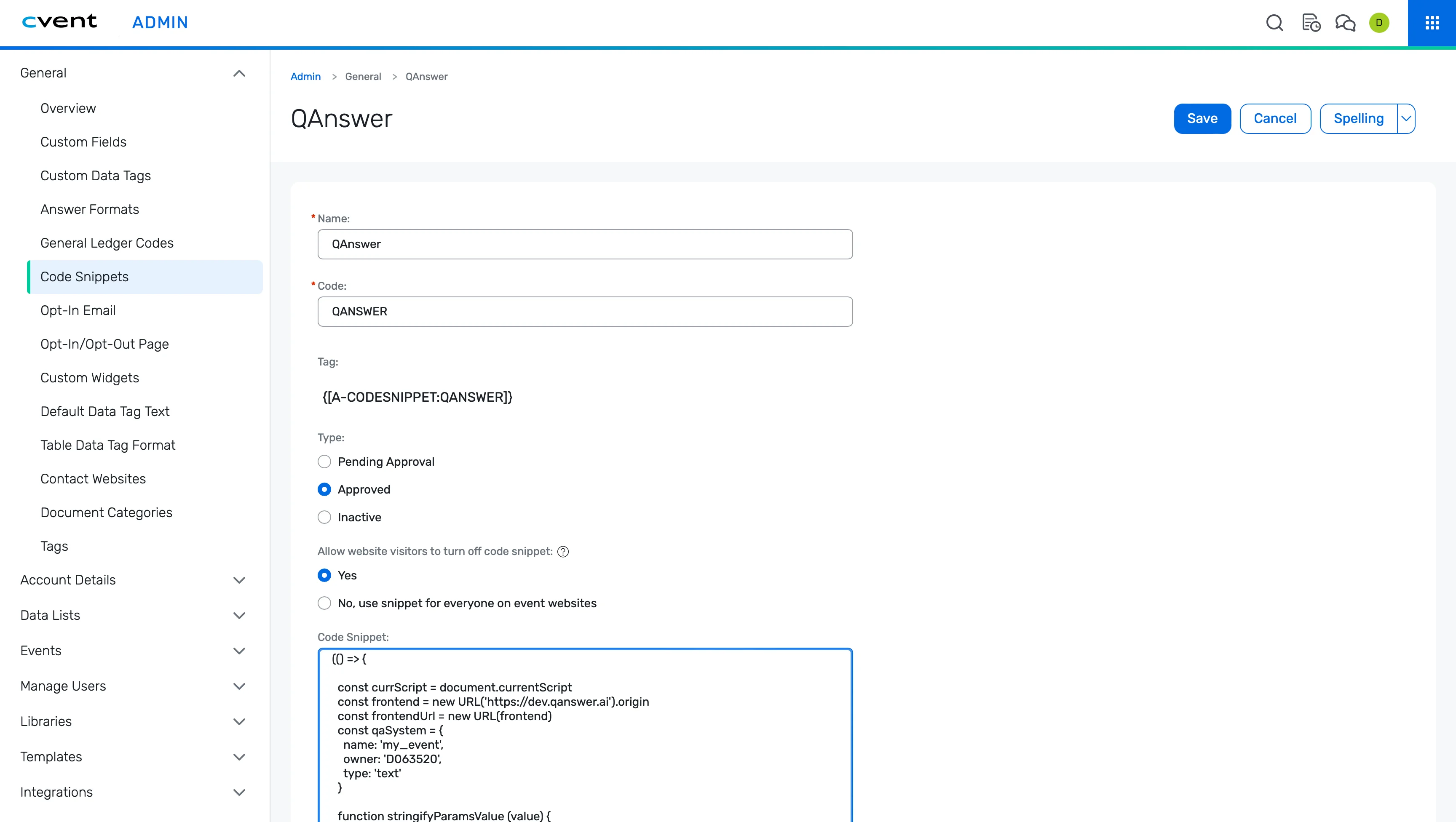
- In your admin panel, navigate to "General > Code Snippets > Create Code Snippet".
- Fill in the form and paste the QAnswer script into the code snippet field.
- Check the box 'Allow users to deactivate the script'.
- Open your Cvent event and navigate to "Marketing > Code Snippets > Add Code Snippet". Select the snippet just created, set the type to "Initialization", and save.
- Approve the code snippet — it cannot be used until approved.
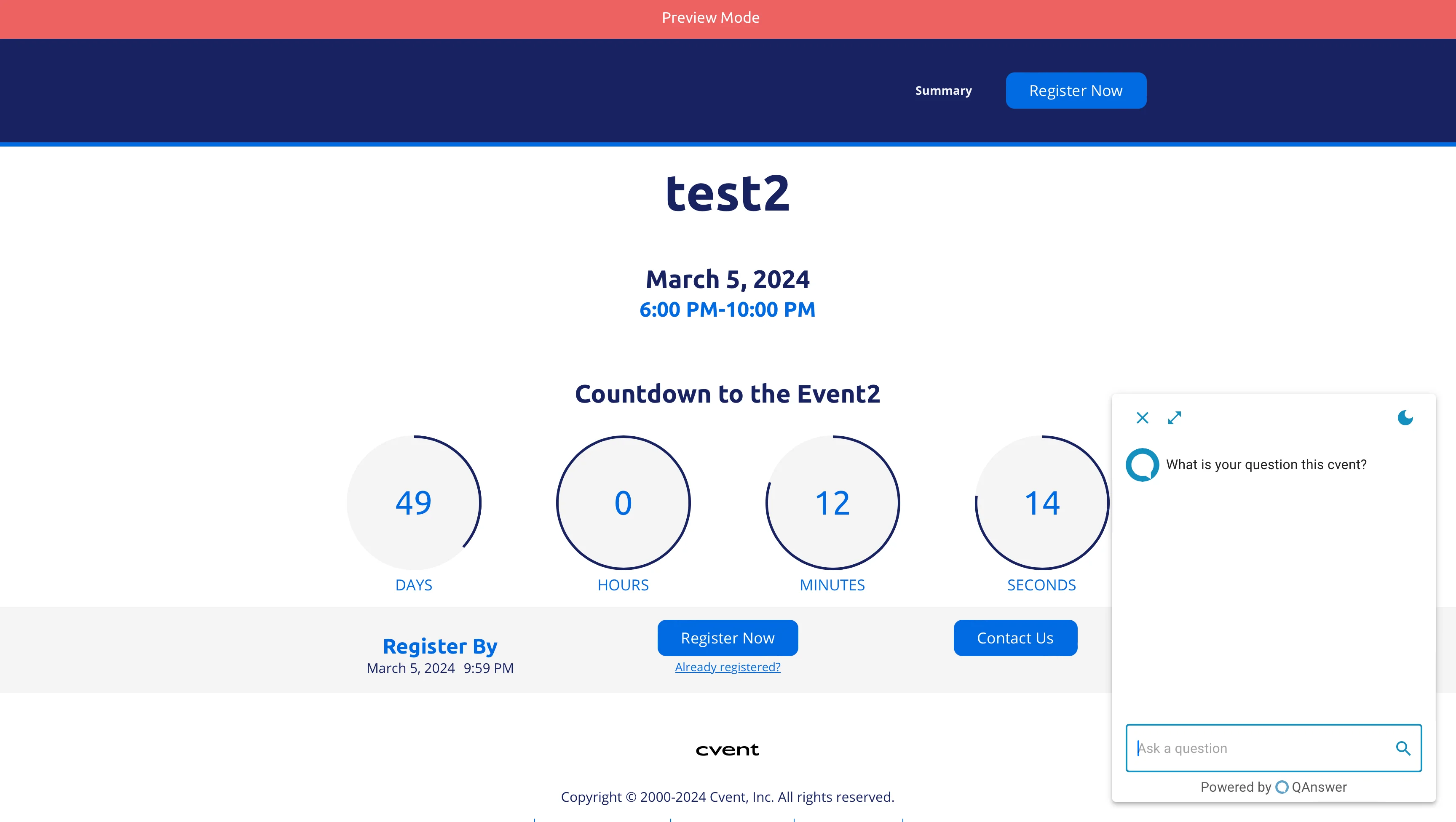
- Click "Preview" to verify the widget on your website.