
Workspace
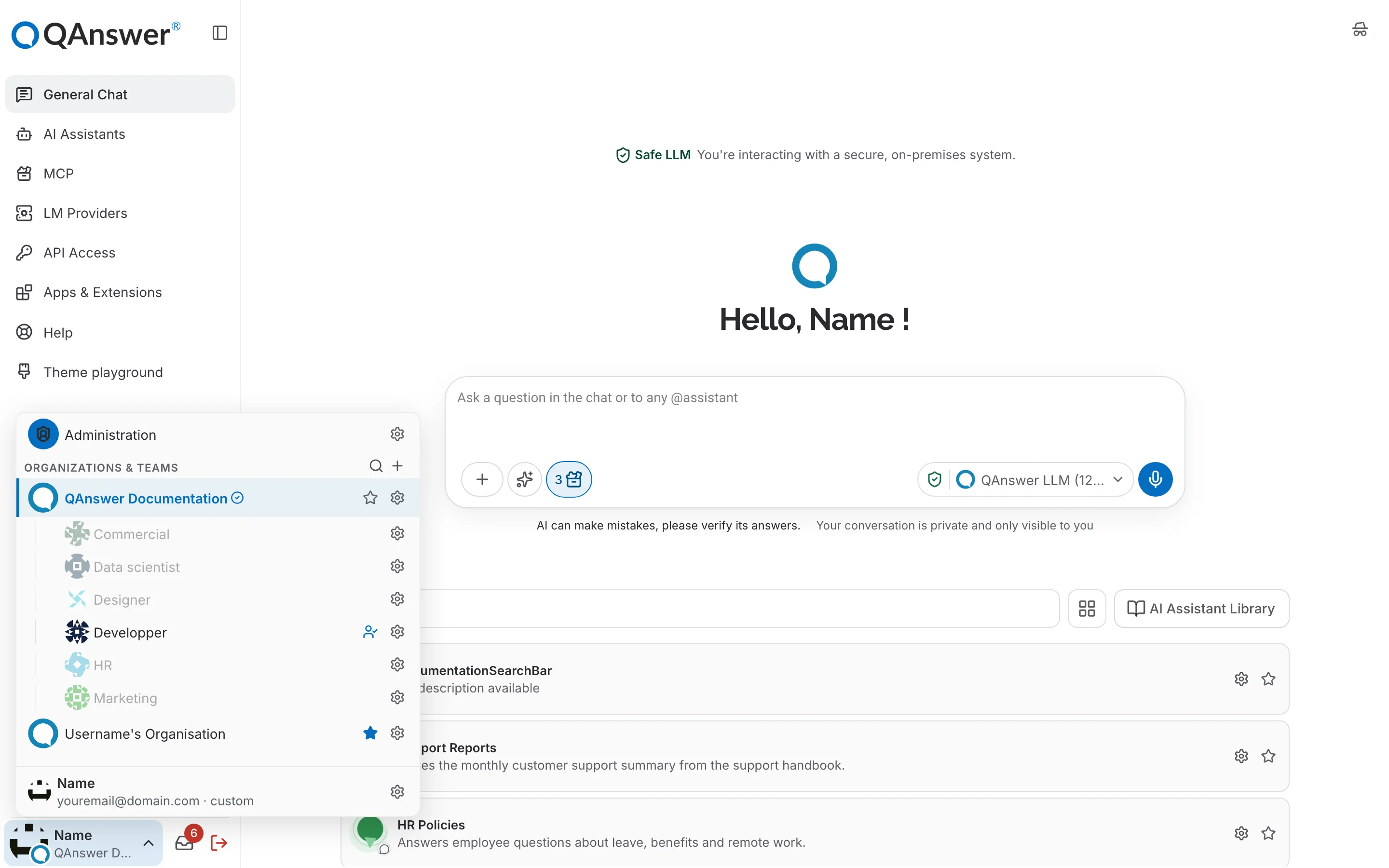
Your workspace is the organization you work in, and optionally one of its teams. It decides which assistants, MCP servers, LM providers and connectors you see, and whose quotas and credits your requests use. Its name is shown under your name at the bottom of the left sidebar.
Opening the workspace panel
Click your name at the bottom of the left sidebar. The panel that opens lists:
- Administration — the platform administration, shown to platform administrators only.
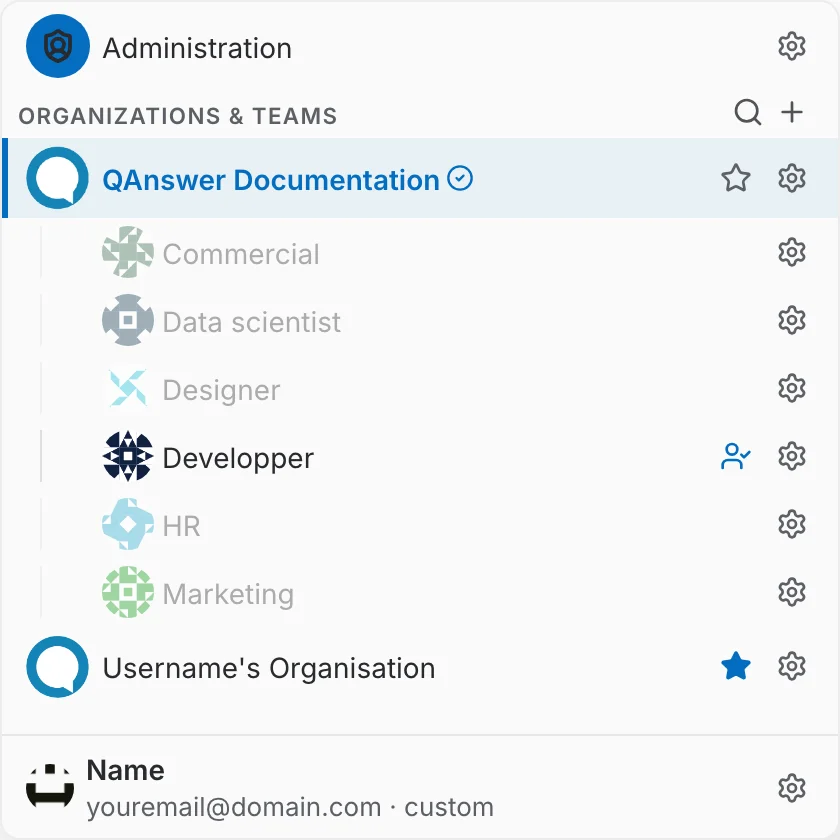
- Organizations & teams — every organization you belong to and, under the selected one, its teams.
- Your account, at the bottom: click it to open My Account.
Switching organization
Click an organization to work in it. The selected organization is highlighted and marked with a check, and the panel stays open so you can pick one of its teams.
When one of your organizations requires its members to stay in it, your other organizations are greyed out; hover one to see which organization holds you.
Switching team
The teams of the selected organization are listed under it. Sub-teams are nested under their parent team, and a parent can be folded or unfolded.
- Teams you belong to are marked with the member icon. Click one to work in it: the panel closes.
- Teams you do not belong to are greyed out and cannot be selected.
Searching
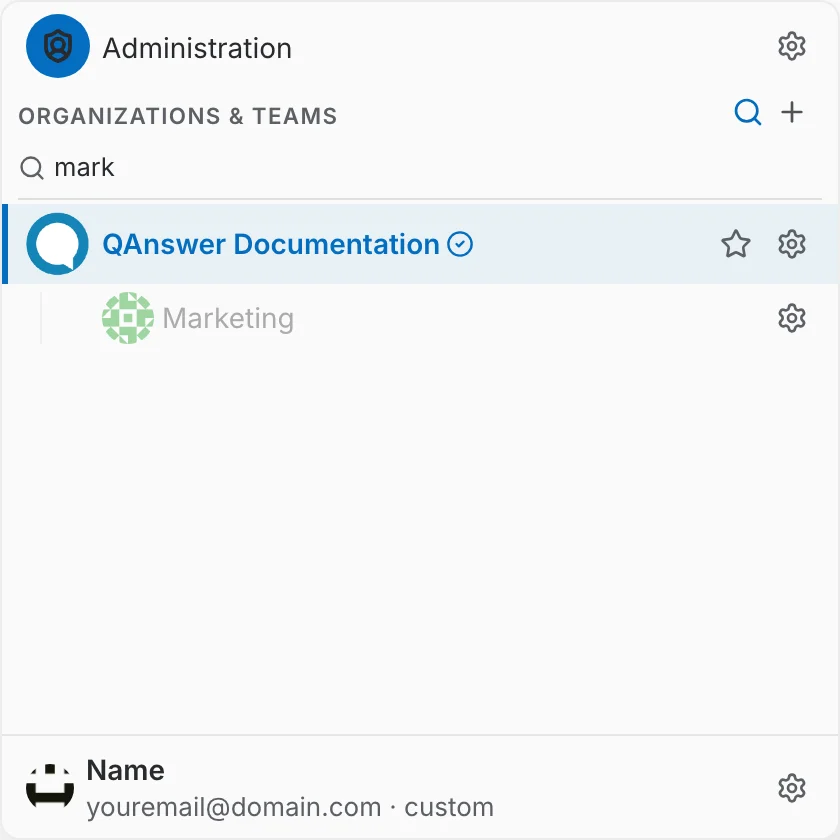
Click the magnifier next to Organizations & teams and type. The list keeps the organizations whose name matches and, in the selected organization, the matching teams. Press Escape to close the search and show everything again.
Your default organization
The filled star marks your default organization: where a new session opens, and where your own assistants and providers live. To change it, click the outline star of another organization. This does not switch you to it: you keep working in the current workspace.
Settings and new teams
- The gear next to an organization or a team opens its settings. It is shown to the administrators of that organization or team, and to platform administrators.
- The + button next to Organizations & teams is shown to administrators. An organization administrator adds a team to the selected organization; a platform administrator can also create an organization.