
XWiki - Data Source
The xWiki data source connects to an xWiki instance and indexes its spaces and pages, so your assistant can answer questions over your wiki content and link back to the original page.
Add the xWiki connector
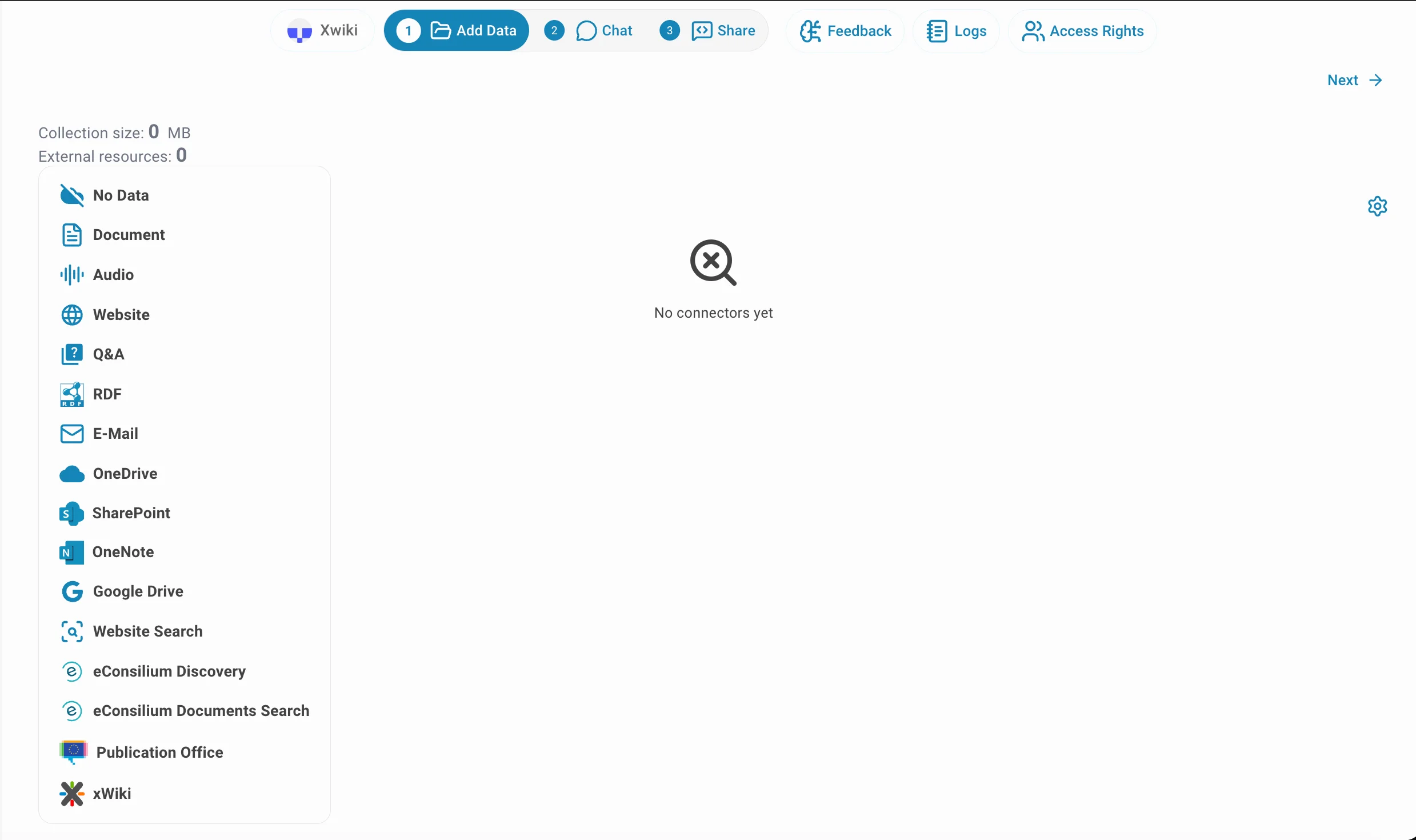
Open your assistant in the editor, switch to the Data tab, click Add connector and choose xWiki.
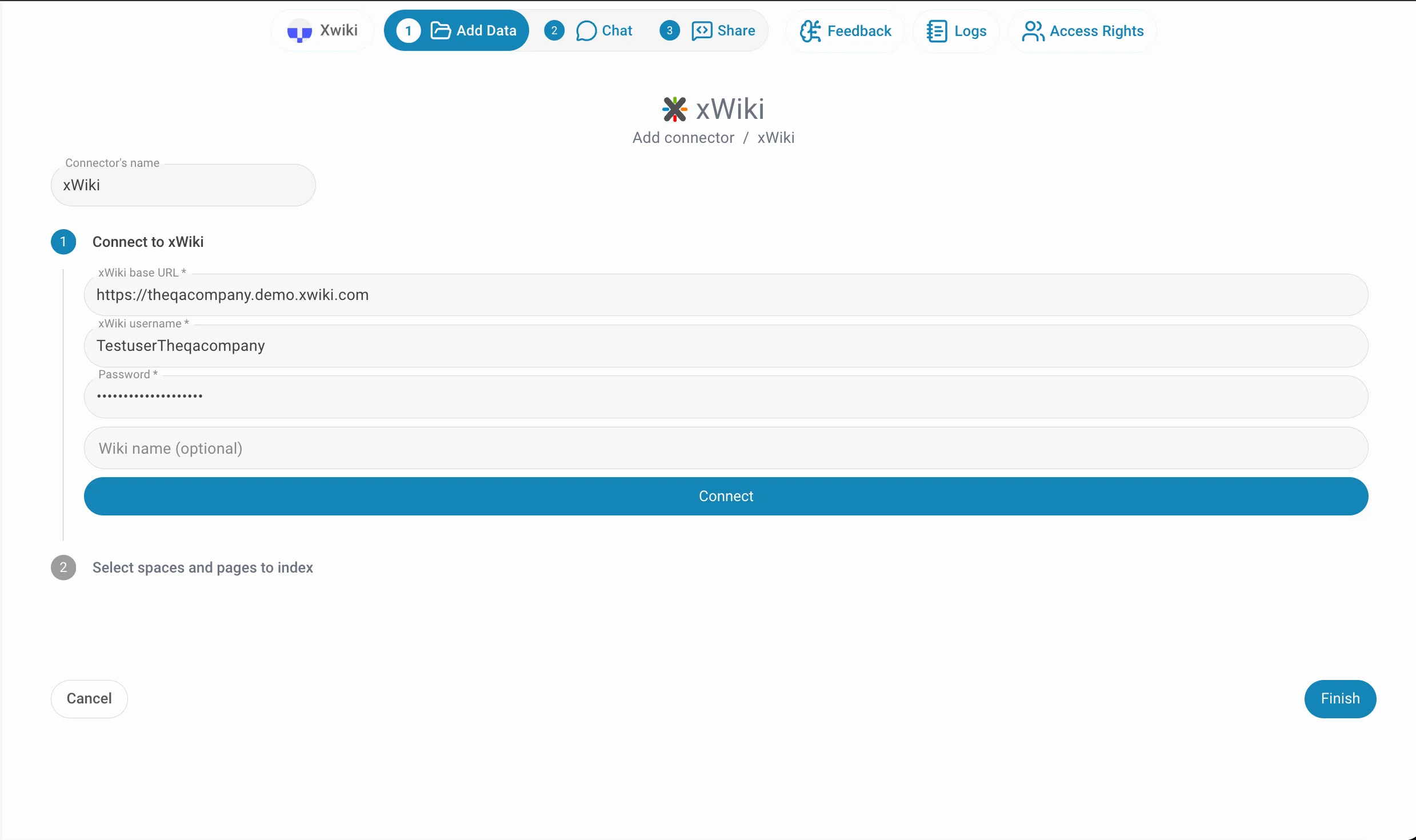
Connect to xWiki and choose what to index
QAnswer authenticates against the wiki with basic authentication, and indexes exactly the spaces or pages you point it at — there is no separate browsing step:
- xWiki base URL (required): the address of your xWiki instance, for example https://wiki.example.com.
- xWiki username (required): the user QAnswer signs in as. It only ever sees pages that user can read.
- Password (required): the password of that xWiki user.
- Space or page links (required): one per line. Paste a link straight from your browser's address bar while browsing the wiki — QAnswer indexes that space and everything nested inside it. A REST-style path such as /wikis/xwiki/spaces/Help/* also works, for anyone who already knows it.
The Connector's name field above the form is prefilled with "xWiki". Rename it when the assistant reads from more than one wiki — the name is what you see in the connector list afterwards.
Click Finish to save the connector and start indexing the pages under each link in the background.
Indexed pages
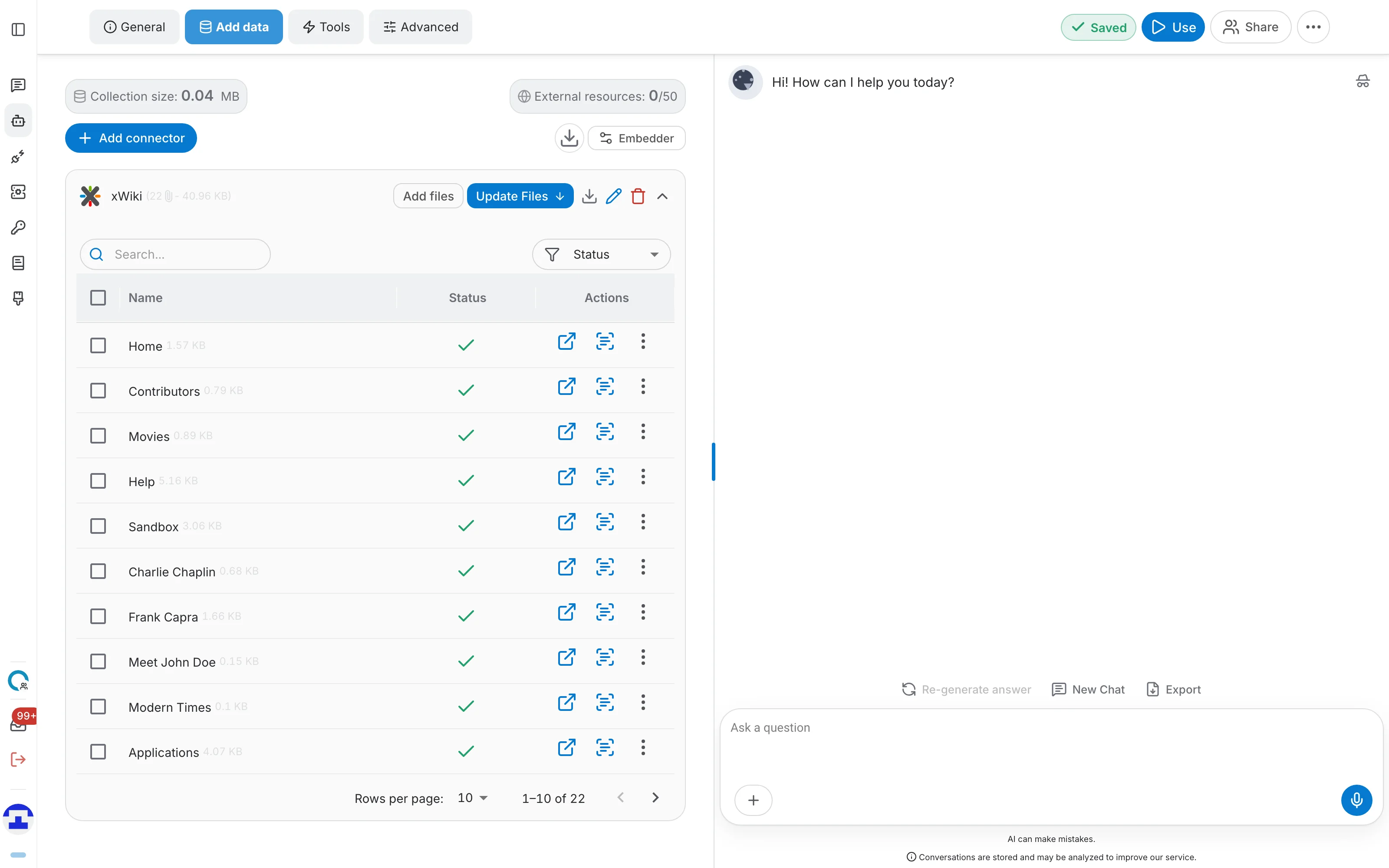
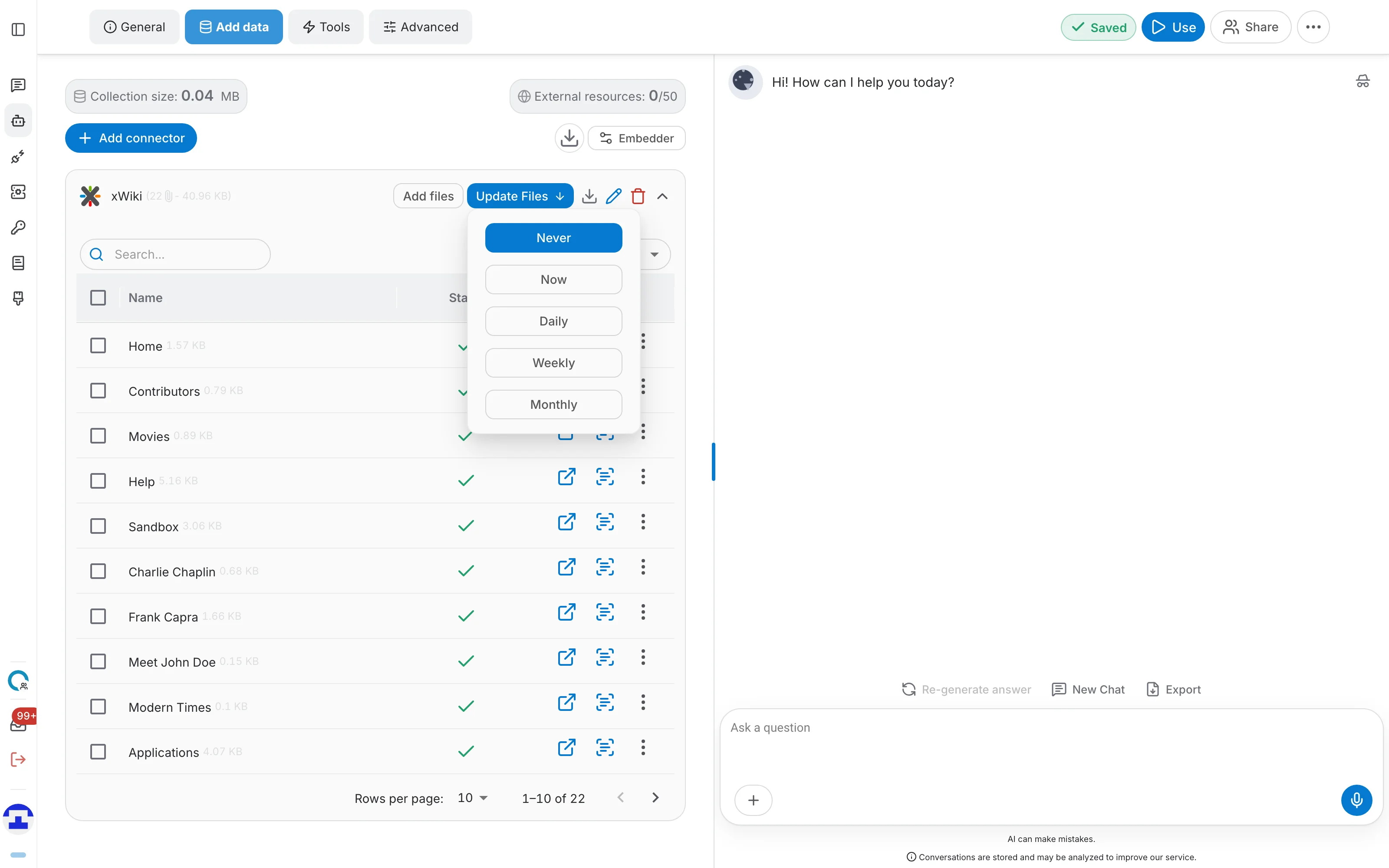
Back on the Data tab, the connector row shows how many pages it holds and how much space they take. Expand it to see every indexed page:
- The Status column and the status filter show which pages finished indexing and which are still pending.
- The search field finds a page by title inside the connector.
- The open icon jumps straight to the original page in your xWiki instance.
- The content icon shows the text QAnswer extracted from that page, and the row menu holds the per-page actions.
Adding more spaces later
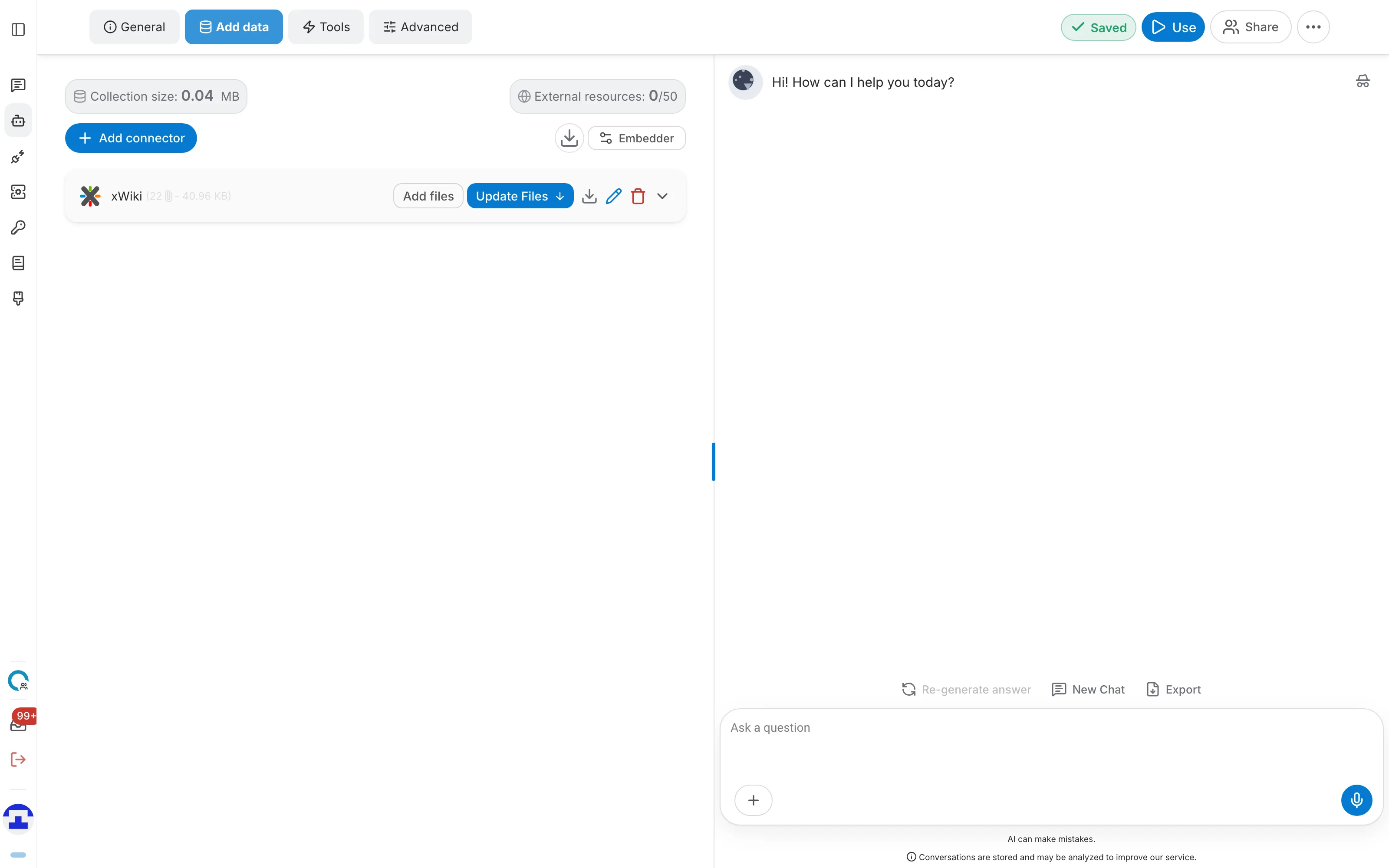
To index more of the wiki, click Add files on the connector row. The same row also lets you download the indexed content, rename the connector, or delete it with everything it indexed.
Keeping the index up to date
xWiki pages change, so the connector can re-ingest them for you. Open Update Files on the connector row and pick how often that should happen:
- Never: no automatic refresh — the default, and what a fresh connector is set to.
- Now: run a refresh immediately, re-ingesting the selected pages whose xWiki version changed.
- Daily, Weekly, Monthly: refresh on that schedule from now on. The option currently in force stays highlighted in the menu.
Troubleshooting
Connection failed
- Check that the base URL points at your xWiki instance and is reachable from QAnswer.
- Check that the username and password are correct and the account is enabled.
- Confirm every pasted link or path actually points at a space or page you can reach in xWiki — a REST-style path must name an existing wiki (it defaults to "xwiki").
No pages get indexed
- Make sure the xWiki user has read access to the pages under that space.
- Double check the pasted link or path for typos — a misspelled space name silently matches nothing.