
Help Desk
The help desk lets you contact the support team without leaving QAnswer. You open a ticket describing your problem, attach screenshots or a screen recording, and the conversation with support continues on the ticket until it is resolved.
Opening the help desk
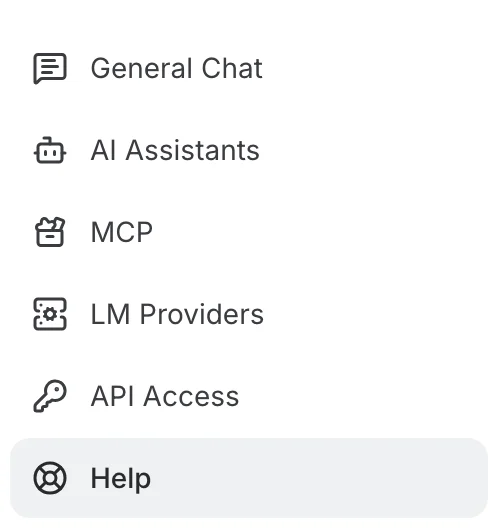
Click Help (the lifebuoy icon) in the left navigation menu.
The page is titled Support. At the top right, New ticket opens the form to contact support, and Documentation opens your platform's documentation in a new tab (it is shown only when your platform has a documentation link). Below, one panel: on the left the My tickets list, with the number of tickets you have opened and one row per ticket — its subject, its number, a status chip and when it was last updated, most recent first; on the right, either the form for a new ticket or the ticket you selected.
Opening a ticket
When you open the page, or click New ticket, the Contact support form is shown:
- Subject — a short summary of the problem. It becomes the ticket's title. Required.
- Description — what happened, what you expected, and how support can reproduce it. Required.
- Attachments — drag images or videos onto the dashed area under the description, or click it to browse. Each picked file appears as a chip below it; the cross on a chip removes it before sending.
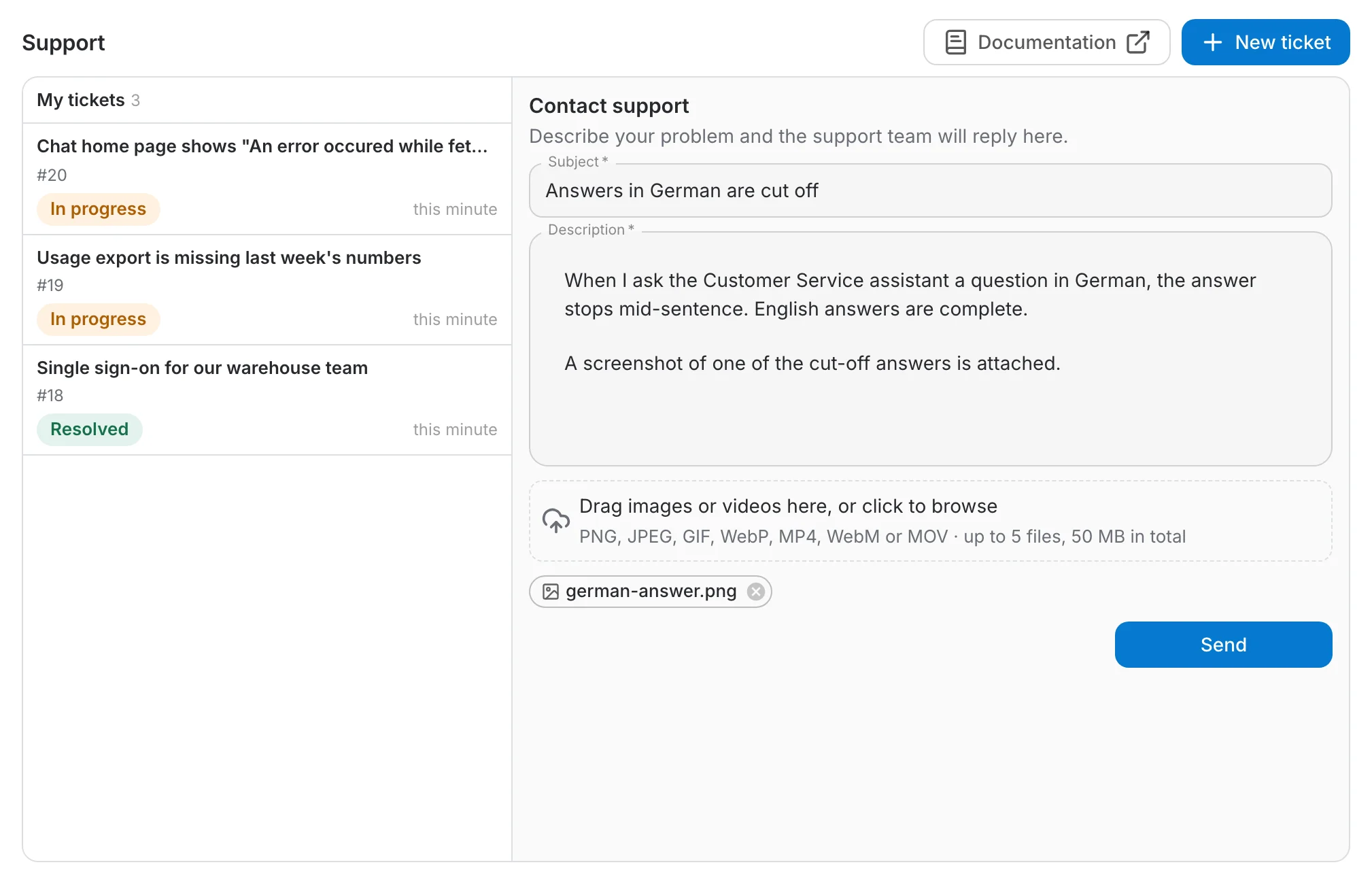
Click Send. The ticket is created with the status Open, gets a number (#17 here), appears at the top of My tickets, and opens straight away.
- Images in PNG, JPEG, GIF or WebP, and videos in MP4, WebM or MOV. Other files (PDF, logs, documents…) are refused, with a message saying why.
- At most 5 files per message. Once five are picked, the drop area (or the paperclip, in a reply) stops accepting more.
- At most 50 MB per message, all files together — unless your platform administrator set another limit; the drop area always shows the current one. A file that would take the total over the limit is refused, with a message naming it.
Following the conversation
Selecting a ticket opens its conversation: your description first, then every reply in order, each with its author and when it was sent.
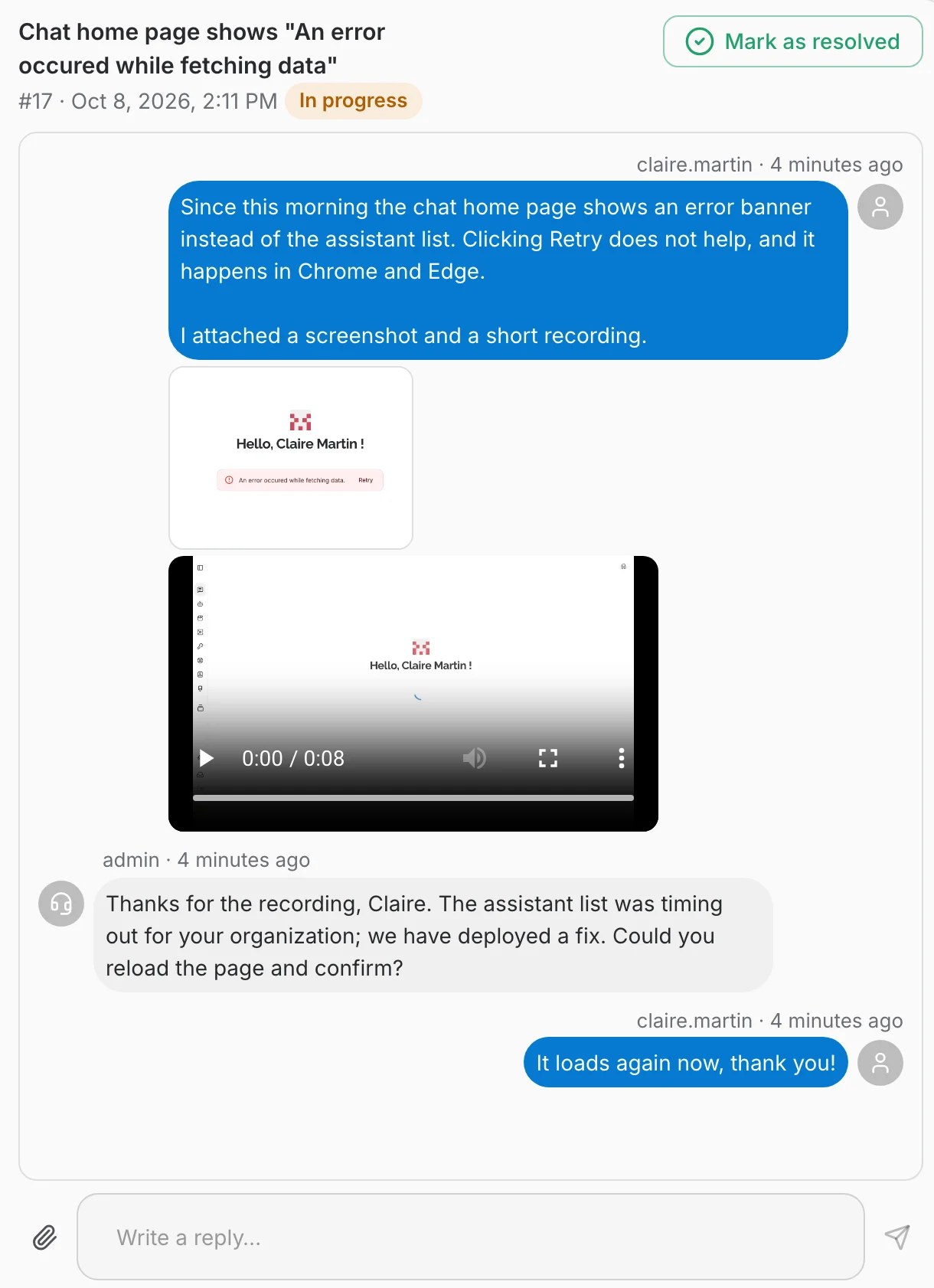
- Your messages are on the right, in blue. Replies from the support team are on the left, with a headset avatar.
- Attached images show as thumbnails under their message. Click one to view it full size without leaving the page.
- Attached videos play inline, with the usual player controls.
- To add information, type in the reply box at the bottom and press the send arrow. The paperclip next to it attaches images or videos, with the same limits as a new ticket; a reply can be just attachments.
Status of a ticket
Under the ticket's title, its number and creation date are followed by a status chip that says where it stands:
- Open (blue) — the ticket is waiting for support. Every new ticket starts here.
- In progress (orange) — the support team is working on it.
- Resolved (green) — the problem is solved and the ticket is closed.
Support sets these statuses, but you can close your own ticket too: once the problem is gone, click Mark as resolved at the top right of the ticket.
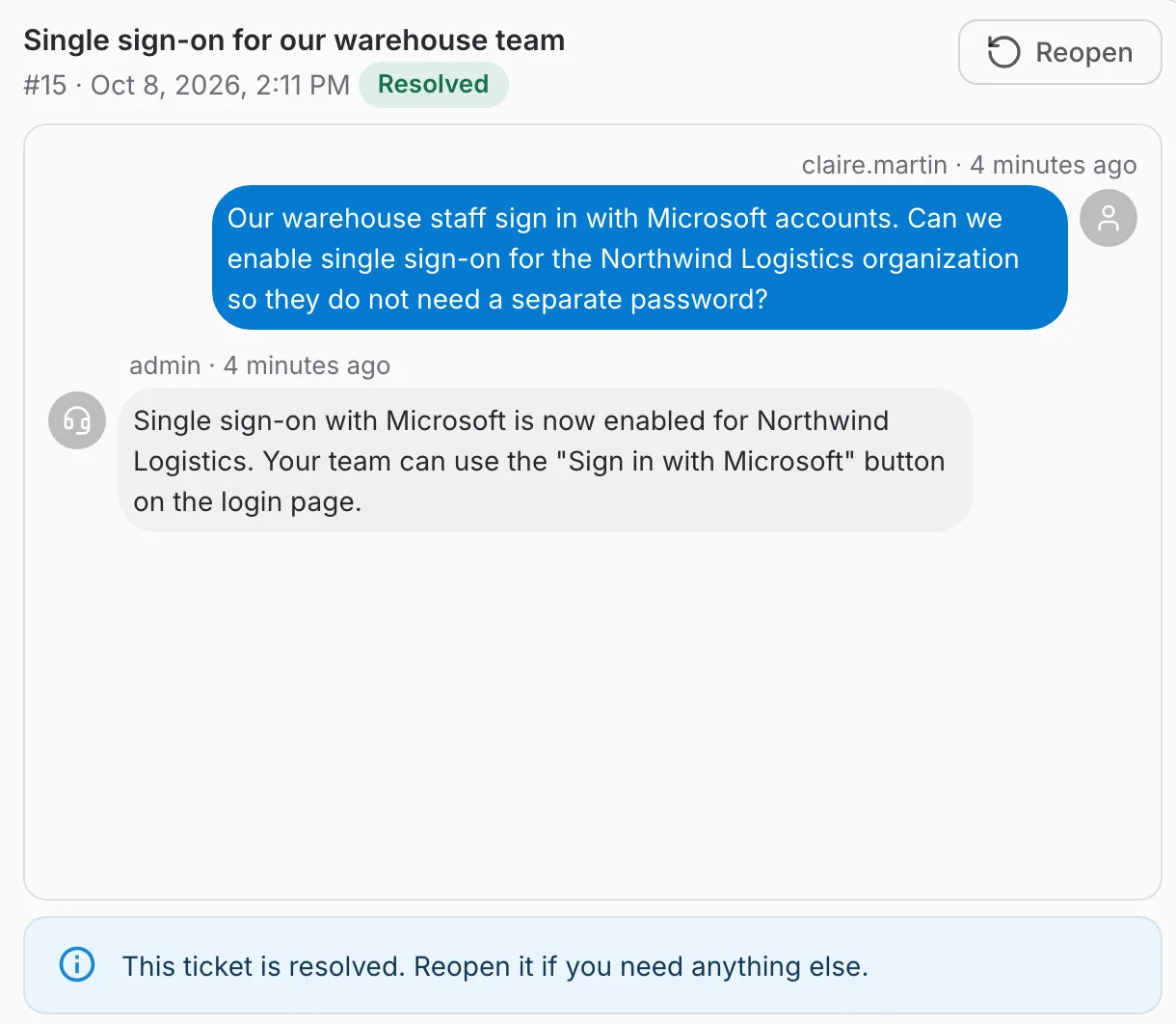
A resolved ticket can no longer be answered: the reply box is replaced by a note. If the problem comes back, or you have a follow-up question, click Reopen — the ticket goes back to Open and you can reply again.