
Contact & E-Mail
The Contact & E-Mail page configures the instance-wide contact details, outgoing SMTP server, and which automated e-mail notifications are sent. It is reached from the admin sidebar's "Contact & E-Mail" entry.
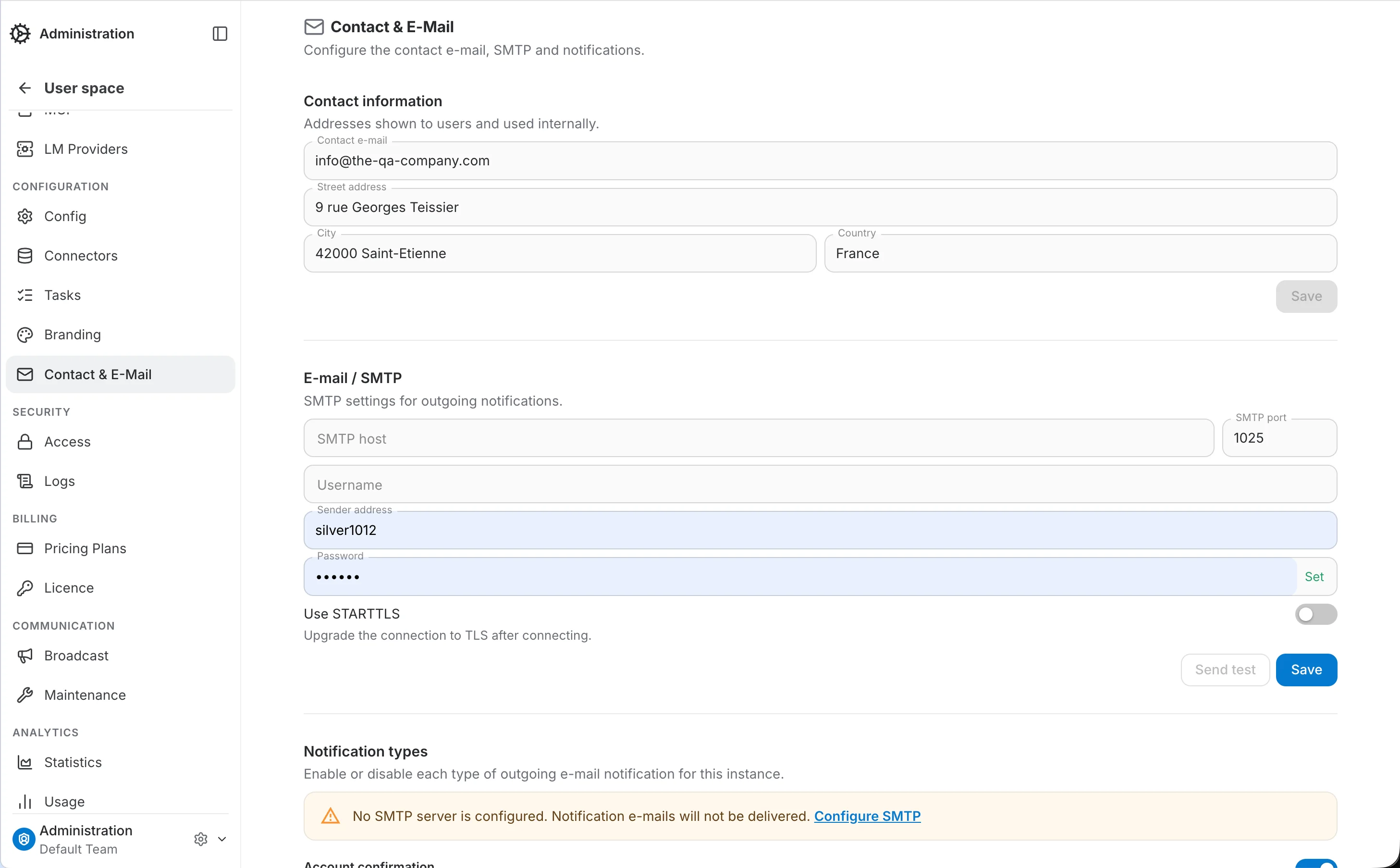
Contact information
These addresses are shown to users (for example in quota-exceeded messages) and used internally.
- Contact e-mail: The address users are directed to for support or billing questions.
- Street address, city and country: Your organization's postal address, shown in the footer of outgoing e-mails.
Each field saves automatically when you move out of it — there is no separate Save button for this section.
E-mail / SMTP
Set the outgoing mail server QAnswer uses to send account and notification e-mails.
- SMTP host and port: The address and port of your mail server (e.g. a company relay, or a provider like Gmail).
- Username: The account used to authenticate with the SMTP server, if required.
- Sender address: The "From" address on outgoing e-mails.
- Password: The SMTP account's password. Leaving this field blank when saving keeps the previously stored password unchanged — it never displays the real value once set.
- Use STARTTLS: Upgrades the connection to TLS after connecting, if your mail server requires it.
Once host, port and sender are filled in, "Send test" becomes enabled. It opens a dialog where you can send a one-off test e-mail to any address, to verify the configuration actually delivers before relying on it for real notifications.
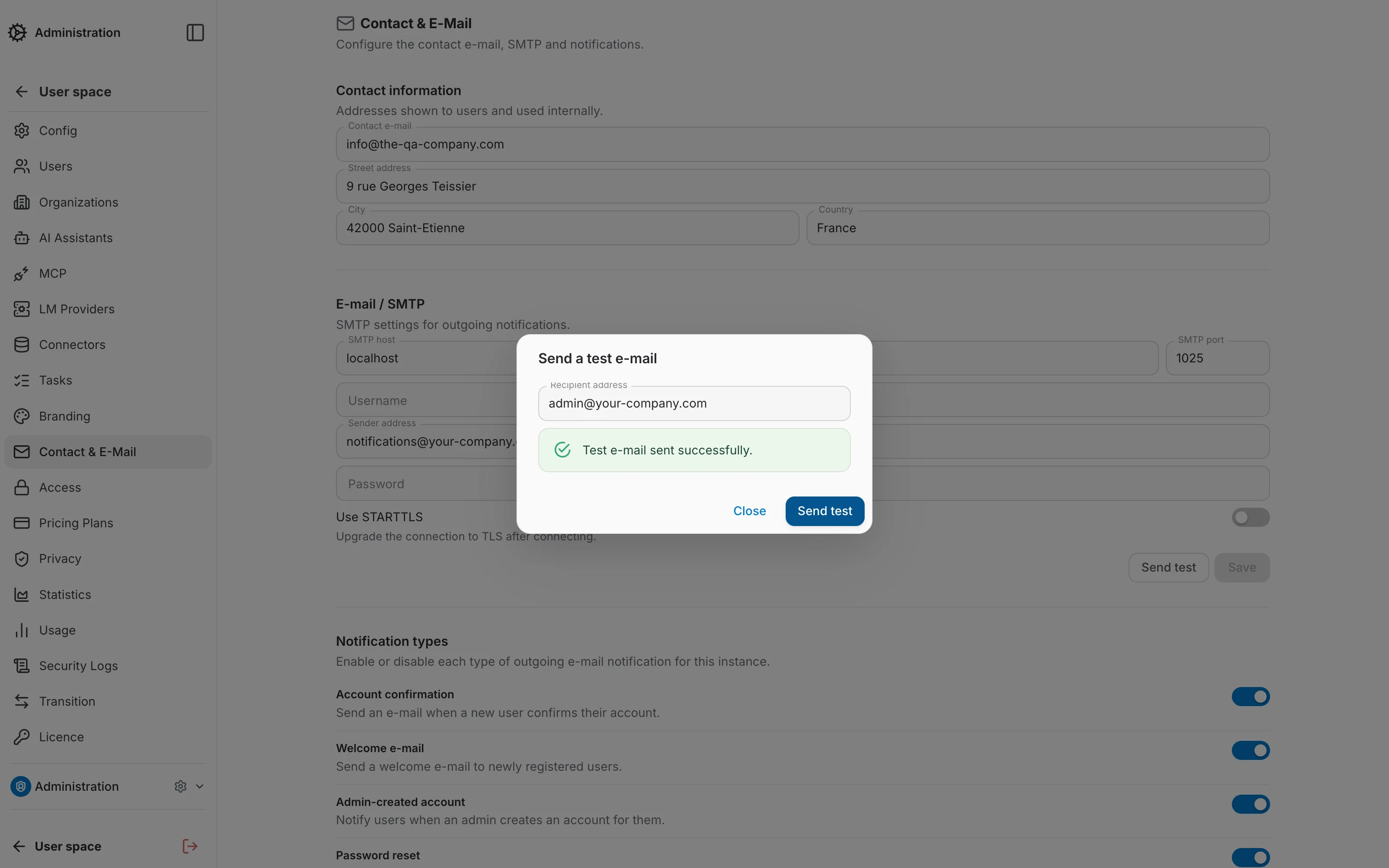
Here is the content of that test e-mail once received:

Until SMTP is configured, the Notification types section below shows a warning that e-mails will not be delivered, with a shortcut back to this section.
Notification types
Each row is an independent toggle for one kind of outgoing e-mail. Switching one off suppresses only that e-mail — the corresponding in-app notification (in the user's inbox) is unaffected, since it is not gated by this setting.
- Account e-mails: Account confirmation, welcome e-mail, admin-created account, and password reset.
- Team and organization membership: Sent when a user is added to a team or an organization.
- Quota warnings: Sent when a user approaches or fully consumes their usage quota.
- Human takeover requested: Alerts an operator when a user requests human assistance in a chat.
- Resource sharing: A single switch toggles all sharing notifications at once (AI assistants, conversations, LLM/embedder/image-generation/web-search/speech-to-text providers, and MCP servers); each type can also be toggled individually below it.
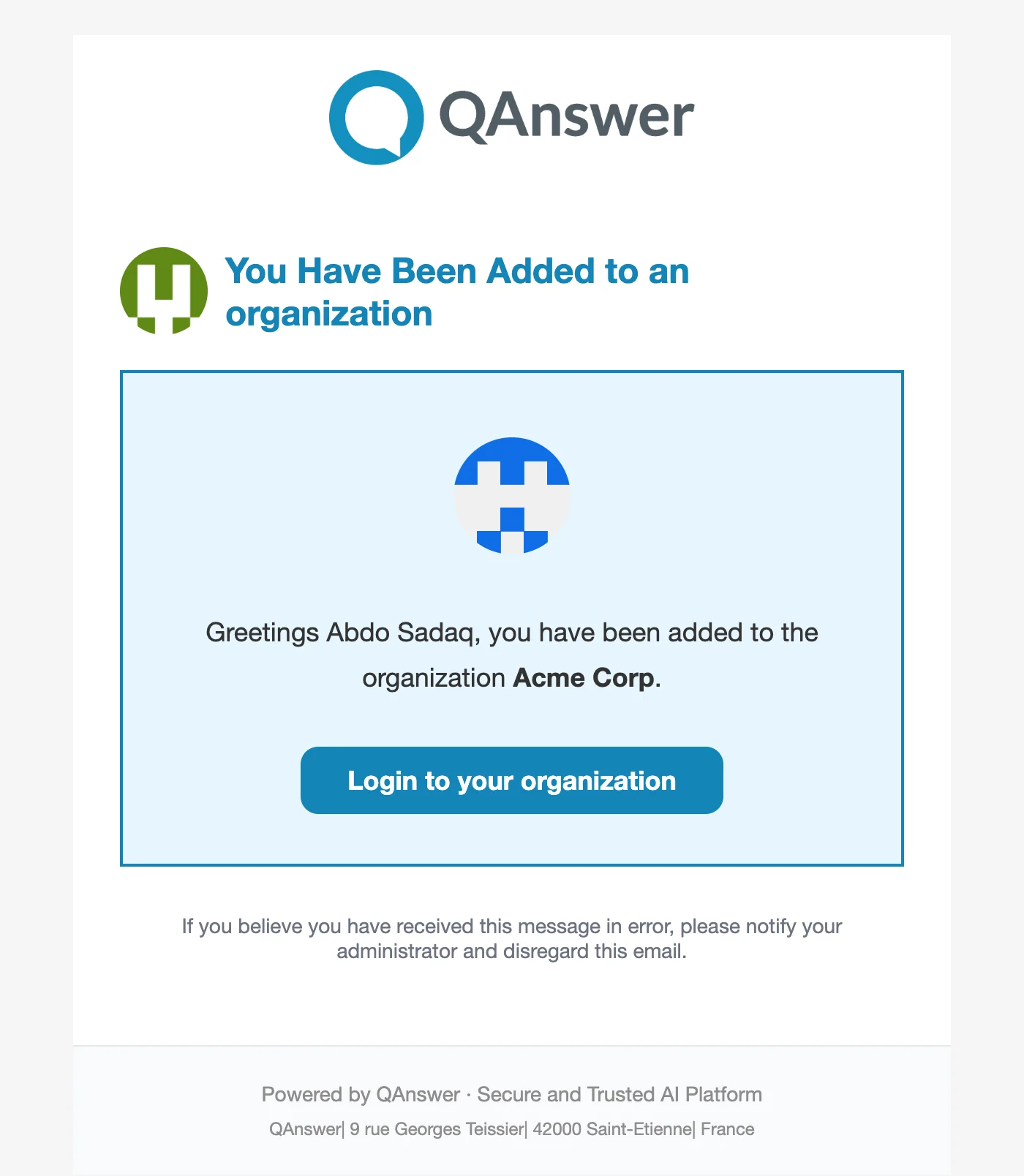
For reference, here is a real example of one of these notifications as delivered — a user being added to an organization, including the org name and the contact address configured above in the footer:
Unlike the Contact and SMTP sections, notification toggles are not saved automatically — click Save at the bottom of this section to persist your changes.