
CRM
The QAnswer CRM is an AI-powered CRM that keeps your customer relationships in QAnswer: the people you talk to, the companies they work for, the visits you make, the deals you pursue and the quotations, orders and invoices that follow. Everything is stored in your organization, next to your AI assistants, and the AI helps you fill it in and read it back.
Opening the CRM
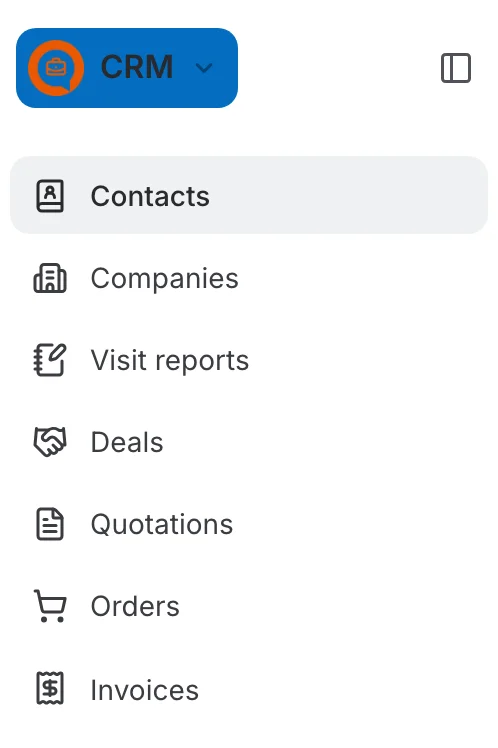
When you have more than one module, the top of the navigation drawer shows the module switcher instead of the logo. Click it and pick CRM: the CRM opens in a new tab, or in its own app if you installed it (see Install App). The navigation then lists the CRM sections:
The sections
Each section has its own page:
- Contacts — the people at your customers and prospects.
- Companies — the accounts those people belong to.
- Visit reports — what was said and agreed at a customer meeting, filed and circulated.
- Deals — sales opportunities, moved through the pipeline stage by stage.
- Quotations — the offers sent to customers, usually imported from your ERP.
- Orders — what your customers ordered.
- Invoices — what was billed, and what is overdue.
- Lists, Filters & Export — filtering, sorting, columns, selection and export, the same in every section.
How every section works
All sections are built the same way, so what you learn in one applies to the others:
- A list with a search and filter bar, sortable columns and an overflow menu (⋮) to choose columns, select rows and export.
- A details panel that opens when you click a row. Its tabs show the record's fields (Info), its timeline (Events) and who holds it (Owner). Records link to each other: click a company, contact, deal or report chip to jump to it.
- A Summary at the top of the Info tab, written by the AI from the record and everything linked to it — the deals, orders, reports and notes.
- Smart creation for contacts, companies and deals: paste text or an image and the AI fills in the fields for you to check.
Organization, teams and who sees what
CRM records belong to the organization you are working in. Each record has an owner (by default, whoever created it) and can be filed under a team. The Owner tab of the details panel shows both.
- You see the records you own and those shared with you.
- Team administrators see the records filed under their teams; organization administrators see every record in the organization.
- Visit reports are visible to the people involved in them — the owner, the writers and the people listed for action or for information. A report stays with its writers until it is submitted.
- When you work in a team (chosen in the workspace switcher), every CRM list shows only the records of that team and the teams below it. A locked Team chip in the filter bar reminds you of it; switch to the organization to see more.
- Only a record's owner or an administrator can delete it.
Fiscal year
The Deals, Quotations, Orders and Invoices lists open on the current fiscal year, shown as a Fiscal year chip in the filter bar (for example Fiscal year = 2026-27). The CRM's fiscal year starts on 1 November. Remove the chip to see every year.