
Companies
Companies are the accounts your contacts belong to — customers, prospects and partners. Each company gathers its contacts, deals, quotations, orders, invoices and visit reports.
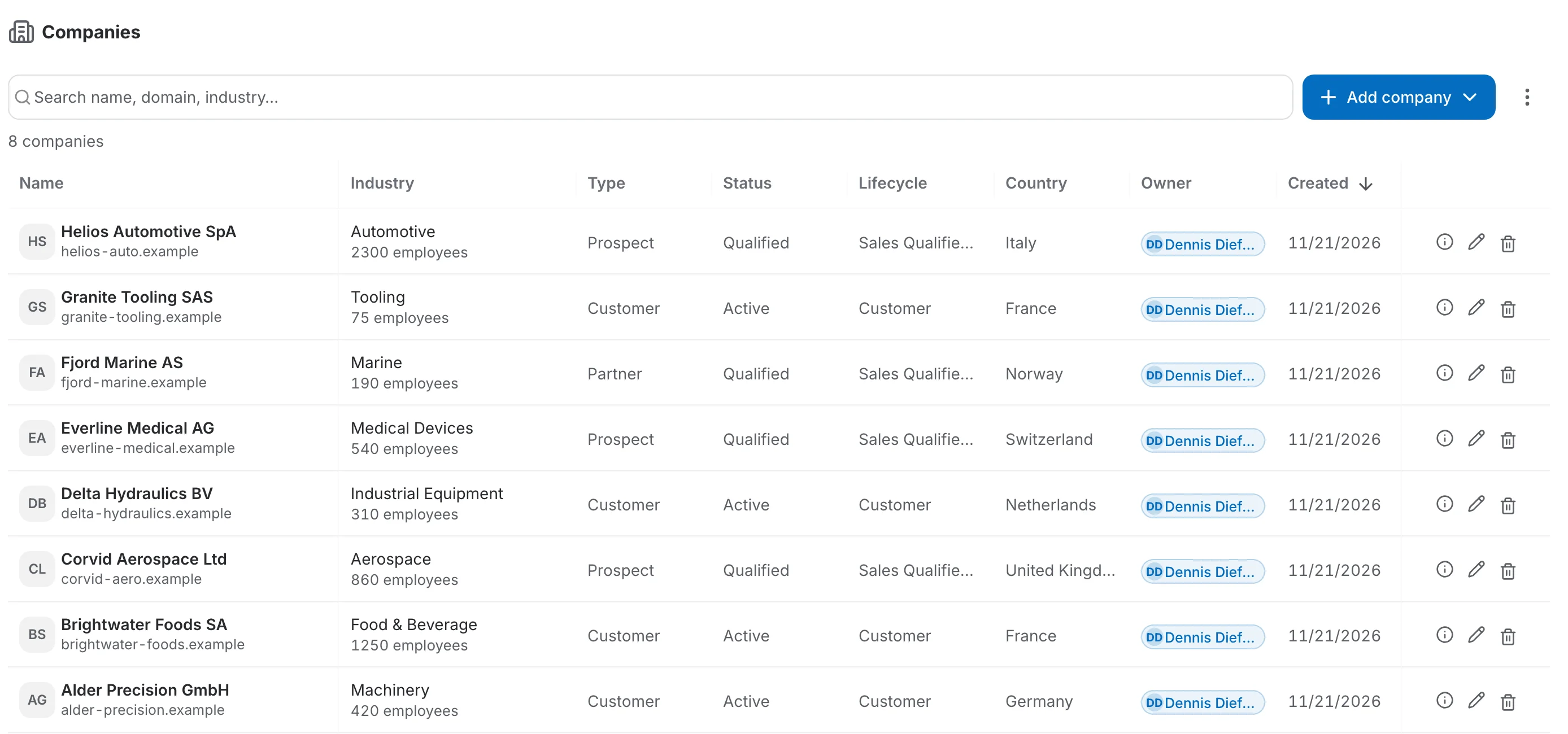
The company list
Each row shows the company's name and website, its industry and size, type, status, lifecycle stage, country, owner and creation date. Click a row to open the company's panel; the icons at the end of the row open the details, edit the company or delete it.
Adding companies
Click Add company and choose:
- Manual — fill in the form: name, website, phone, industry, type, number of employees, annual revenue, address, status, lifecycle stage, description and comment.
- Smart — paste an about-us page or an exhibitor list (Text), or a photo of a stand, a badge or a business card (Image). The AI proposes the companies it found; check them, untick the ones you do not want, and save. A card warns you when a company with the same domain or name already exists.
The company panel
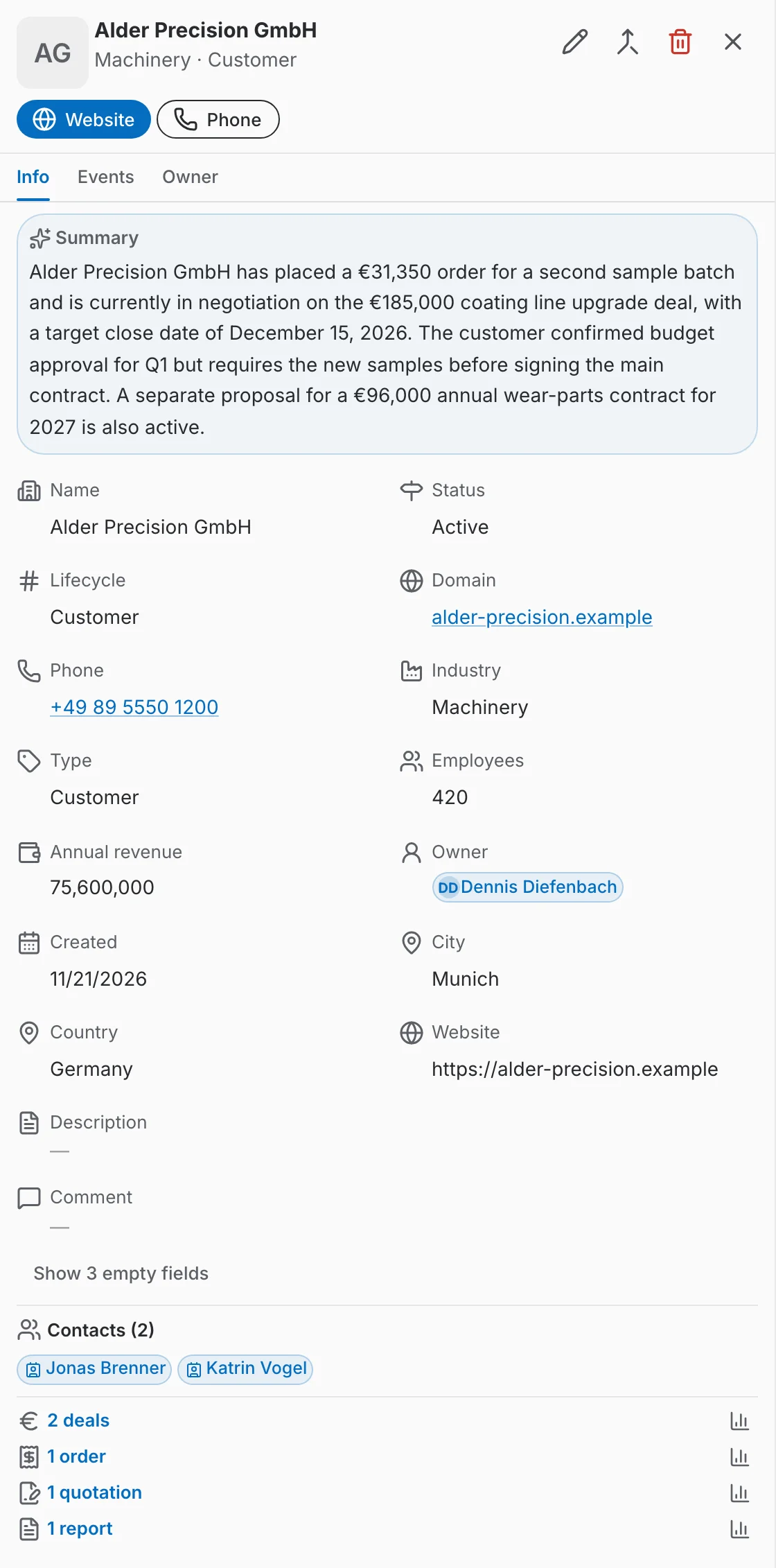
The company panel works like the contact panel, with a few extras:
- Click the logo to upload the company's own (Change logo) or go back to the default (Reset logo).
- Contacts lists the people at the company; See all opens the Contacts list filtered on it.
- The counters below link to the company's deals, orders, quotations and visit reports; the chart icon beside each opens its statistics.
- A company imported from your ERP has an Open in IFS button that opens the record in the ERP.
The Events tab is the company's timeline: its deals, quotations, orders and visit reports appear by themselves, and you add notes, phone calls and fair meetings as for a contact (see Contacts).
Merging duplicates
When the same company was entered twice — under its short name and its legal name, or once by hand and once from an import — merge the two records into one.
- Open the company you want to keep and click the merge icon at the top of its details panel.
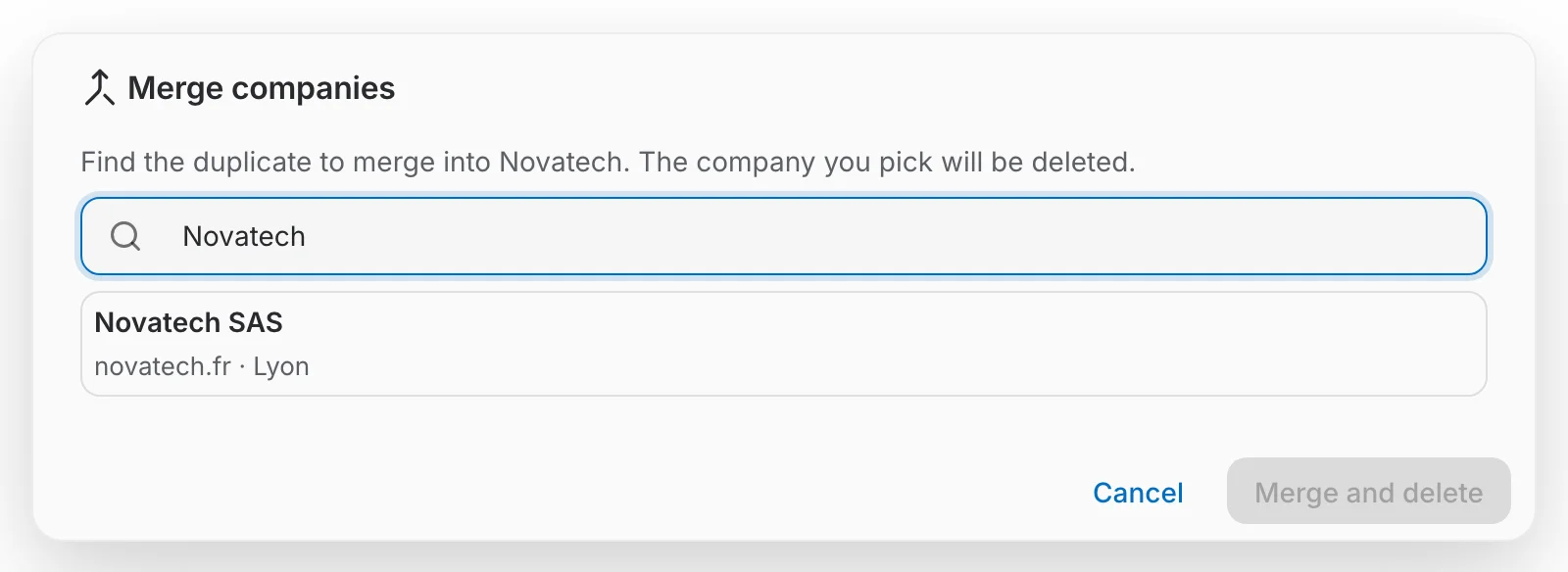
- Type at least two characters of the duplicate's name, domain or city, then click the duplicate in the results.
- Compare the two records. The company you keep is on the left (Kept), the duplicate on the right (Deleted). Only fields filled in on at least one side are listed. For each field, click the value to keep, from either side: it gets a tick.
- Click Merge and delete. Back returns to the search if you picked the wrong record.
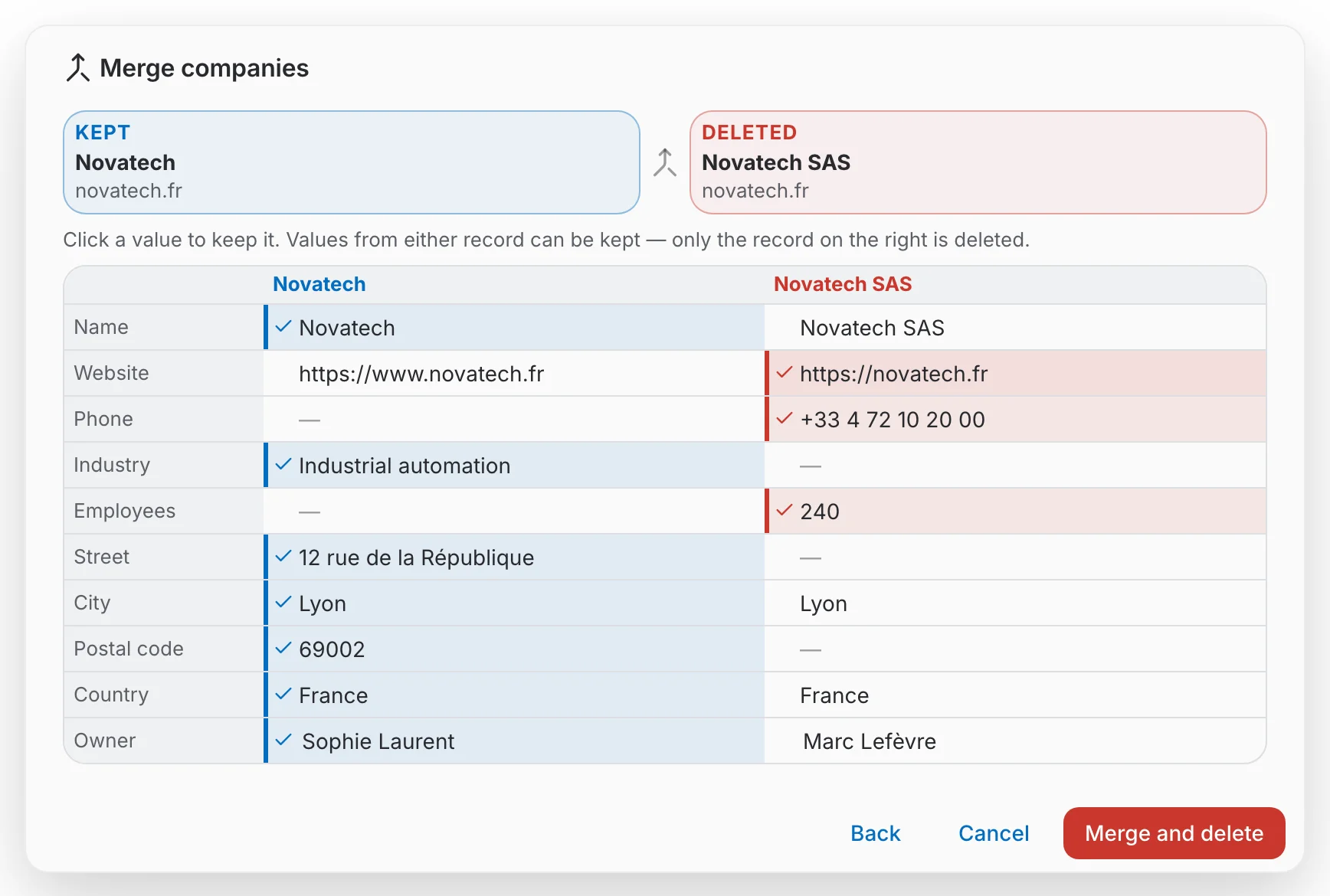
The values are pre-selected for you: the kept company's value, except where it is empty and the duplicate has one. Unlike contacts, the Owner is one of the rows, so you also choose who owns the merged company; the team stays the kept company's. Its IDs from other systems, such as your ERP, are combined with the duplicate's, so a later import recognizes the company instead of creating the duplicate again.
The duplicate's contacts move to the company you kept, so they appear on its Contacts tab.
To merge, you need to be able to edit the company you keep and to delete the duplicate: you own the duplicate, or you administer its team or the organization.