
Lists, Filters & Export
Every CRM section — contacts, companies, visit reports, deals, quotations, orders and invoices — uses the same list. This page describes what you can do with it.
Search and filters
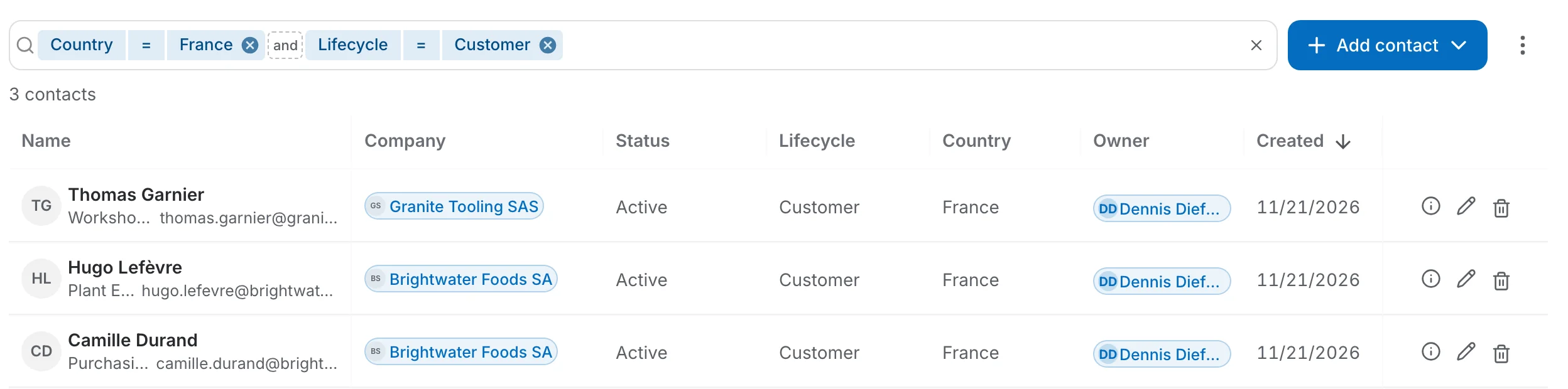
Type in the bar at the top of the list to search the records by name, email, company, reference and similar fields. The same bar builds filters on any column:
- Type part of a column name, for example
coun, and pick Country in the suggestions. - Pick how to compare — Is, Is not, Contains, Does not contain, Is empty, Is not empty, or Before / After and Greater than / Less than for dates and amounts.
- Pick or type the value and press Enter.
You can also type a whole filter at once: country=France, amount>1000, name~acme (contains), status!=Paid (is not). Date columns offer the current and next fiscal year as shortcuts.
Each filter becomes a chip; several chips are combined with and. Click a chip's × to remove it, or the × at the end of the bar to clear them all. The filters are part of the page address, so you can bookmark a filtered list or send its link to a colleague.
Sorting
Click a column header to sort by it; click again to reverse the order. The Deals section also has a Sort by menu (most recent, oldest, highest, lowest, A – Z, Z – A).
Choosing columns
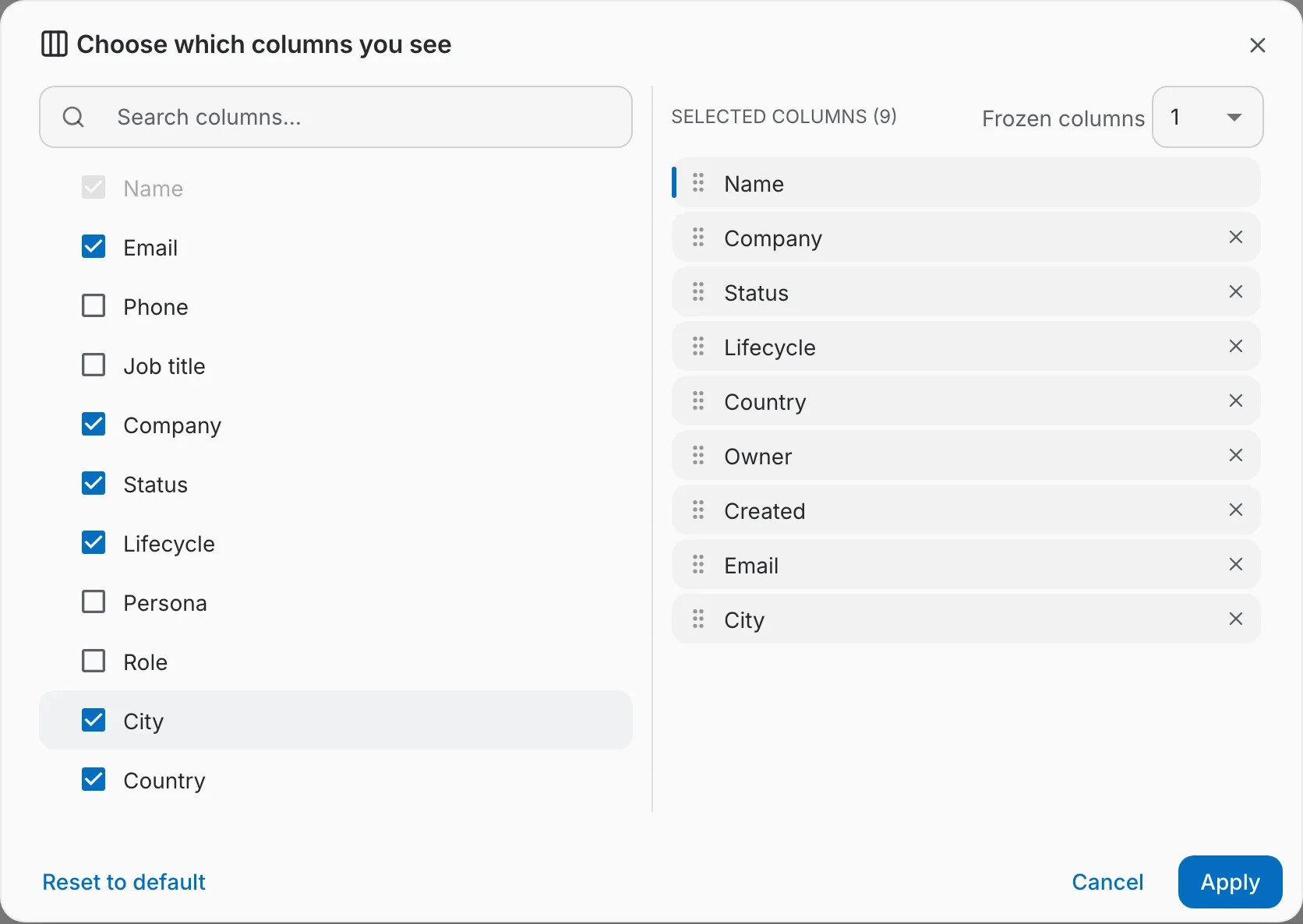
Open the overflow menu (⋮) and choose Columns. Tick the columns you want (search the list if it is long), drag the selected ones to reorder them — or use the arrow keys — and remove one with its ×. Frozen columns sets how many columns stay in place when the table scrolls sideways. Reset to default brings back the original layout. Click Apply to keep your choice.
Selecting several records
Choose Select in the overflow menu to show a checkbox on each row. Tick the records you need (or all of them with the header checkbox); a bar at the bottom of the page offers the actions for the selection: Export, Delete and, for visit reports, Summarize. You can only delete the records you own, unless you are an administrator; the app tells you how many of the selected records you can delete.
Exporting to Excel
Export all in the overflow menu downloads an Excel file (.xlsx) of the contacts, companies, deals or visit reports the list is showing, with its search and filters applied. To export only some records, select them and use Export in the selection bar.
At the bottom of the list, choose how many rows to show per page and move between pages.