
Contacts
Contacts are the people you deal with at your customers and prospects. This page covers the contact list, the three ways to add contacts and the details panel with its timeline. Companies work the same way; see Companies for what is specific to them.
The contact list
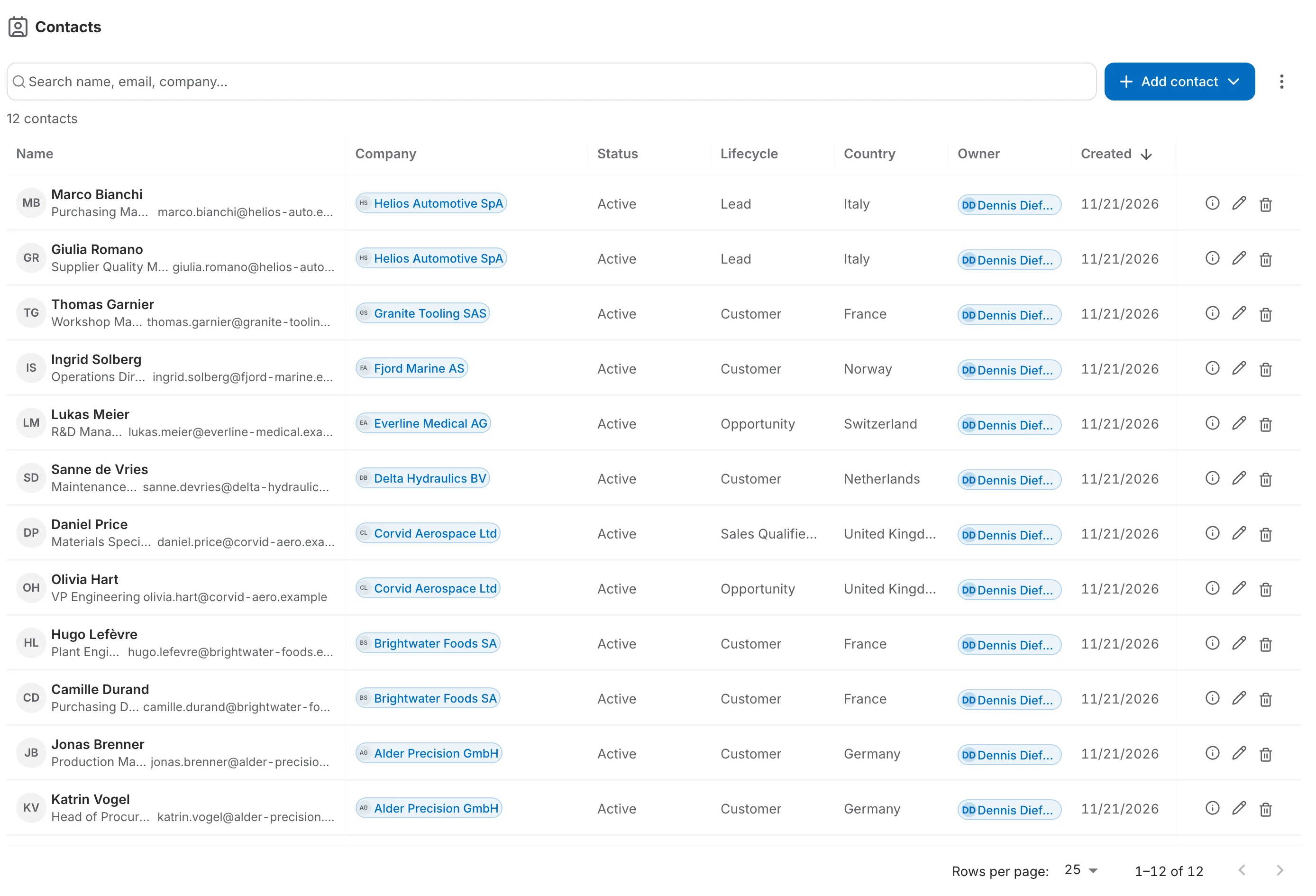
Each row shows the person's name, job title and email, their company, status, lifecycle stage, country, owner and creation date. Click a row to open the details panel; the icons at the end of the row open the details, edit the contact or delete it.
Adding contacts
Click Add contact and choose how:
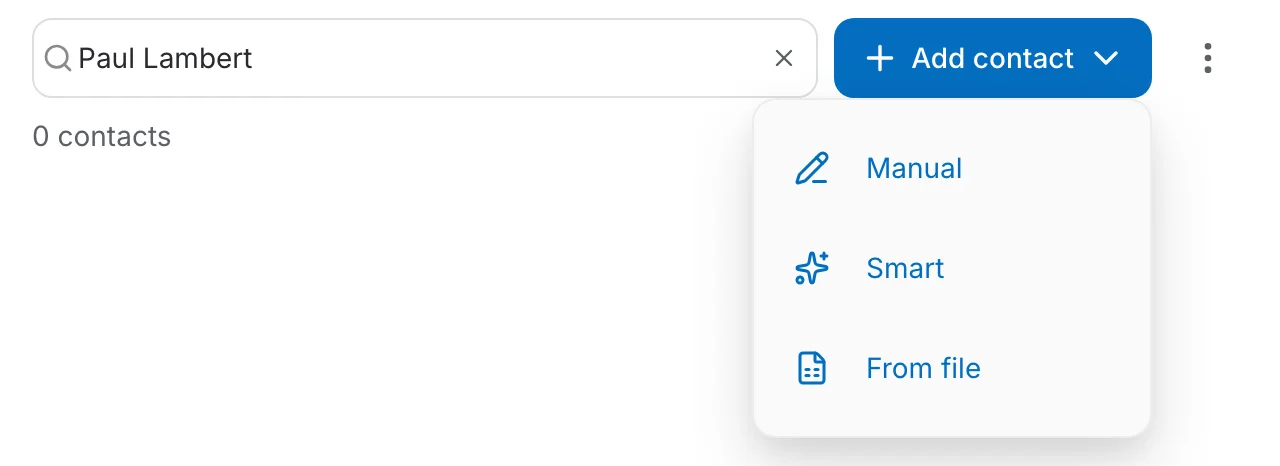
- Manual — fill in the form yourself.
- Smart — paste text or an image and let the AI extract the people in it.
- From file — import a spreadsheet.
Manual
The form opens in the details panel. In the Company field, start typing: pick an existing company, or choose Create "…" as a new company — the company is created when you save. Only the first name, last name or email is needed; everything else can be added later.
Smart add
Smart add reads contact details out of whatever you have at hand. Choose a tab:
- Text — paste an email signature, a list of attendees or any text with contact details.
- Image — paste (Ctrl+V / ⌘V) or drop a photo of a business card, a badge or a screenshot.
- File — the same as From file below.
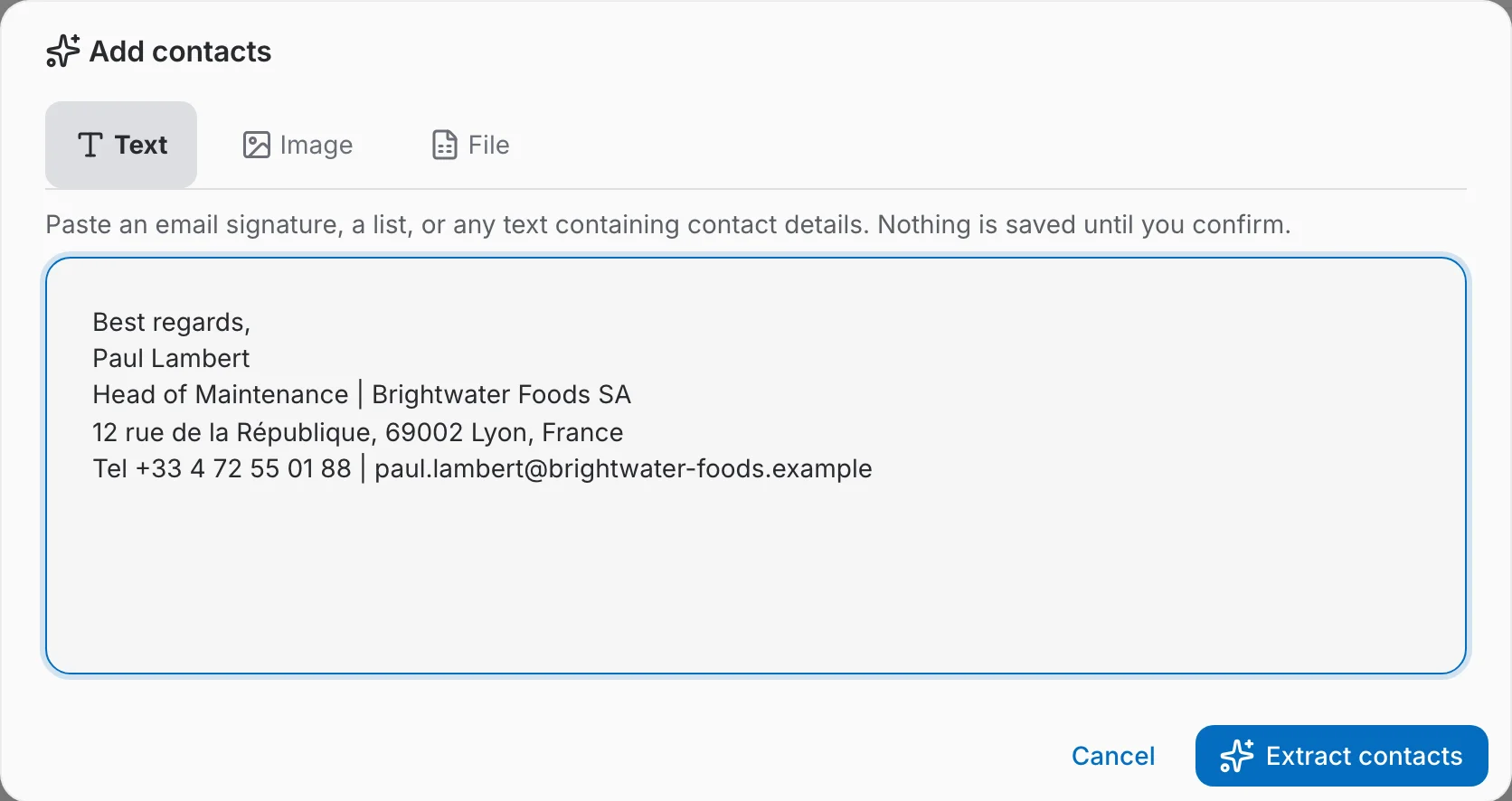
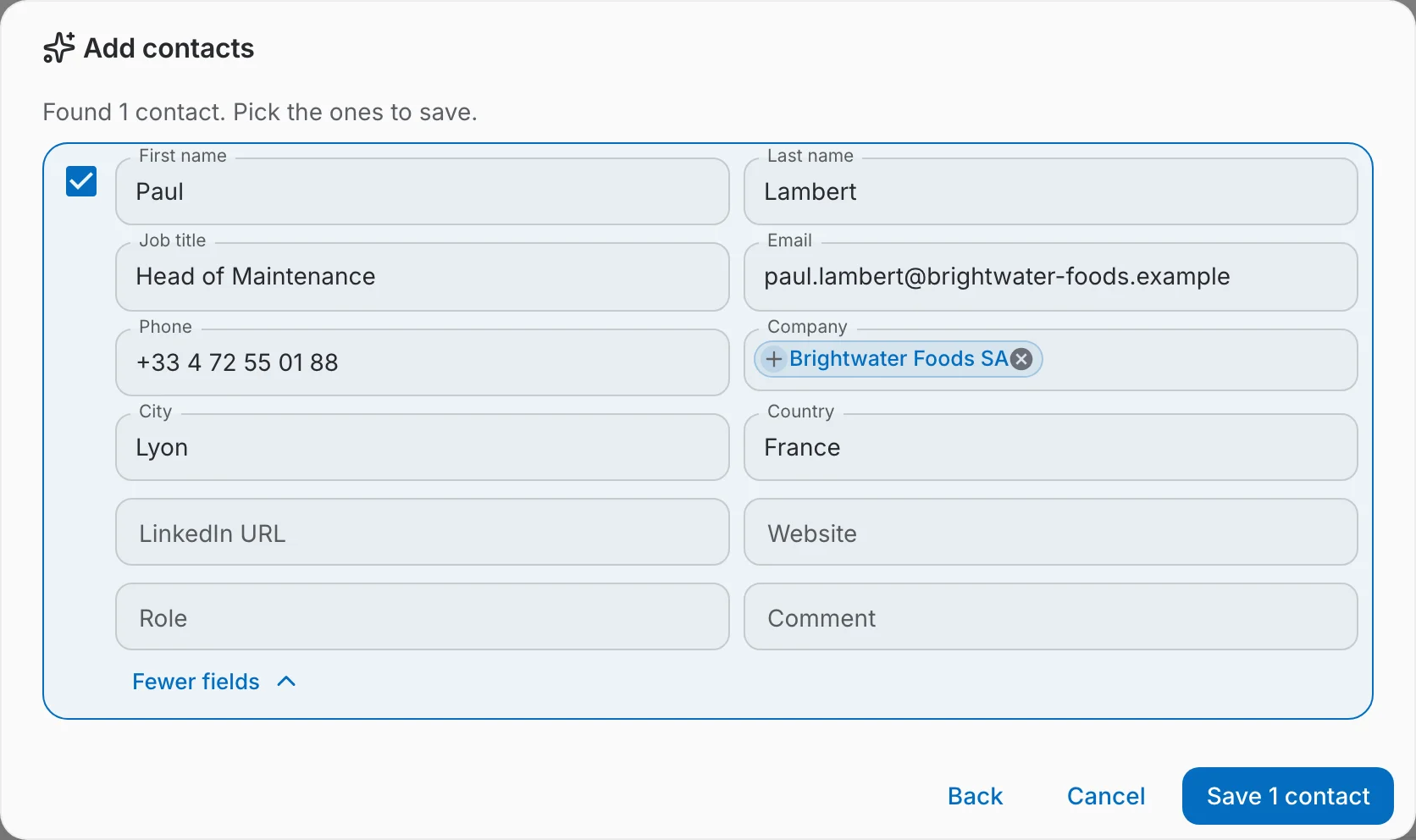
Click Extract contacts. The AI proposes one card per person it found. Check and correct the fields (More fields shows the rest), untick anyone you do not want, then click Save. Nothing is saved before that. A card warns you when a contact with the same email already exists.
Importing a file
From file imports a CSV, TSV or Excel file (.xlsx, .xls). The first sheet is read and its first row must hold the column names. Up to 2,000 rows are imported at once; split larger files.
- Drop the file or click to choose it, then click Match columns.
- For each column of the file, pick the contact field it feeds, or Don’t import. A single name column can be matched to Full name (split in two). At least one of Full name, First name, Last name or Email must be matched.
- Click Review contacts, correct anything wrong and untick the rows you do not want, then save.
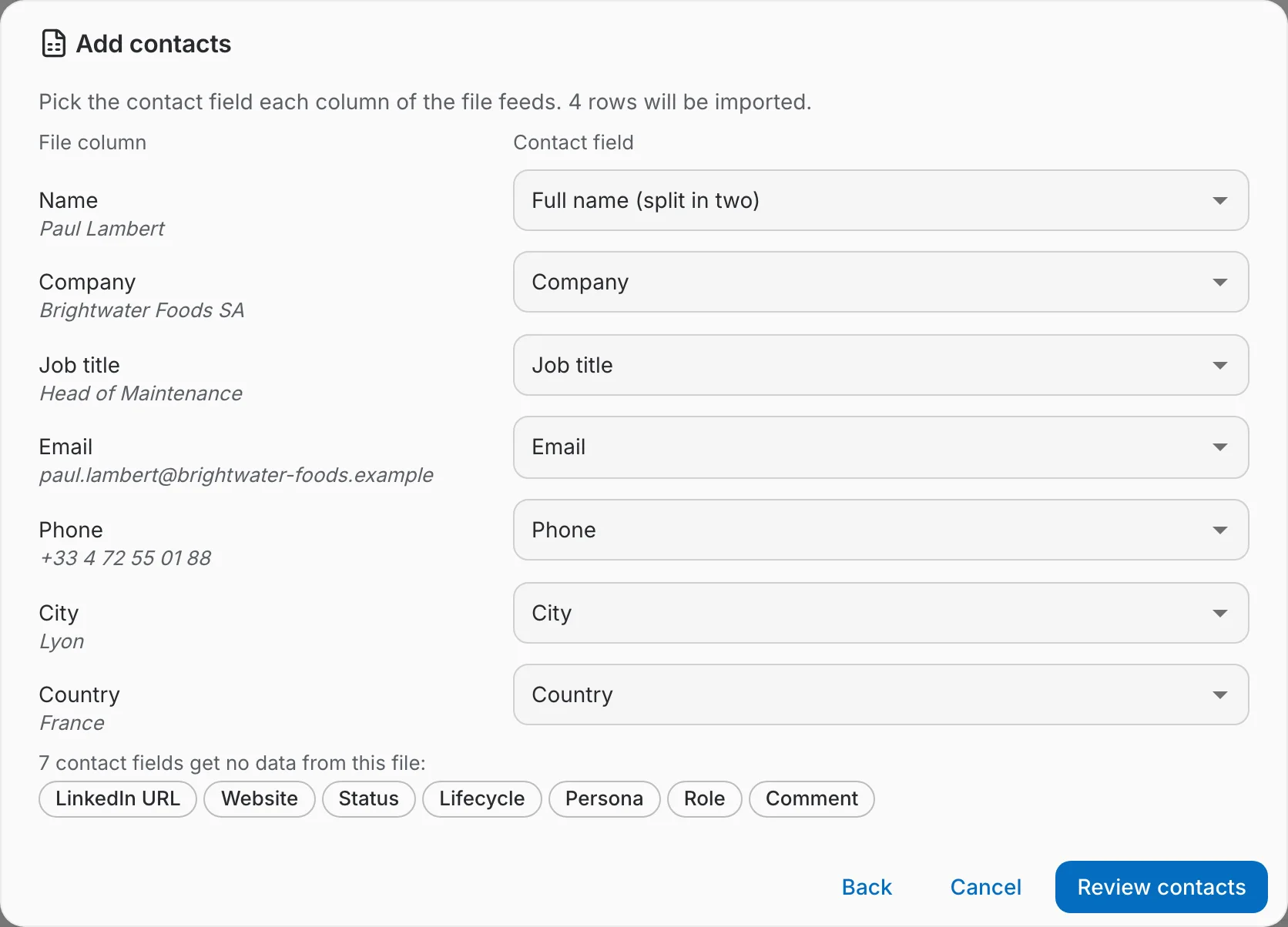
During the review, rows that are already in the CRM — matched on email, external ID, or name and company — are flagged. Choose what happens to them, for all at once or row by row: Do not import, Import as new contact or Update the existing one. If the same person appears twice in the file, only the first row is imported. Each row also tells you whether it links to an existing company or creates a new one.
The contact details panel
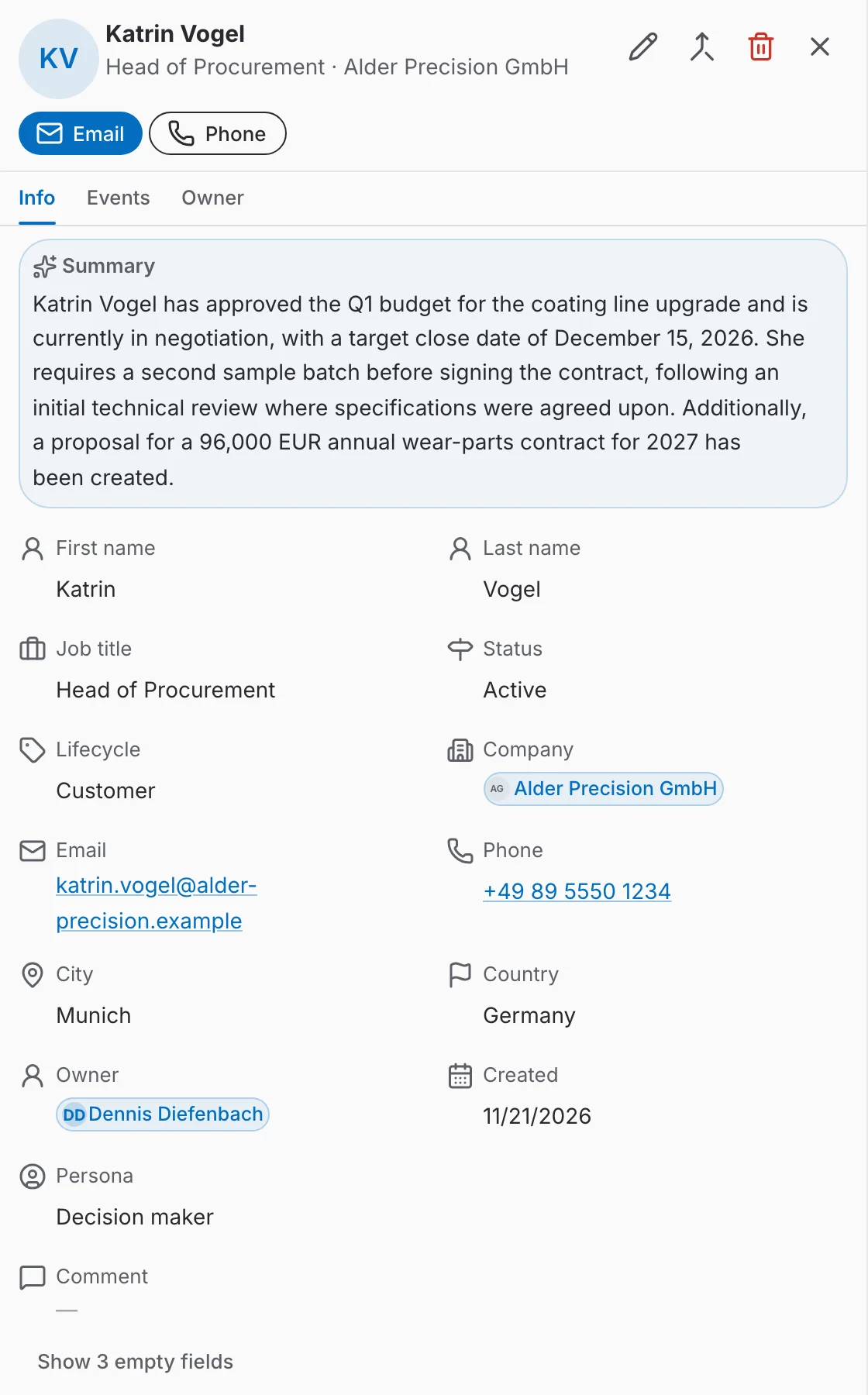
Click a contact to open the panel. The Email and Phone buttons start an email or a call. The icons at the top edit the contact, merge it with a duplicate, delete it or close the panel.
- Info — the AI Summary of the relationship, then the contact's fields. Empty fields are hidden; Show empty fields reveals them.
- Events — the contact's timeline (see below).
- Owner — the person who owns the contact and the team it is filed under.
Timeline and events
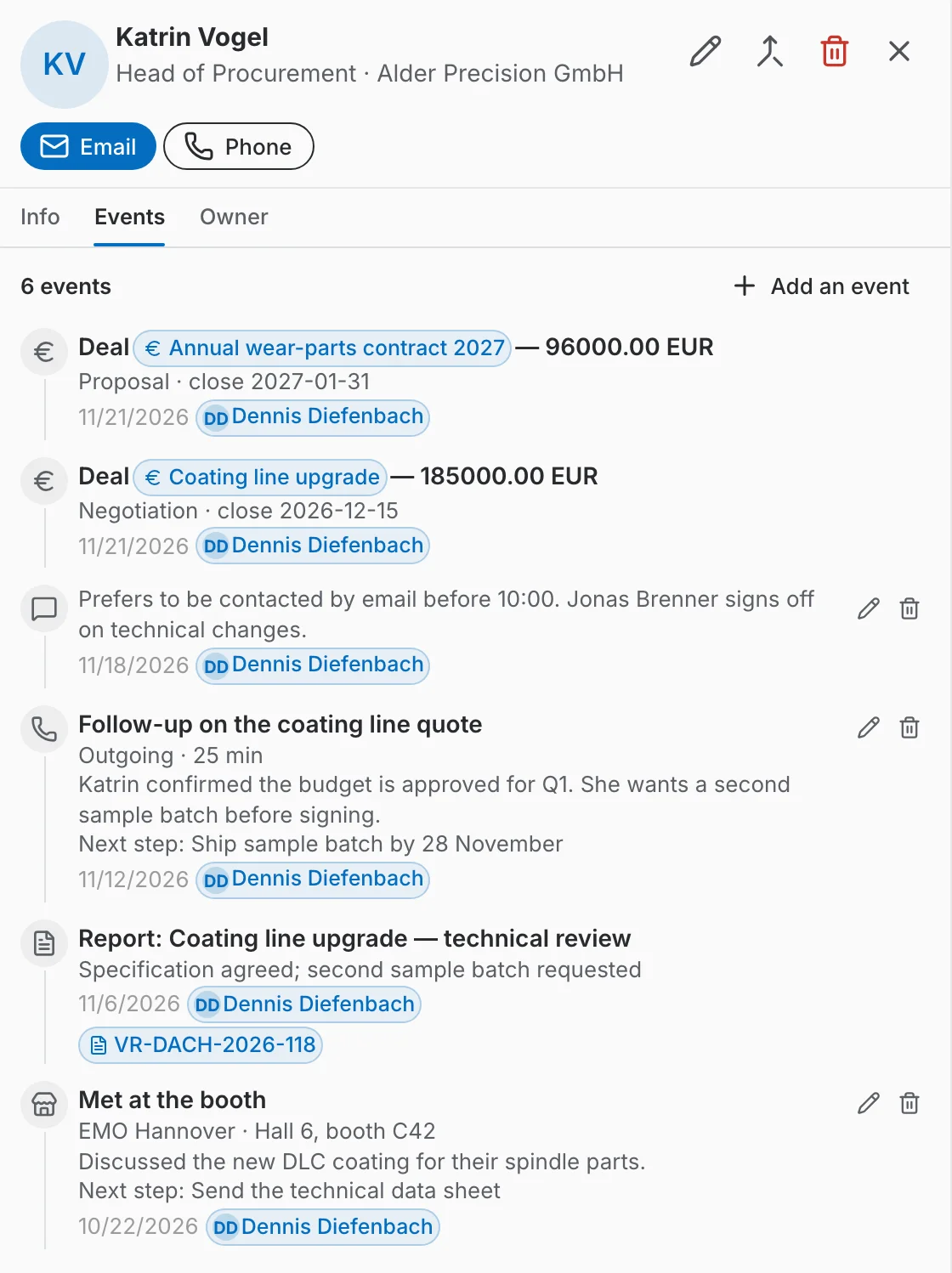
The Events tab lists everything that happened with a contact, company or deal, newest first. Some entries appear by themselves: a visit report that names the contact, a deal it is on, a quotation issued or an order placed for the company. Others you add with Add an event:
- Note — free text.
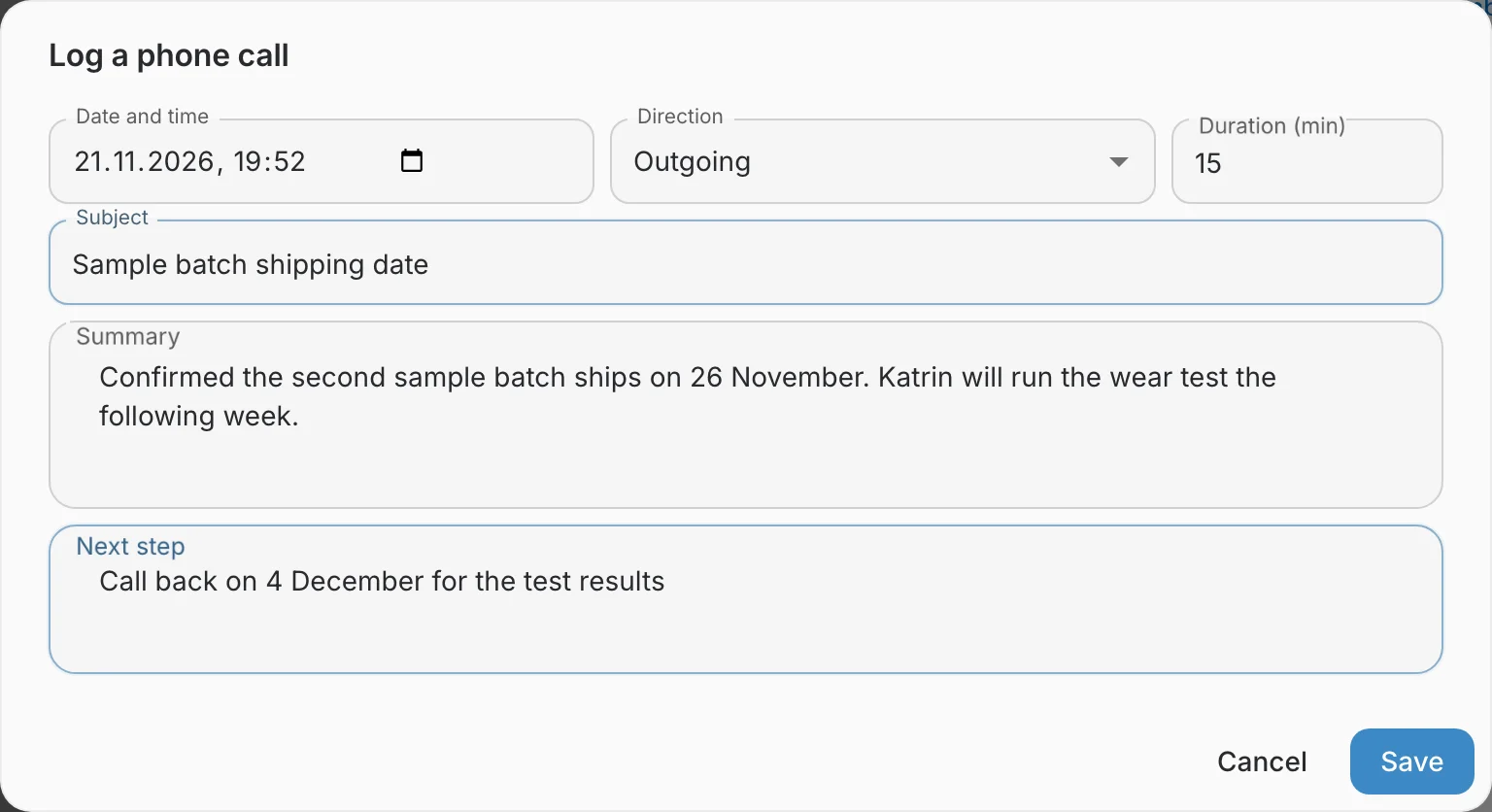
- Phone call — date and time, direction (incoming or outgoing), duration, subject, summary and next step.
- Fair meeting — someone you met at a trade fair: the fair, location or booth, subject, summary and next step.
Only the author of a note can edit it; the author or an organization administrator can delete it.
Merging duplicates
When the same person was entered twice — typed in by one colleague, imported from a file by another — merge the two records into one.
- Open the contact you want to keep and click the merge icon at the top of its details panel.
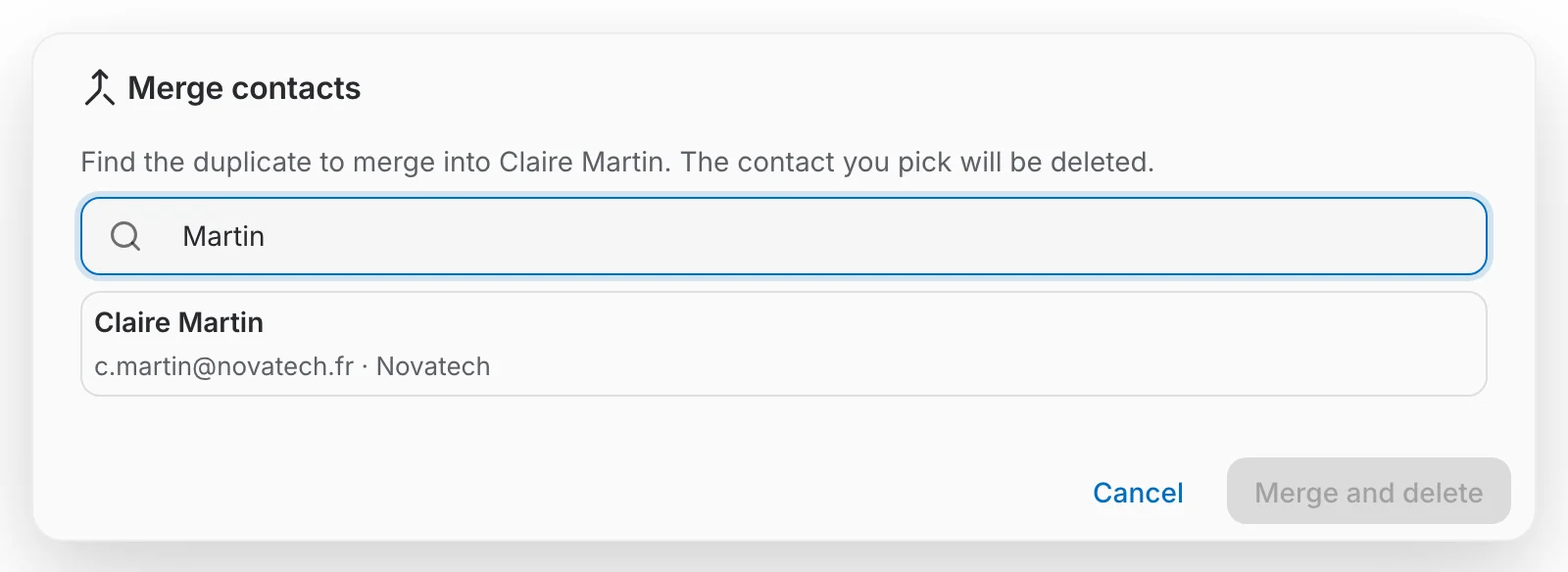
- Type at least two characters of the duplicate's name, email or company, then click the duplicate in the results.
- Compare the two records. The contact you keep is on the left (Kept), the duplicate on the right (Deleted). Only fields filled in on at least one side are listed. For each field, click the value to keep, from either side: it gets a tick.
- Click Merge and delete. Back returns to the search if you picked the wrong record.
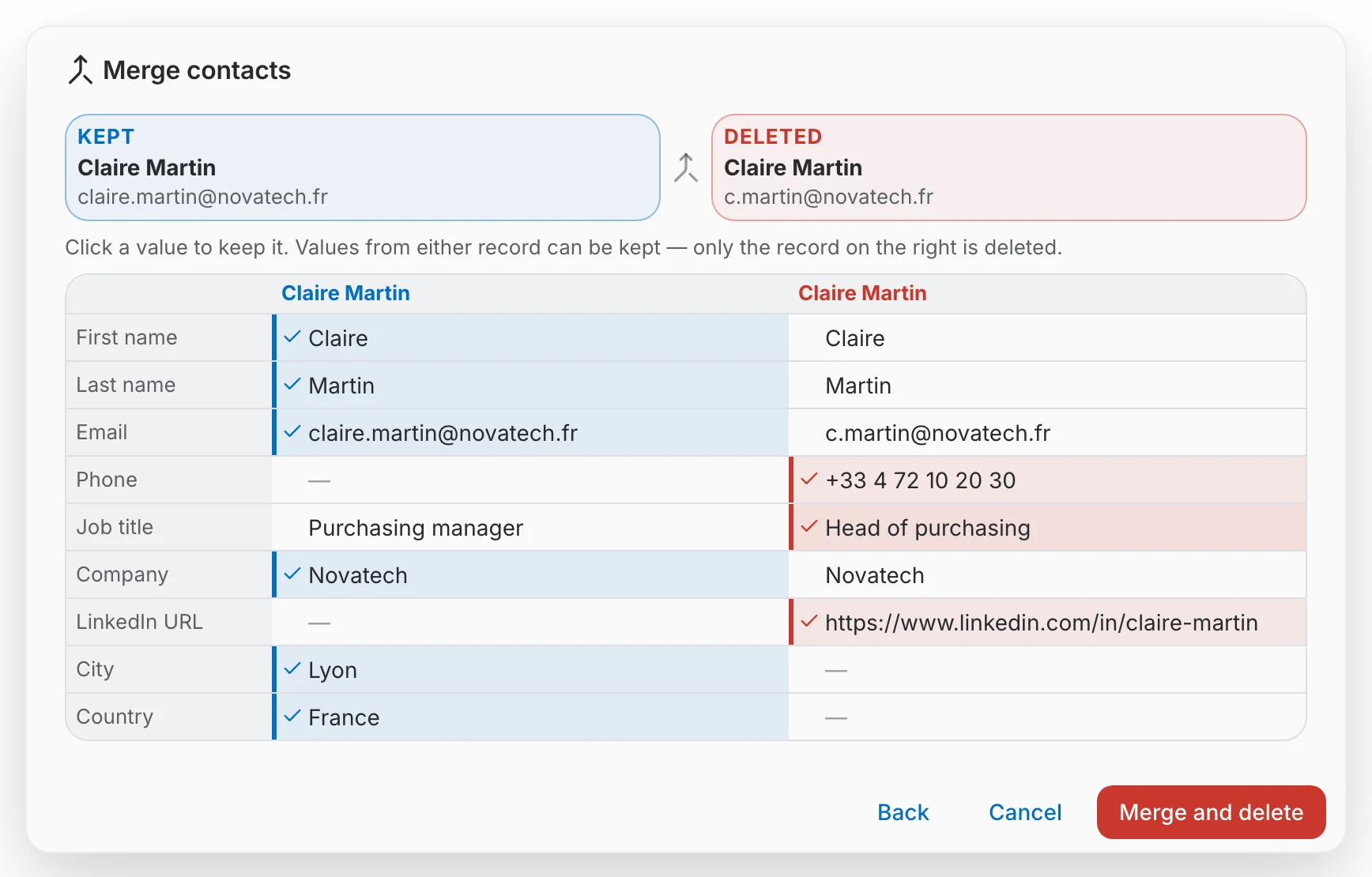
The values are pre-selected for you: the kept contact's value, except where it is empty and the duplicate has one, so nothing is lost unless you choose to. The kept contact keeps its owner and team. Its IDs from other systems, such as your ERP, are combined with the duplicate's, so a later import recognizes the person instead of creating the duplicate again.
To merge, you need to be able to edit the contact you keep and to delete the duplicate: you own the duplicate, or you administer its team or the organization.
Companies and deals are merged the same way, from their own details panels. When you merge two companies, the duplicate's contacts move to the company you kept (see Companies).