
Help Desk
The Help desk page holds the settings of the help desk. Its GitLab section lets platform admins escalate support tickets to GitLab issues in one click; its Attachments section sets how much can be attached to a message.
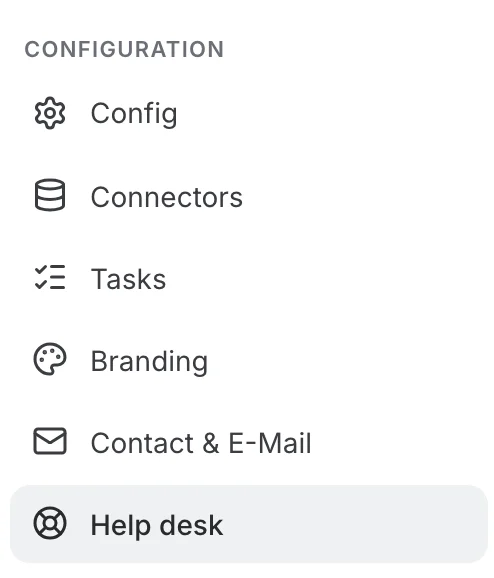
In the Admin Panel, Help desk sits in the Configuration group of the administration menu, right after Contact & E-Mail. Only platform admins can reach it.
Connecting GitLab
The GitLab section has a switch to the right of its description. While the switch is off, nothing else is shown. Turning it on reveals the connection form:
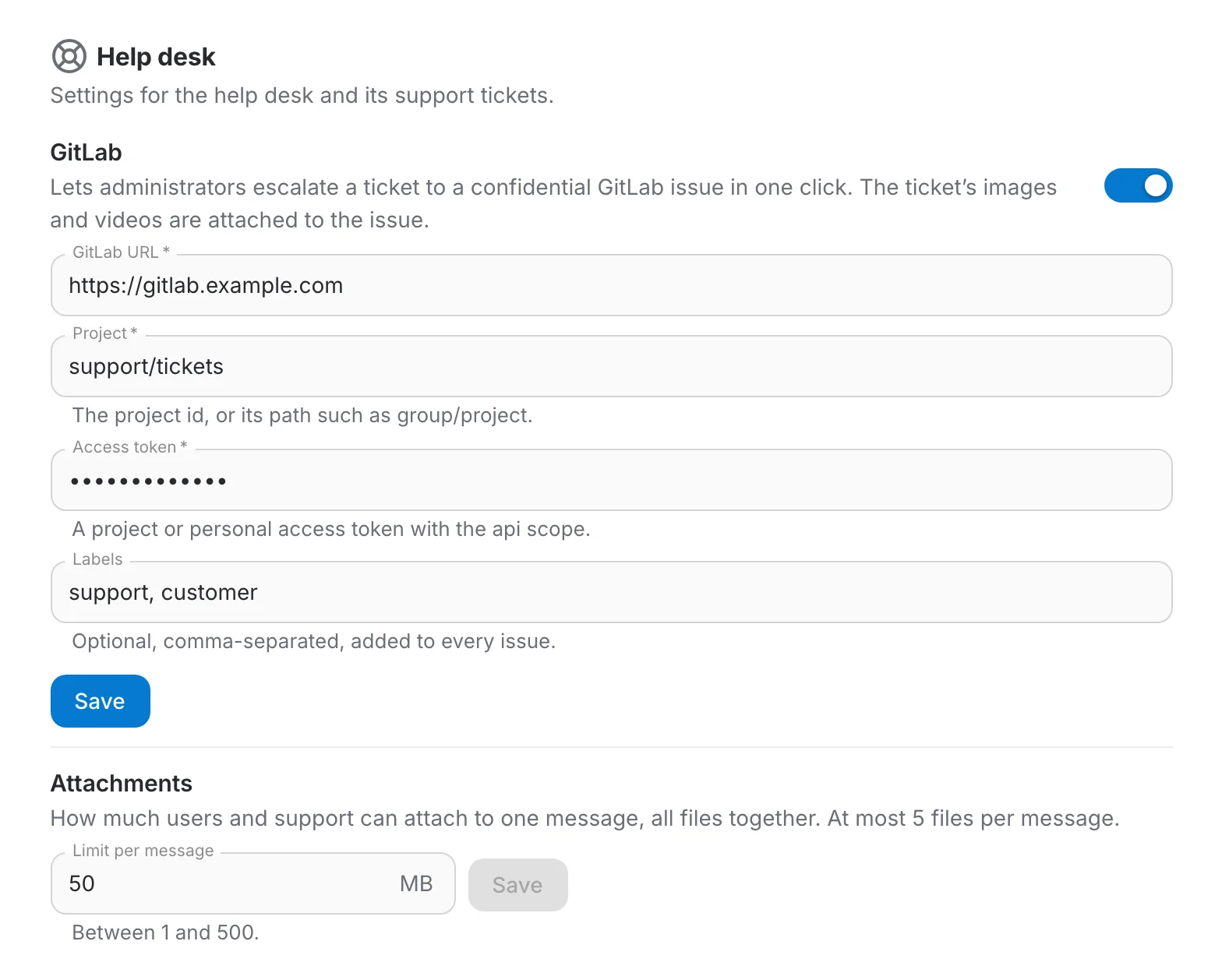
- GitLab URL — the address of your GitLab instance, for example https://gitlab.com or your self-hosted server.
- Project — the project the issues are created in: its numeric id, or its path such as support/tickets.
- Access token — a project access token or a personal access token with the api scope, belonging to an account allowed to create issues in that project.
- Labels — optional, comma-separated labels added to every issue, for example support, customer.
Click Save. Saving the form also turns GitLab issues on, and the settings apply immediately: open a ticket on the Support tickets page and the Create GitLab issue button is there. Click Save again whenever you change a field.
The URL, the project and the access token are required (they are marked with an asterisk). Save becomes available once all three are filled — the token only the first time, see below.
Turning GitLab issues on and off
The switch saves on its own, without the Save button. Turning it off takes effect at once: the form is hidden and the Create GitLab issue button disappears from the tickets. Issues already created stay linked from their tickets, and the stored URL, project, token and labels are kept. Turning it back on is just as immediate when a complete configuration is stored. The first time, when nothing is stored yet, the switch only reveals the form, and GitLab issues are enabled when you click Save.
Limiting attachments
The Attachments section, below GitLab, sets the Limit per message: the total size, in MB, that all the files of one message may reach together. It applies to everyone who writes on a ticket — requesters opening or answering a ticket, and support replying. Whatever the limit, a message carries at most 5 files.
The limit is 50 MB by default and can be set between 1 and 100 MB. The section has its own Save button, available only once the value has changed and is within those bounds; it does not touch the GitLab settings.
The new limit applies to the next message anyone sends: the drop area of the new-ticket form shows it, and a file that would take a message over it is refused. Files already attached stay where they are.