
Transition
Transition lets you migrate every assistant that uses one embedder onto another embedder in a single operation — a process also known as bulk reindexing. Each assistant in scope is reindexed with the target embedder, so its documents are searchable again under the new embedding model.
What it does
Instead of reindexing assistants one by one, you pick a source and a target embedder once and QAnswer fans out across every assistant that uses the source. The job runs in the background and persists its progress, so you can leave the page and come back later.
- Serial by default — assistants are reindexed one at a time, so a single failure only affects that assistant — the rest of the job keeps going.
- Safe skips — assistants that are mid-indexing or already being reindexed are skipped rather than corrupted.
- Fully tracked — every assistant gets its own row with a live status, elapsed time and any error, all visible from the job details.
Where Transition can be run
Every LM Providers page has its own Transition page, and each one only ever touches the assistants of that scope. The page looks identical everywhere; only the set of assistants it can reach changes.
| LM Providers page | Migrates | Who can run it |
|---|---|---|
| Platform admin | Every assistant on the instance. | Platform administrators. |
| Organization | The organization's assistants. | Organization administrators and platform administrators. |
| Team | The team's assistants. | Team administrators and platform administrators. |
| Personal | Your own assistants only. | Every user, on their own LM Providers page. |
The source and target lists only offer embedders that are active in that same scope, so a team page can only migrate between the embedders the team is allowed to use.
Before you start
- You need access to an LM Providers page for the scope you want to migrate — see the table above.
- At least two embedders must be active in that scope — a source to migrate away from and a target to migrate to. If only one is available, QAnswer disables the form and asks you to add or activate another embedder first.
Step 1 — Choose source and target
In the Embedder Transition section, pick the two embedders:
- Source embedder — the embedder you are migrating away from. Every assistant using it becomes a candidate.
- Target embedder — the embedder to migrate to. The source you already picked is removed from this list, so the two can never be the same.
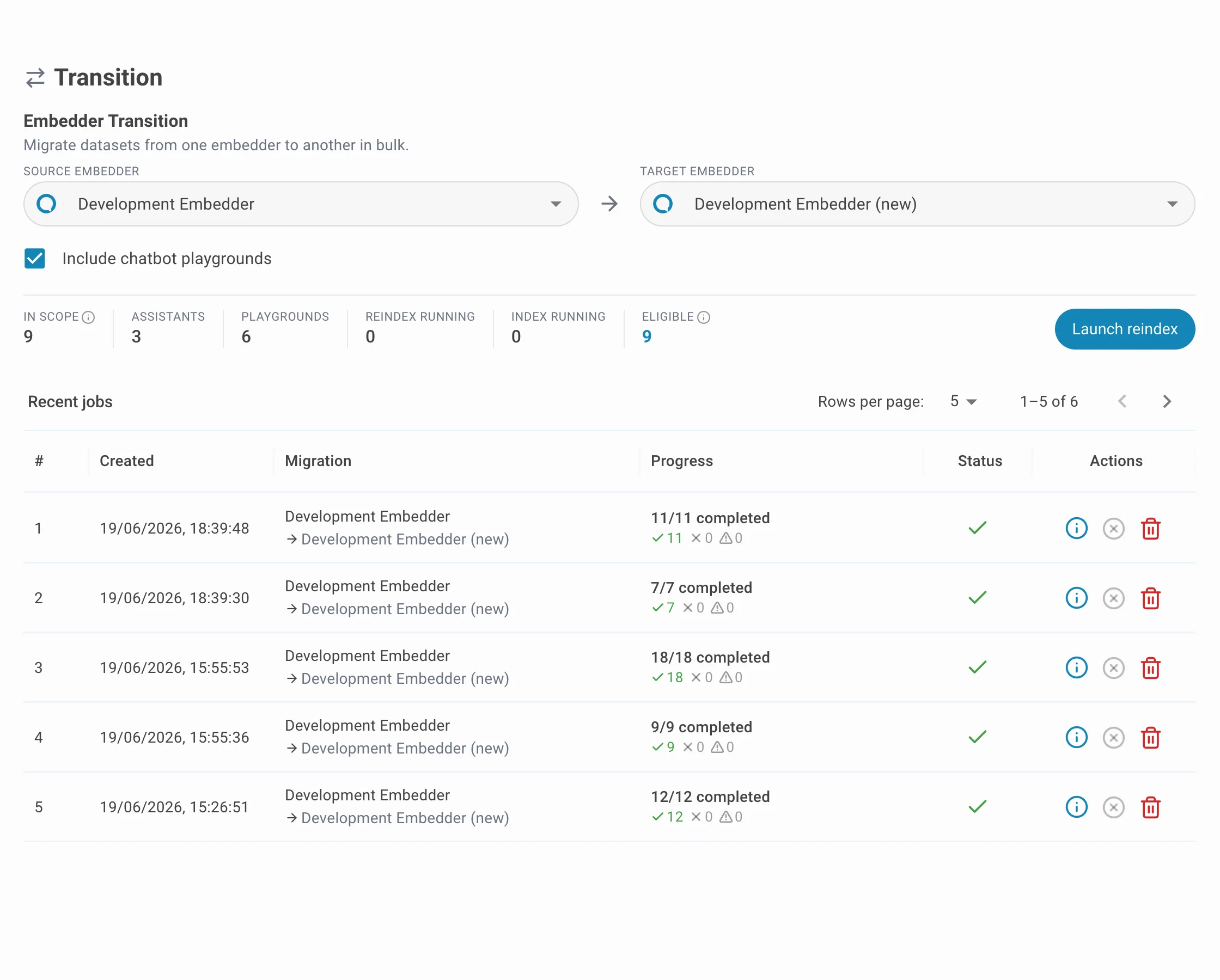
When you reach this page from an embedder you could not delete or deactivate, the source is already filled in with that embedder — see Embedders for that flow.
Step 2 — Review the scope
As soon as both embedders are selected, the counts below the fields update with a live preview of how many assistants will be affected. Use it to confirm the migration before launching.
| Metric | Meaning |
|---|---|
| In scope | Total assistants using the source embedder — assistants plus chatbot playground assistants. |
| Assistants | In-scope items that are regular AI assistants. |
| Chatbot playground assistants | In-scope items that back a chatbot playground. |
| Reindex running | Assistants already being reindexed by another job — they will be skipped. |
| Index running | Assistants with an indexing run in progress — they will be skipped. |
| Eligible | Assistants that can be reindexed right now = In scope − Reindex running − Index running. |
Launch reindex stays disabled until the preview has loaded and Eligible is at least 1, so you cannot start an empty job.
Step 3 — Launch and confirm
Click Launch reindex. The Details of reindex dialog summarises the migration — both embedder names with their context window and embedding size, plus the same scope counts. Review it and click Confirm to start the job.
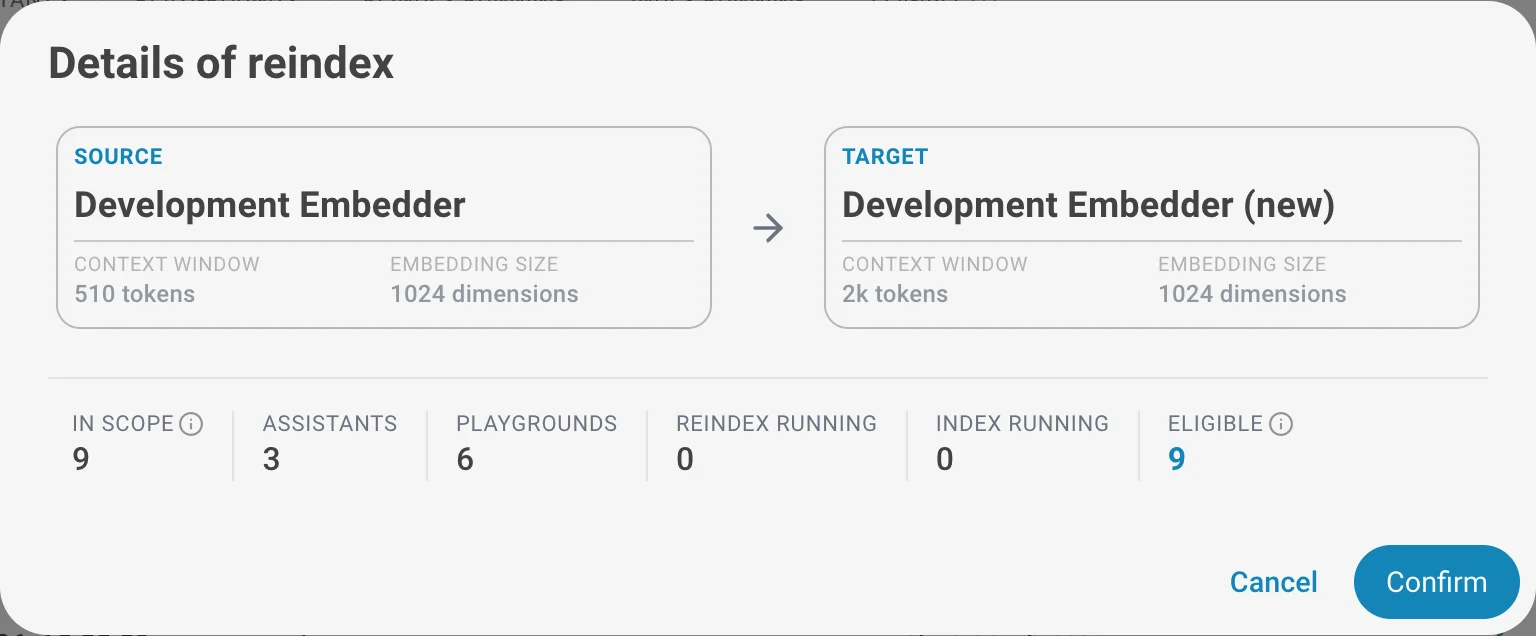
The job is created immediately and starts processing assistants in the background. You can close the dialog and track progress in the Recent jobs table below.
Step 4 — Track progress
The Recent jobs table below the form lists the bulk jobs of this scope, newest first, one page at a time.
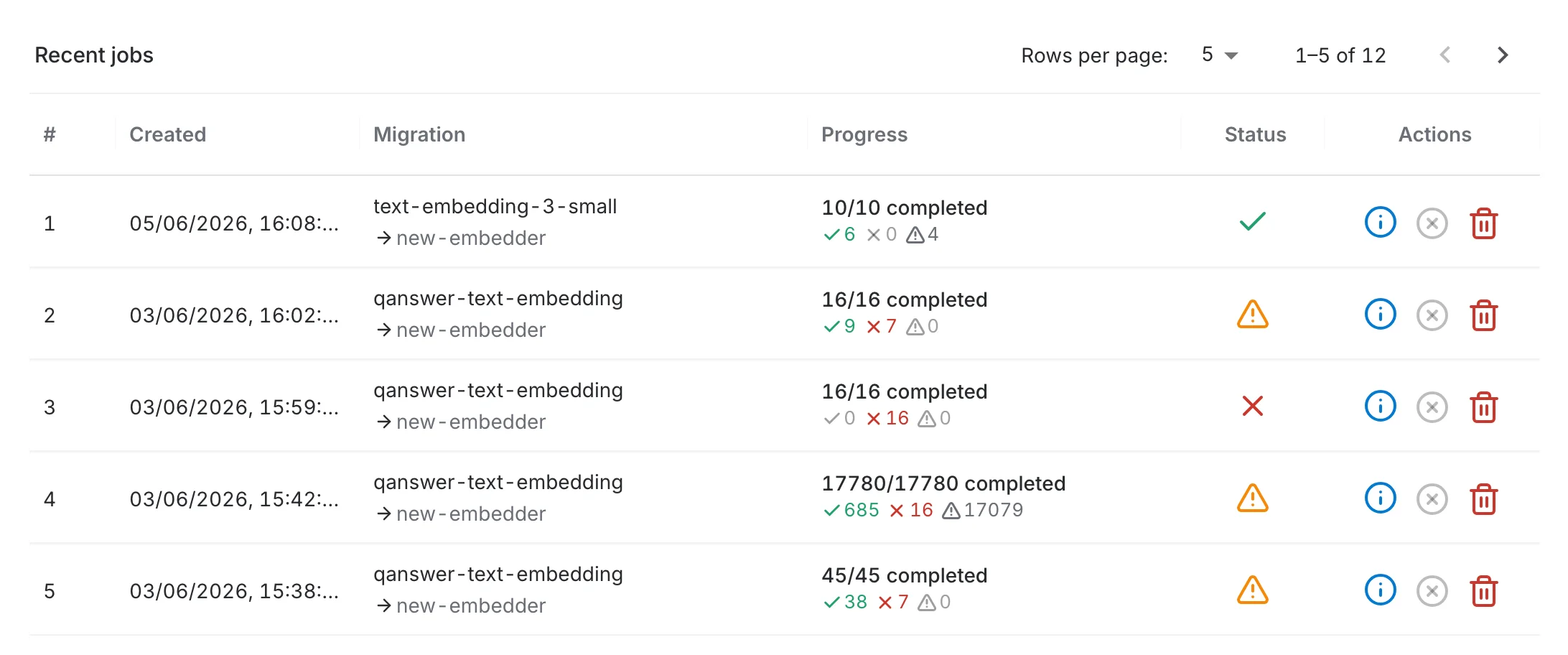
- Created — when the job was submitted.
- Migration — the source embedder above the target embedder it migrates to.
- Progress — how many items are finished out of the total, followed by the succeeded, failed and skipped counts. Hover it for the same breakdown in words.
- Status — the overall job status as an icon — hover it to read the status name.
- Actions — open, cancel or unblock, and delete. Which ones are available depends on the job status.
A job moves through these statuses:
| Status | Meaning |
|---|---|
| Pending / Running | The job is queued or actively reindexing assistants. Shown as a spinner. |
| Succeeded | Every item finished without a failure. |
| Partially failed | Some items succeeded and some failed. Open the job to see which. |
| Failed | No item succeeded. |
| Cancelled | The job was cancelled before all items were processed. |
Inspecting a job
Open a job to see the migration, a Succeeded / Failed / Skipped / Total summary, and one row per item: the dataset it belongs to, its type, its status, how long it took, the skip reason if it was skipped and the error message if it failed.
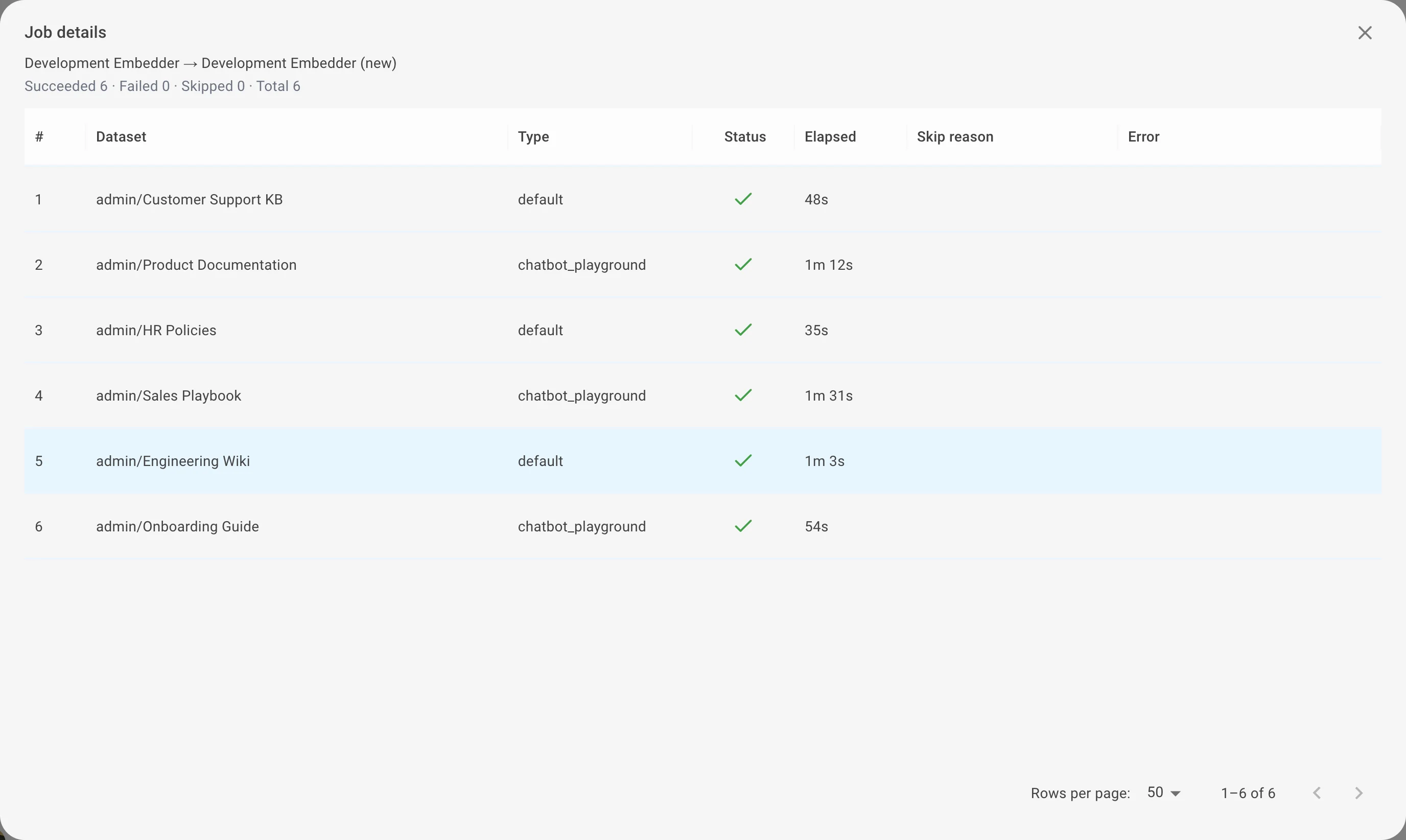
The list is paginated and sortable, so on a large job you can sort by status to bring the failures to the top instead of paging through thousands of successful rows.
Understanding skipped items
An item can be skipped to protect its data. A skip is not an error — the item is simply left untouched, with the reason recorded in the job details.
| Skip reason | Meaning |
|---|---|
| No search index | The item has no search index yet. The new embedder is saved for its next upload, but there is nothing to reindex right now. |
| Reindex running | The item is already being reindexed by another job. |
| Index running | An indexing run is still in progress. Reindexing now would drop the in-flight files, so the item is skipped. |
| Assistant deleted | The assistant was removed between submitting the job and processing it. |
| Cancelled | The item was still pending when the job was cancelled. |
Managing jobs
- Open — view the job details and the per-item list. Always available.
- Cancel — available while a job is still running and no cancel has been requested yet. Items already reindexing finish normally; the remaining pending ones are marked cancelled.
- Unblock — replaces Cancel when a cancel was requested but the job still has not finished, which means it is stuck. Unblocking releases the stuck items so the job can reach its final status.
- Delete — available only once a job has finished. Removes the job record and its item history; it does not undo a completed reindex.
On a narrow window the three action buttons collapse into a ⋮ menu on the row, and the Created and Progress columns are hidden to keep the table readable.