
Support Tickets
The Support Tickets page is where platform admins answer the tickets users open from the help desk. It gathers the tickets of every user, from every organization, in one inbox.
Opening the page
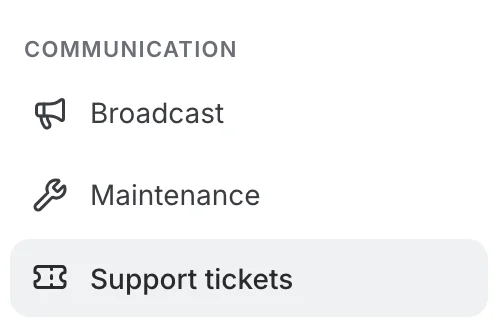
In the Admin Panel, Support tickets sits in the Communication group of the administration menu, directly below Maintenance. The help desk settings are elsewhere, under Configuration > Help desk, and are described on their own page.
Finding a ticket
The left column lists the tickets, most recently updated first. Each row shows the subject, the requester and their organization, a status chip and when the ticket was last updated. Click a row to open the ticket on the right; its address includes the ticket number, so you can share a link to it with another admin.
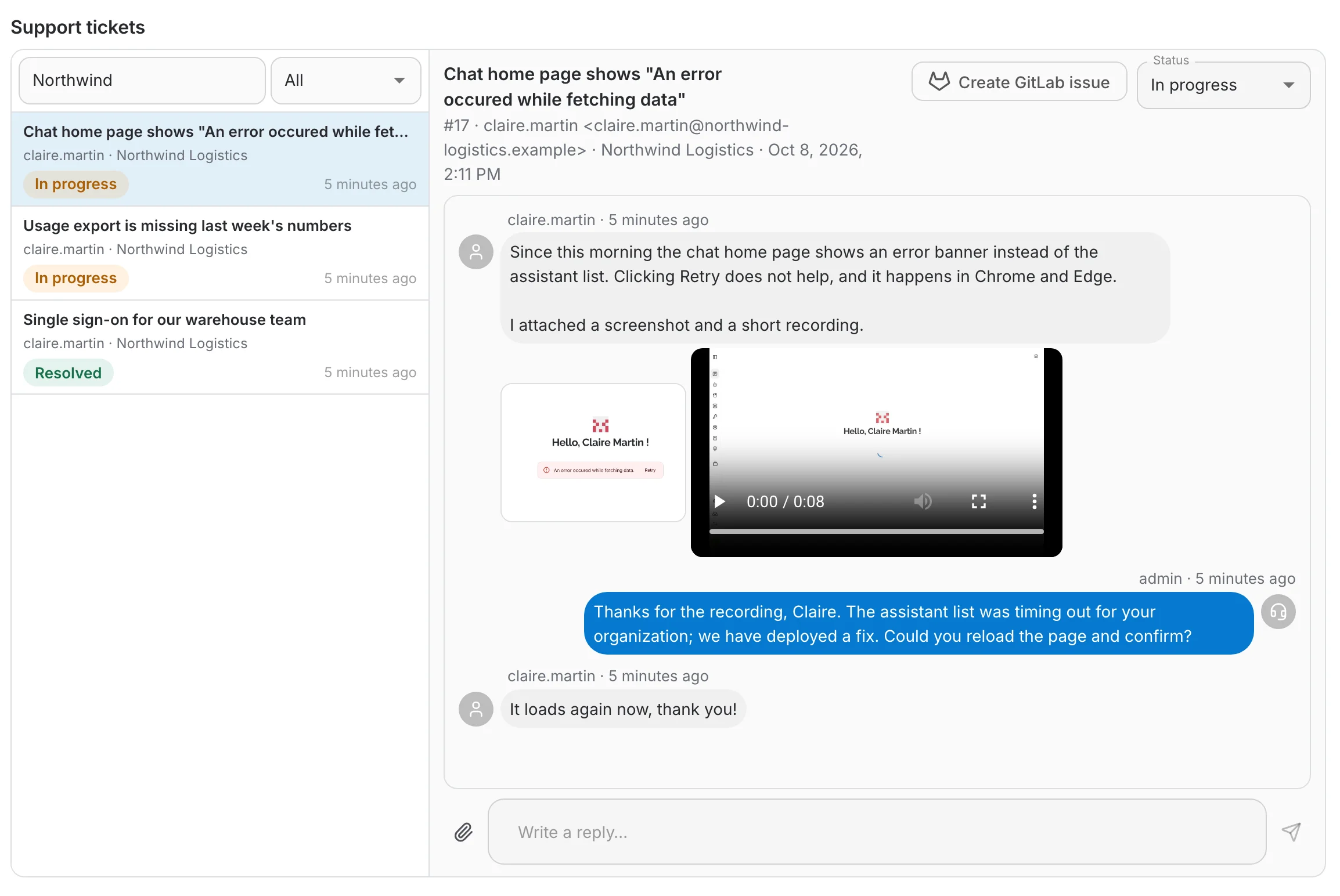
- Search tickets — matches the subject, the description, the requester's username or email, and the organization name. Here the search for "Northwind" keeps only the tickets of the Northwind Logistics organization.
- Status filter — All, Open, In progress or Resolved. Combine it with a search, for example to see what is still open for one organization.
Answering a ticket
The selected ticket shows who asked and where it stands at the top, then the conversation, then a reply box.

- Under the subject: the ticket number, the requester's username and email, their organization, and when the ticket was created.
- Status sets the ticket to Open, In progress or Resolved. The change is saved immediately and the requester sees the new chip on their side. Set In progress when you pick a ticket up, so the requester knows it is being handled.
- The reply box works as on the user side: write an answer, attach images or videos with the paperclip (up to 5 files per message, within the attachment limit set in the help desk settings), and send. Your replies appear to the requester as coming from support, with a headset avatar. In this view the sides are swapped: the requester is on the left and support on the right.
Escalating to GitLab
When GitLab issues are enabled in the help desk settings, a Create GitLab issue button appears next to the status. One click creates a confidential issue in the configured project, so the problem can be tracked by the engineering team:
- The issue title is the ticket's subject.
- The issue description starts with the requester (username and email) and their organization, then a link back to the ticket in QAnswer, then the ticket's description.
- Every image and video of the ticket — from the description and from the replies — is uploaded to GitLab and embedded in the issue.
- The labels set in the settings, if any, are added to the issue.
Once the issue exists, the button is replaced by a GitLab issue link that opens it in a new tab. A ticket can have only one issue. Without GitLab enabled, the button is not shown at all.