
Modules
The Modules page decides which parts of QAnswer appear in the navigation: the modules shown in the module switcher, the sections inside each of them, and the order of both. It exists at two levels: in each organization, for its administrators, and in the Admin Panel, for the whole platform.
Opening the page
- Organization: open the organization settings and click Modules, the first entry of the menu. Organization administrators only.
- Platform: open the Admin Panel and click Modules, the first entry of the administration menu. Platform administrators only.
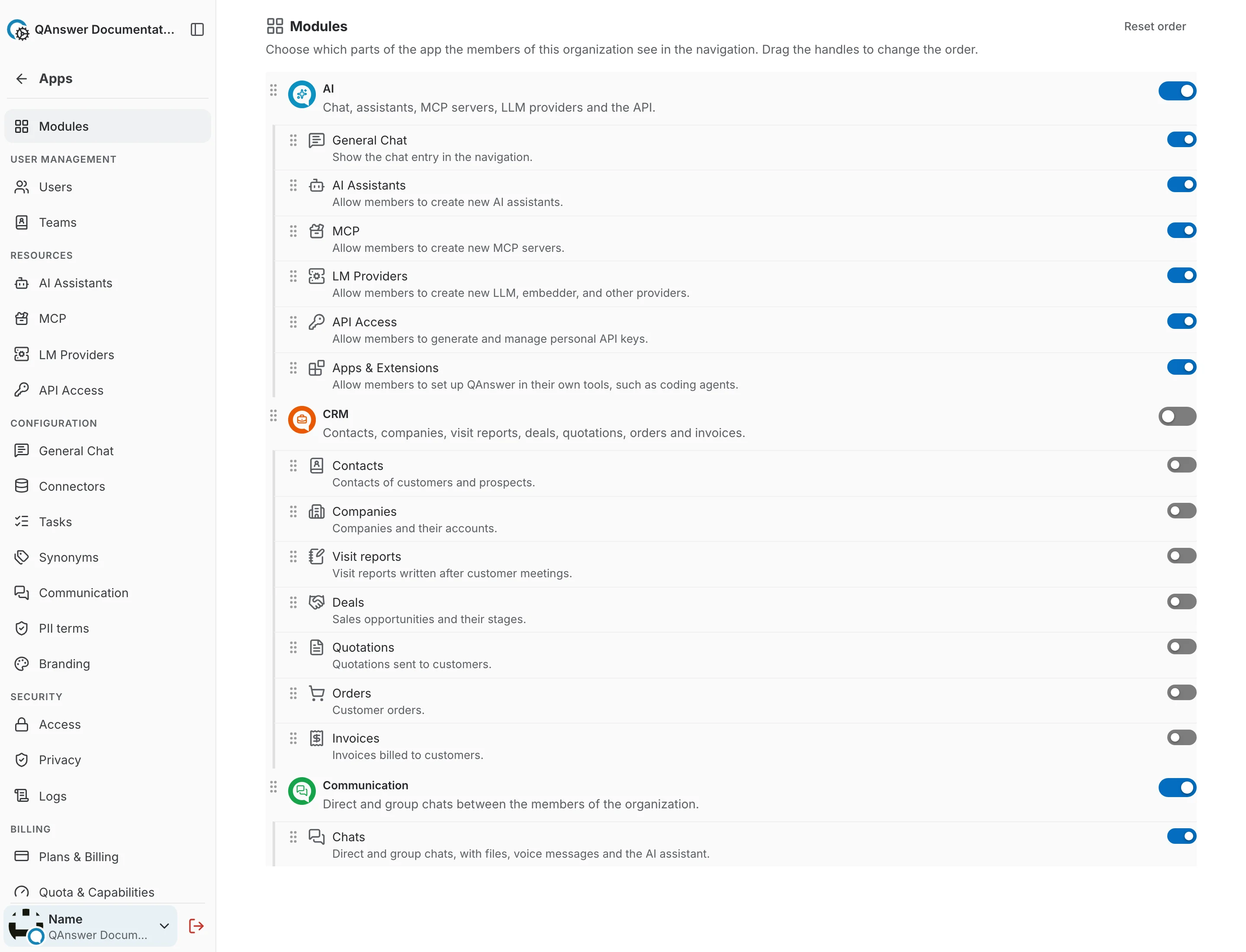
The modules and their sections
Each module has its logo, a description and a switch, with its sections listed below it, each with a switch of its own:
- AI — General Chat, AI Assistants, MCP, LM Providers, API Access and Apps & Extensions. On by default.
- CRM — Contacts, Companies, Visit reports, Deals, Quotations, Orders and Invoices. Off by default; see Enable the CRM.
- Communication — Chats. Off by default; see Enable Communication.
Switching modules and sections on and off
The switch of a module shows or hides the whole module. Switching on a module whose sections are all off switches its sections on with it, since a module without any section would stay hidden.
The switch of a section hides that entry only, for example Quotations, Orders and Invoices when the organization does not import them from an ERP. A module whose sections are all off disappears from the module switcher.
Every switch applies at once to every member: they see the change on their next page load. Switching something off deletes nothing; switching it back on brings everything back.
Changing the order
Drag the handle to the left of a module to move it among the modules, or the handle of a section to move it inside its module. The order is the one of the module switcher and of the navigation, for every member.
Reset order, at the top right, drops the order set on this page: an organization goes back to the platform's order, and the platform to the default one (AI, CRM, Communication, each with its sections in their default order).
At the platform level
In the Admin Panel the page reads: “Choose which parts of the app the whole platform exposes in the navigation. Organizations can narrow this further.” Its switches act on every organization at once:
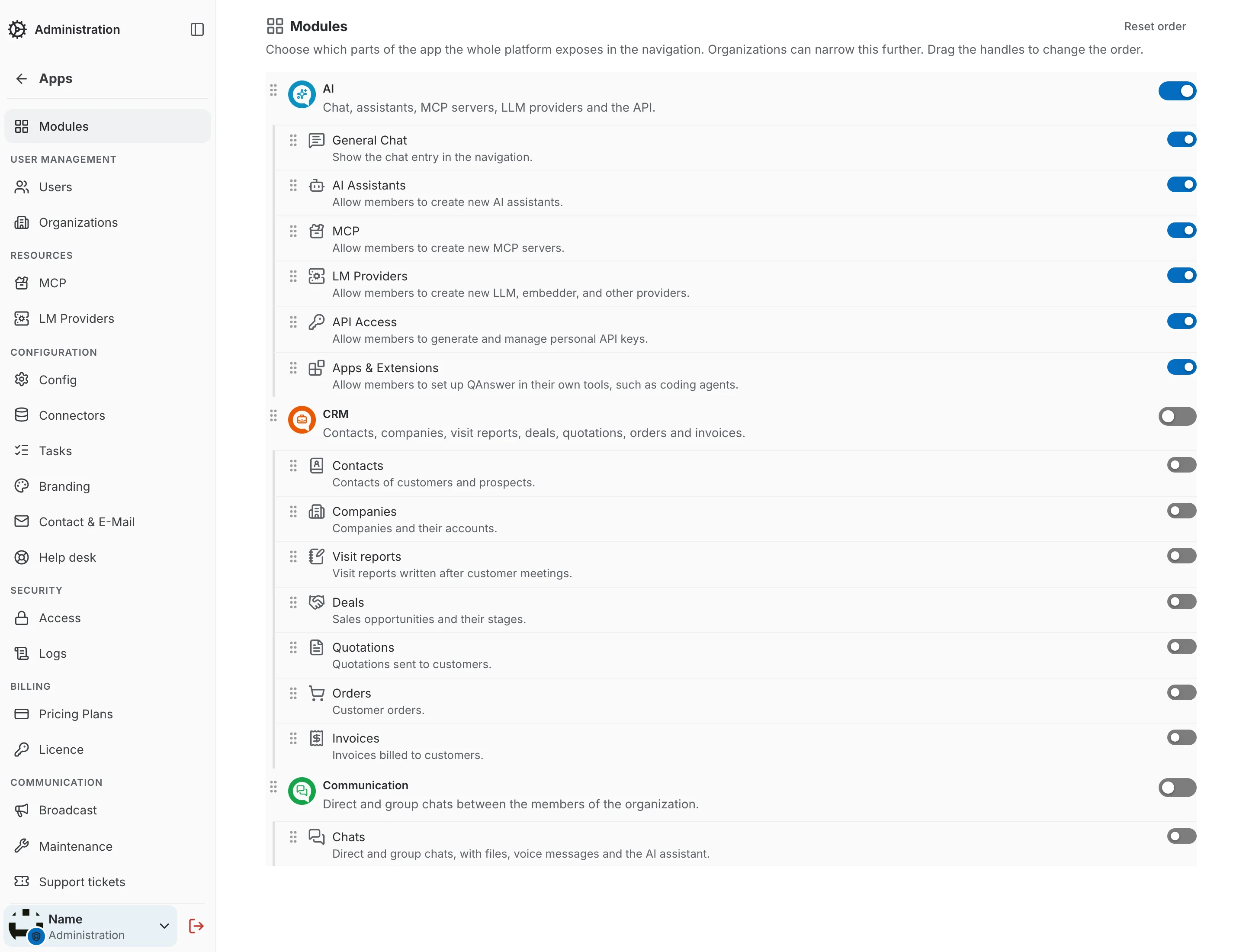
- Switching a module or a section on switches it on in every organization, including those that had switched it off. Each organization can then switch it off again on its own page.
- Switching it off switches it off in every organization and removes it from their Modules page: no organization can switch it back on until a platform administrator does.
- The order set here is the one of every organization that has not set its own.
On a new installation, AI is on everywhere. The CRM and Communication are off on the platform, but still listed on every organization's Modules page, so each organization can switch them on for itself.