
Access
The Access page controls how people reach this organization: whether they can leave it for another workspace, Auto Join by e-mail domain and OAuth-based team setup, whether members must sign in through an OAuth provider, and whether the organization gets a login page of its own.
Open it from Security → Access in the organization settings.
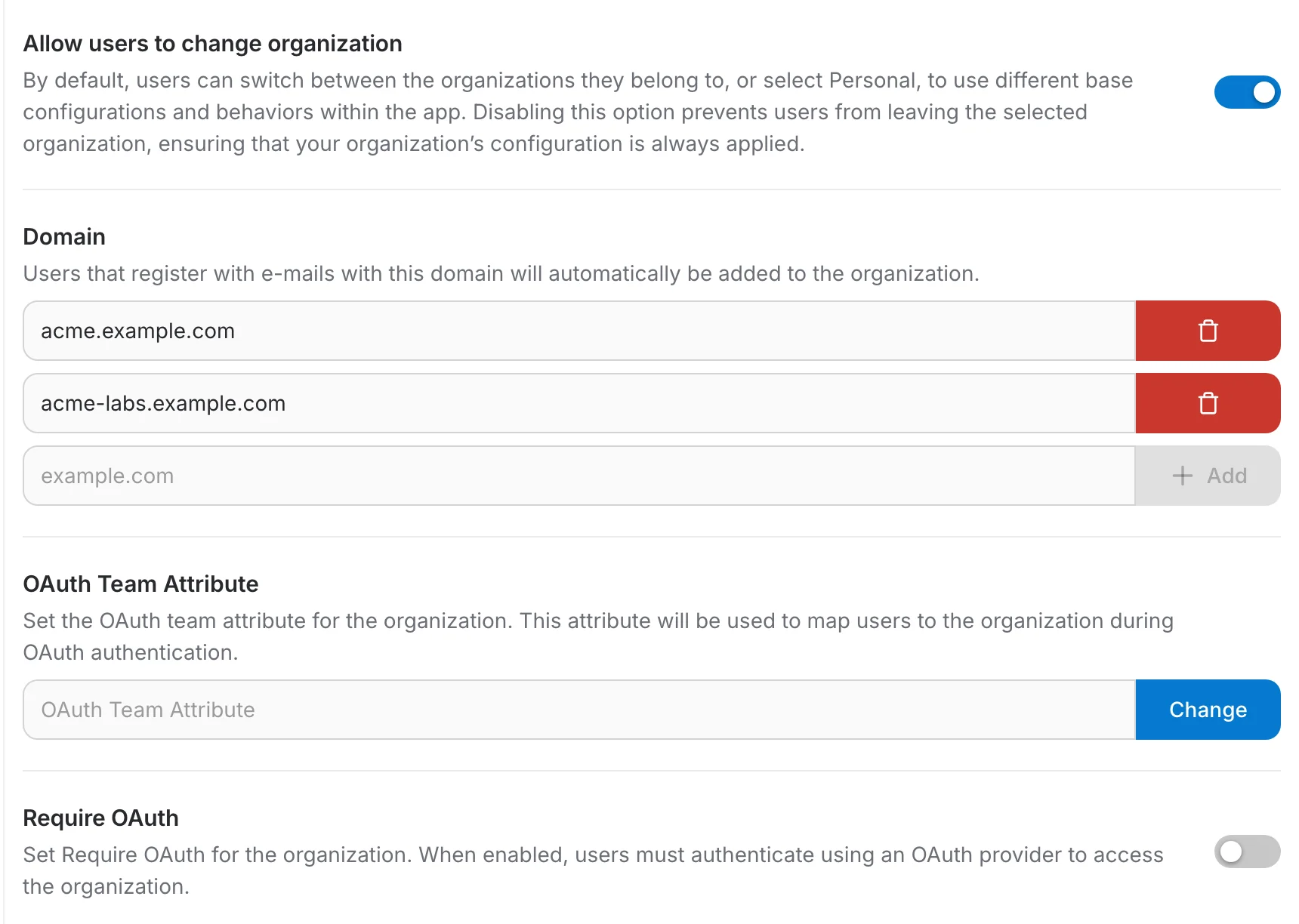
Allow users to change organization
On by default: members can switch to another organization they belong to, or to their personal workspace, and get that scope's configuration. Turn it off to hold members inside this organization, so your configuration always applies.
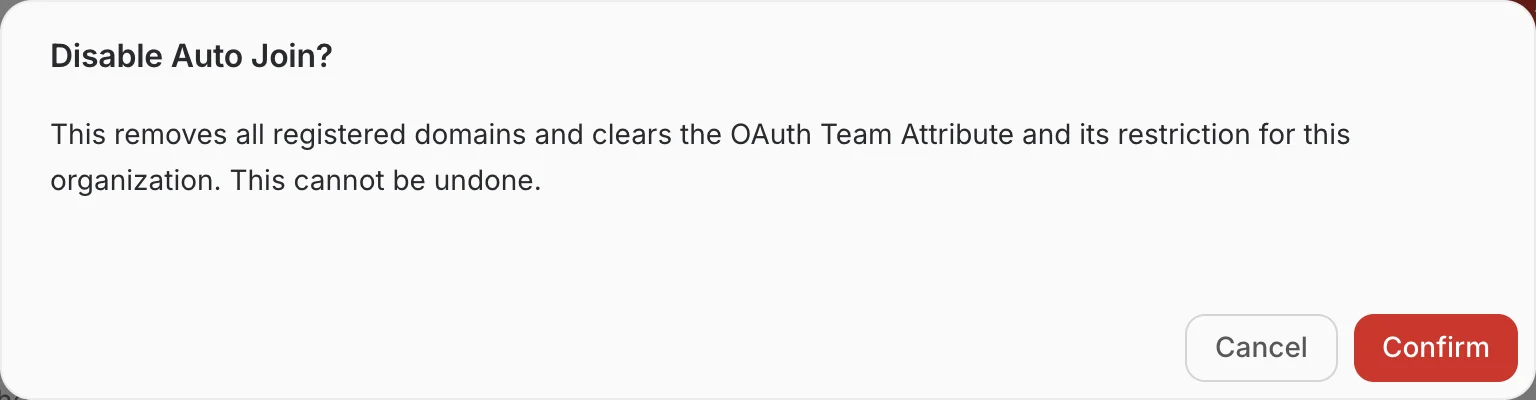
Auto Join
The top-level switch for automatically adding users to this organization when they sign in, based on their e-mail domain and, optionally, an OAuth attribute. Turn it off and the Domain and Teams Setup controls below disappear along with everything they configure.
Domain
Anyone who registers with an e-mail address ending in one of these domains is added to the organization automatically, with no invitation step.
- Type a domain into the empty row at the bottom of the list and select Add. It is saved straight away and becomes a row of its own.
- Remove a domain with the red trash button at the end of its row.
- The empty row stays at the bottom after every addition, so an organization can hold as many domains as it needs.
OAuth Team Attribute
The name of the OAuth/OIDC claim to read from the sign-in response — for example "department" for Microsoft, or "department_number" for EU Login. Type the claim name and select Change to save it; once it has a value, Teams Setup and Restrict organization access both appear below as independent options.
Teams Setup
Turn this on to configure automatic team assignment for users signing in through OAuth, based on the OAuth Team Attribute above. Each field below is saved with its own Change button.
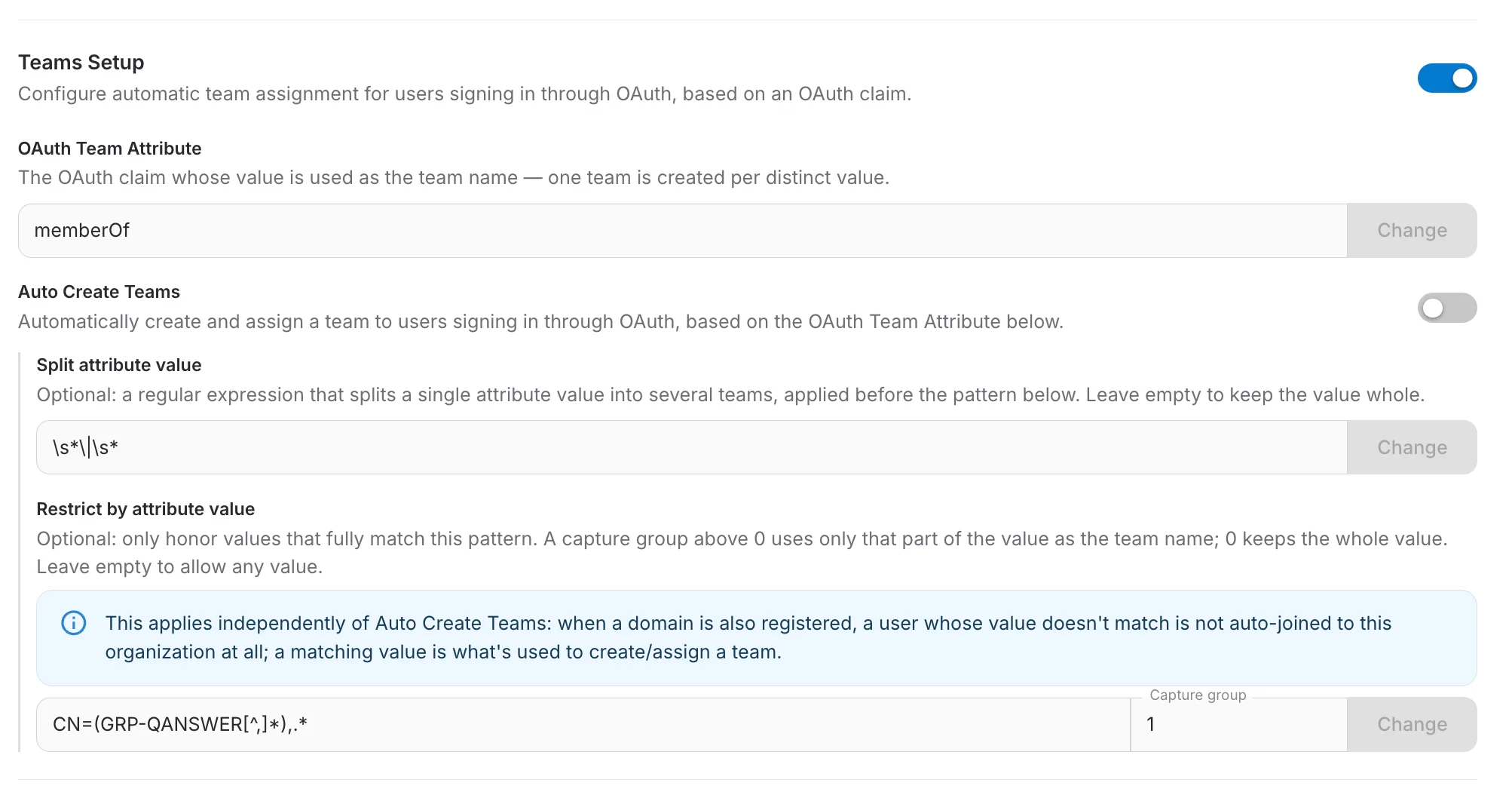
- Auto Create Teams: creates one team per distinct value of the attribute and places the user in it.
- Split attribute value: optional. A regular expression that cuts a single value into several, for example a list of groups sent as one string. It is applied before the pattern below. Leave it empty to keep the value whole.
- Restrict by attribute value: optional. A regular expression that each value must fully match to be kept. Leave it empty to allow any value.
- Capture group: sets which part of the match becomes the team name. 0 keeps the whole value, 1 keeps the part inside the first pair of parentheses, and so on. It is saved together with the pattern.
Restrict organization access
Appears once the OAuth Team Attribute has a value, independently of Teams Setup above — the two toggles can be turned on separately. An optional regular expression checked against that attribute's resolved value for the signing-in user. Type a pattern and select Change to save it; leave it empty to allow any value through.
EU Login's OAuth claims have no organization or team concept of their own, but the "department_number" claim carries a hierarchical org-unit code such as "JRC.B.5.003". Setting that as the OAuth Team Attribute and turning on Teams Setup auto-creates one team per directorate; setting Restrict organization access to "^JRC\..*" limits auto-join to JRC staff only — anyone whose department_number does not start with "JRC." is not added to the organization.
Require OAuth
When this toggle is on, members of this organization must authenticate through an OAuth provider — the username and password form is refused for them, even if it is still shown to everyone else on the instance.
Custom Organization Login Page
This gives the organization a sign-in page of its own, on a dedicated URL, showing only the providers you choose. It is the page you hand to the organization's members instead of the shared QAnswer login.
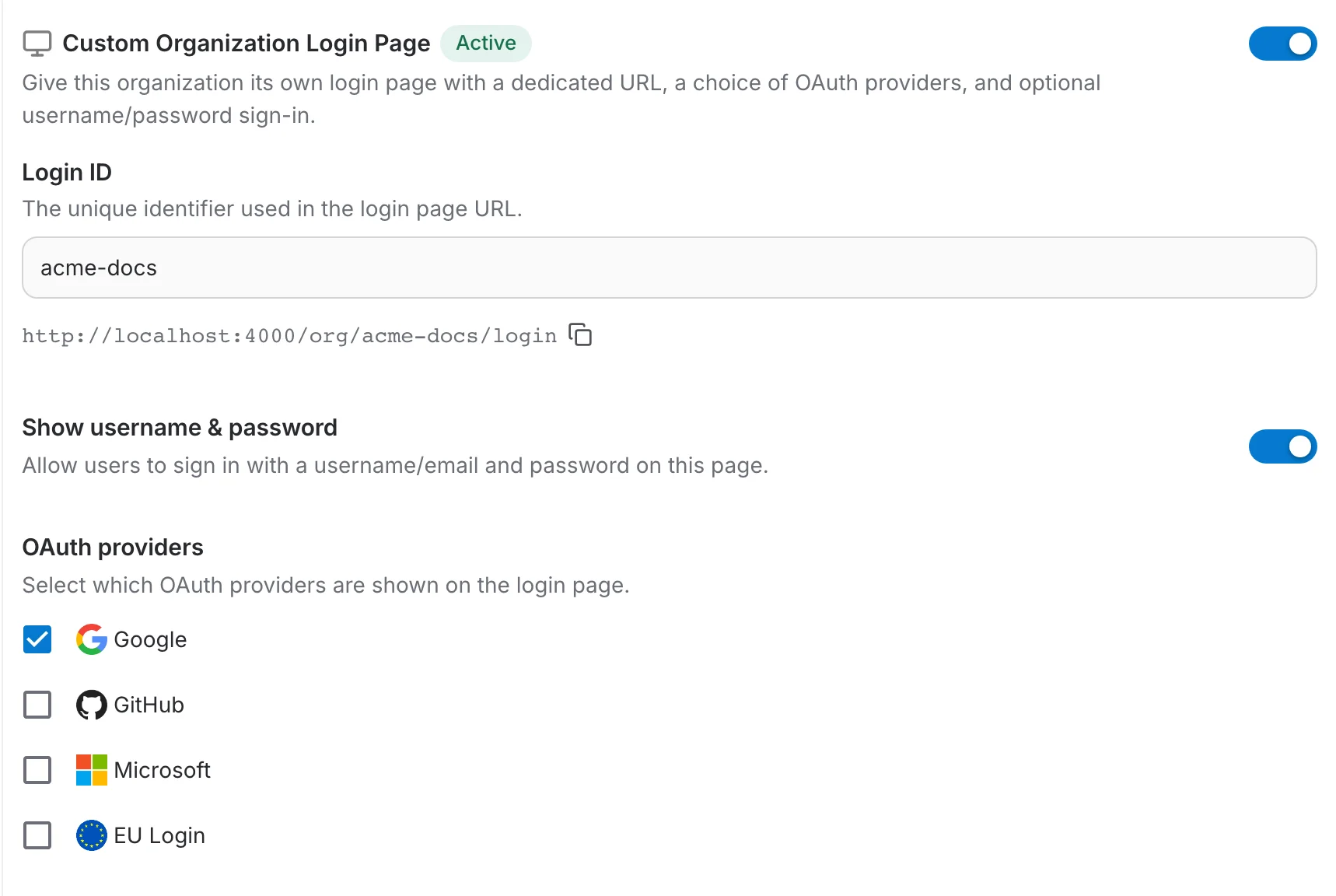
Turn the toggle on to reveal the configuration. Nothing is published until a Login ID is set — the chip next to the heading turns to "Active" once it is.
Login ID
The unique identifier that appears in the page URL. Enter "acme-docs" and the page is served at /org/acme-docs/login; the line below the input shows the full address, with a copy button next to it.
What appears on the page
- Show username & password — keep the e-mail and password form on the page. Turn it off for an organization that signs in exclusively through OAuth.
- OAuth providers — tick the providers to show. Only providers already configured on the instance Access page are listed, so the sign-in buttons on this page are a subset of the ones on the standard login page.
The resulting page
Members opening the dedicated URL get the organization's own page: the username and password form if you left it on, and only the providers you ticked.
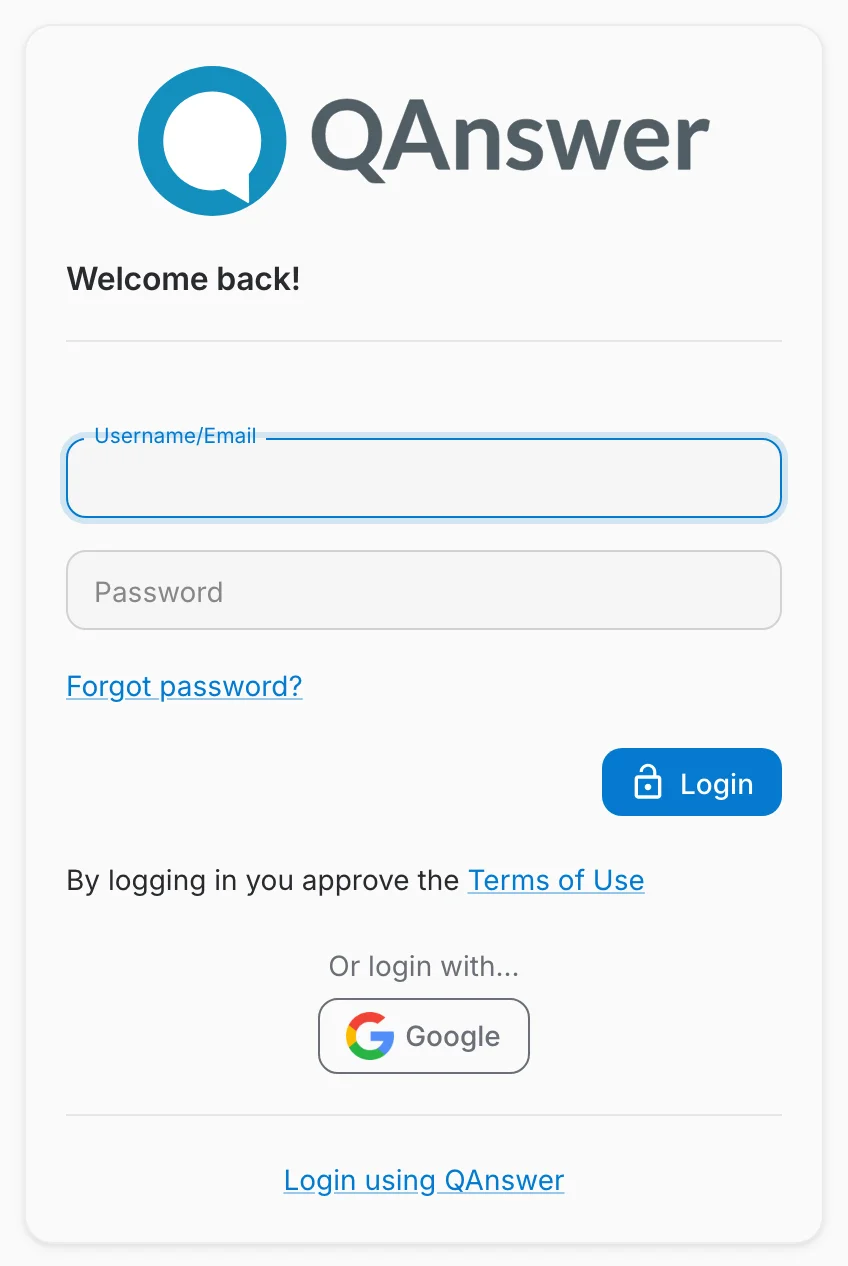
A "Login using QAnswer" link at the bottom sends anyone who reached the page by mistake back to the standard QAnswer login. There is no Register button — the organization login page is for existing members.