
Zimbra MCP
Overview
The Zimbra MCP server lets an assistant work with a user's Zimbra mailbox — reading and writing email, calendar events, contacts and folders — directly from chat, with no separate login or browser step.
It is a built-in server: it ships with QAnswer, shows a "Built-in" badge in the MCP catalogue, and cannot be deleted. Before it can be used it must be configured once per scope (platform, organization, team or user).
How it works
Zimbra runs in-process inside QAnswer rather than as a remote server. When a user triggers a Zimbra tool, QAnswer mints a short-lived session for that user's own mailbox from a domain preauth key — so each user only ever sees their own mail and calendar, and no one types a Zimbra password.
Setting it up
Open the MCP catalogue, find the Zimbra tile (it shows a Setup required badge until configured) and open its setup dialog from the gear icon. Fill in the three fields:
- PreAuth key — the domain preauth key from your Zimbra server.
- Zimbra base URL — the web address of the Zimbra server, e.g. https://webmail.example.com.
- Domain — the mailbox domain the preauth key belongs to, e.g. example.com. It controls who may use the server (see below).
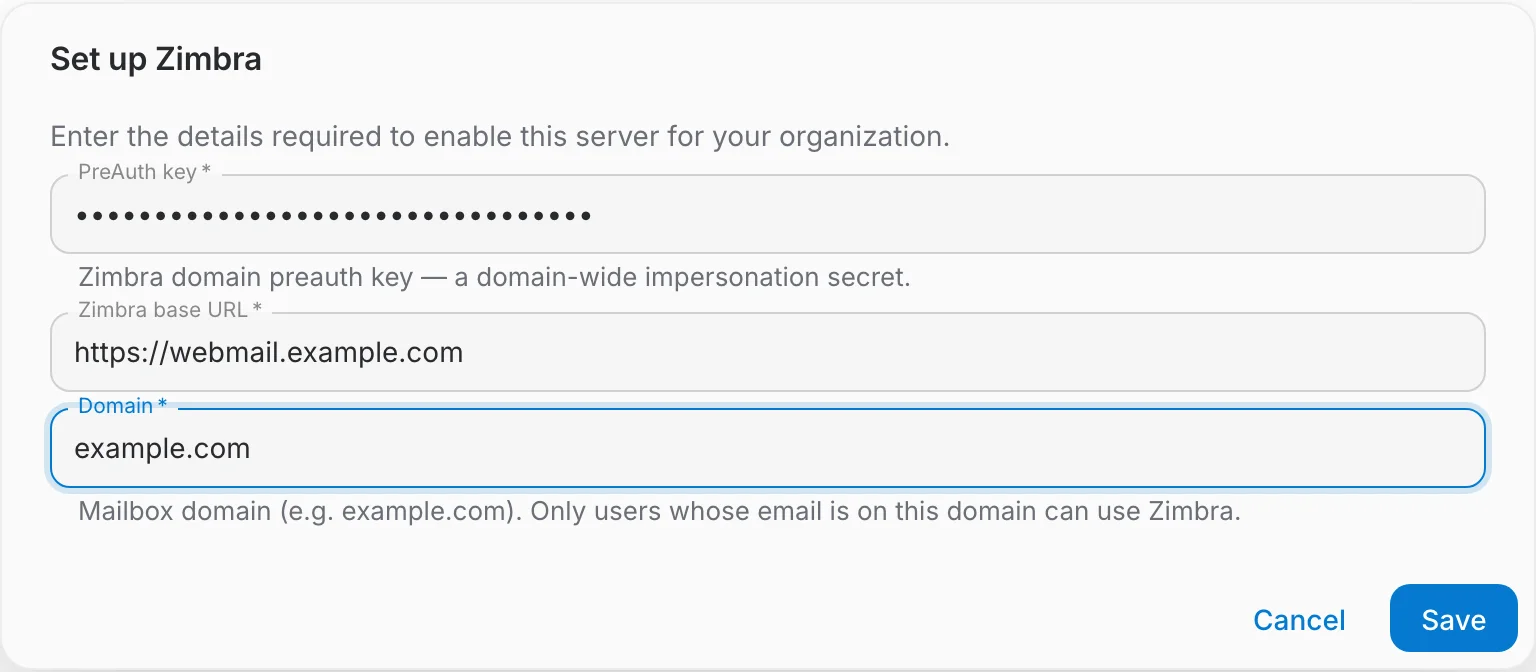
Reopening the dialog shows the saved base URL and domain; the preauth key field stays empty, because the secret is never returned — leave it blank to keep the existing key, or type a new one to replace it.
Who can use it
A user can only use the Zimbra server when their QAnswer account email is on the configured domain — the preauth key impersonates that user's mailbox by their email address. A user whose email is on a different domain sees a "Wrong domain" warning and cannot turn the server on.
Scopes
Zimbra is configured per scope and resolved most-specific-first: a user's own setup wins over their team's, then their organization's, then the platform default. Configure it once at the organization (or platform) level and everyone on the domain inherits it; override at a narrower scope only when needed.
What assistants can do
Once configured and enabled, an assistant can, acting as the signed-in user:
- Mail — list, search and read messages; send, reply, forward and draft; mark read or unread; move between folders; and delete.
- Calendar — list events, and create, reschedule or delete appointments.
- Contacts — list the address book, and create or delete contacts.
- Folders — list, create and delete mail folders.
Troubleshooting
- "Wrong domain" — the user's account email is not on the configured Zimbra domain. Use an account on that domain, or correct the Domain field.
- "Setup required" — no preauth key, base URL or domain has been saved for the user's scope. An admin must complete the setup dialog.
- Connection errors — QAnswer could not reach the Zimbra base URL. Check the URL, that the Zimbra server is reachable from QAnswer, and that the preauth key is valid for the domain.