
Support Tickets
The Support Tickets page is where platform admins answer the tickets users open from the help desk. It gathers the tickets of every user, from every organization, in one inbox.
Opening the page
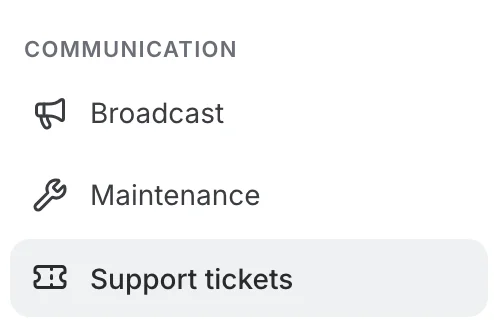
In the Admin Panel, Support tickets sits in the Communication group of the administration menu, directly below Maintenance. The help desk settings are elsewhere, under Configuration > Help desk, and are described on their own page.
Finding a ticket
The left column lists the tickets, most recently updated first. Each row shows the subject, the requester and their organization, a status chip and when the ticket was last updated. Click a row to open the ticket on the right; its address includes the ticket number, so you can share a link to it with another admin.
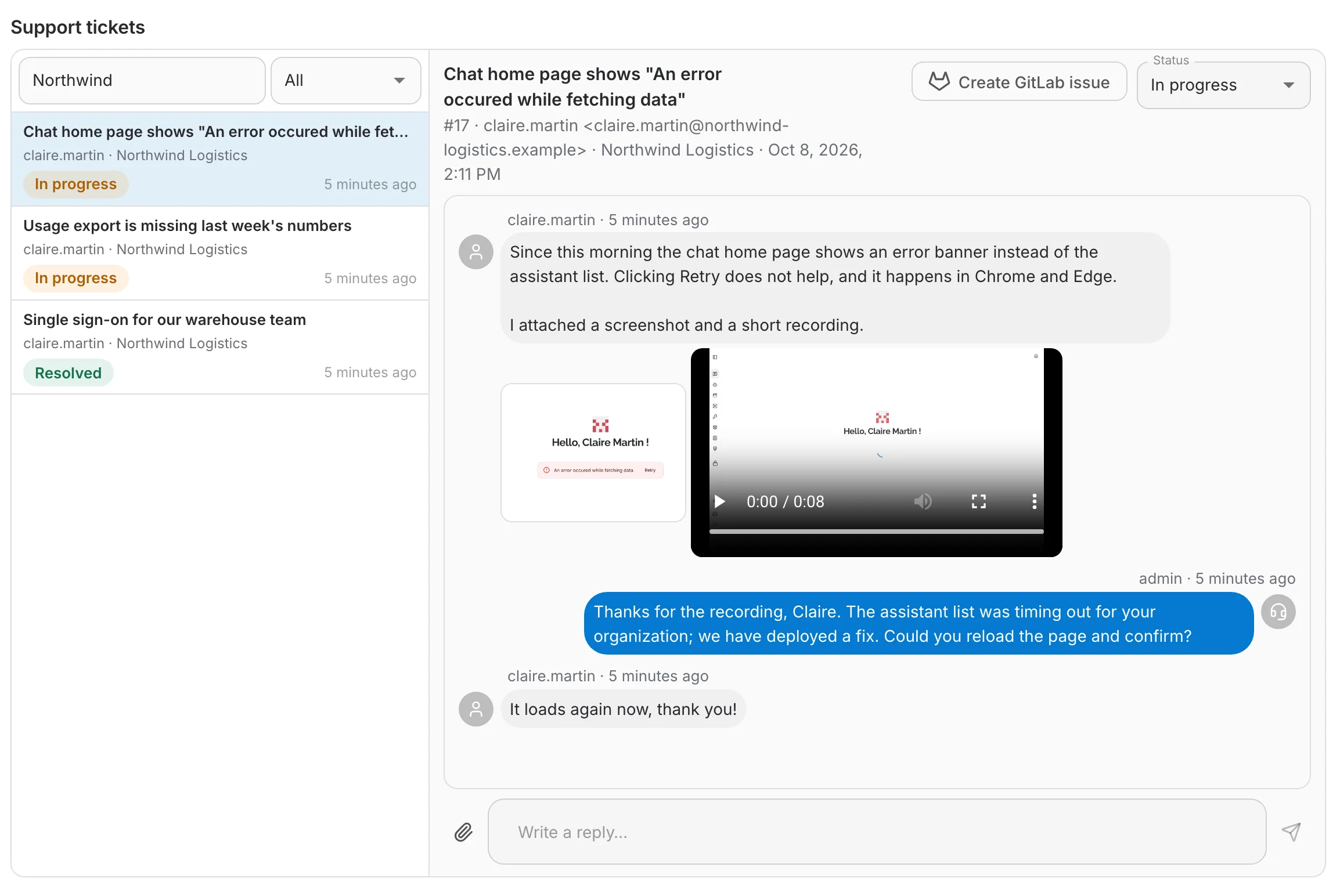
- Search tickets — matches the subject, the description, the requester's username or email, and the organization name. Here the search for "Northwind" keeps only the tickets of the Northwind Logistics organization.
- Status filter — All, Open, In progress or Resolved. Combine it with a search, for example to see what is still open for one organization.
Answering a ticket
The selected ticket shows who asked and where it stands at the top, then the conversation, then a reply box.

- Under the subject: the ticket number, the requester's username and email, their organization, and when the ticket was created.
- Status sets the ticket to Open, In progress or Resolved. The change is saved immediately and the requester sees the new chip on their side. Set In progress when you pick a ticket up, so the requester knows it is being handled.
- The reply box works as on the user side: write an answer, attach images or videos with the paperclip (up to 5 files per message, within the attachment limit set in the help desk settings), and send. Your replies appear to the requester as coming from support, with a headset avatar. In this view the sides are swapped: the requester is on the left and support on the right.
Escalating to GitLab
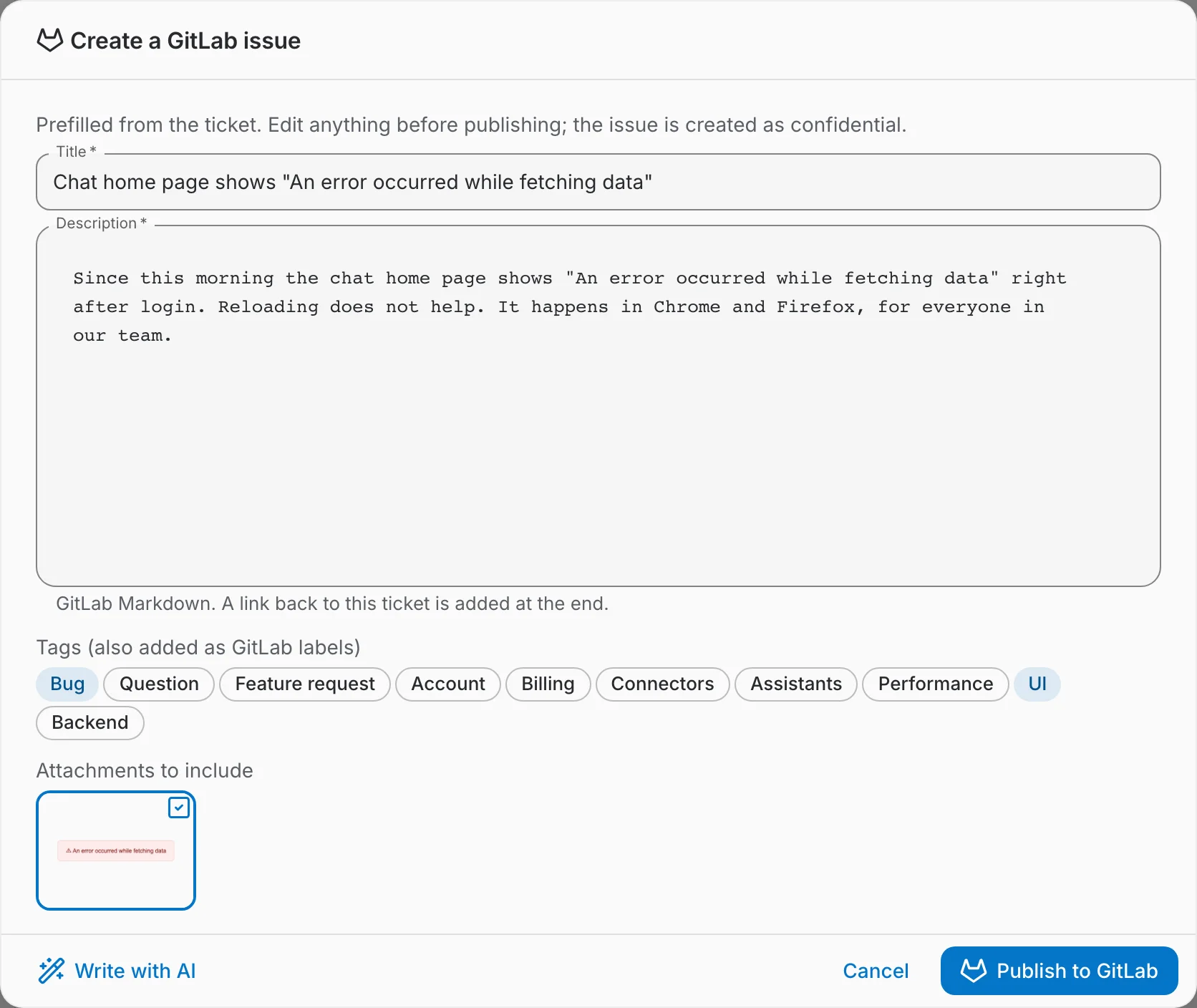
When GitLab issues are enabled in the help desk settings, a pair of buttons appears next to the status: Create GitLab issue, and beside it a magic-wand button, Create GitLab issue with AI. Both open a review dialog where you check the issue before it is published as a confidential issue in the configured project:
- Title and Description — prefilled from the ticket, or, with the AI button, written by the assistant from the whole conversation using the language model chosen in the help desk settings. Write with AI and Regenerate redraft them, and everything stays editable. If the assistant cannot summarize the ticket, the ticket's own title and description are used.
- The description is GitLab Markdown. When the issue is published, a link back to the ticket in QAnswer is added at the end.
- Attachments to include — every file of the ticket and its replies is ticked; untick the ones to leave out. The selected files are uploaded to GitLab and listed under an Attachments heading.
- Tags — the ticket's tags, editable. They are saved on the ticket and added to the issue as GitLab labels, next to the labels set in the settings. Publish to GitLab then creates the issue.
Once the issue exists, the buttons are replaced by a GitLab issue link that opens it in a new tab. A ticket can have only one issue. In the ticket list, a chip shows whether the issue is open or closed on GitLab. Without GitLab enabled, the buttons are not shown at all.