
Security Logs
The organization's audit trail lives under Insights → Logs. It records every access attempt and every membership or AI usage event for your organization, newest first. If you notice activity you don't recognize, contact your system administrator.
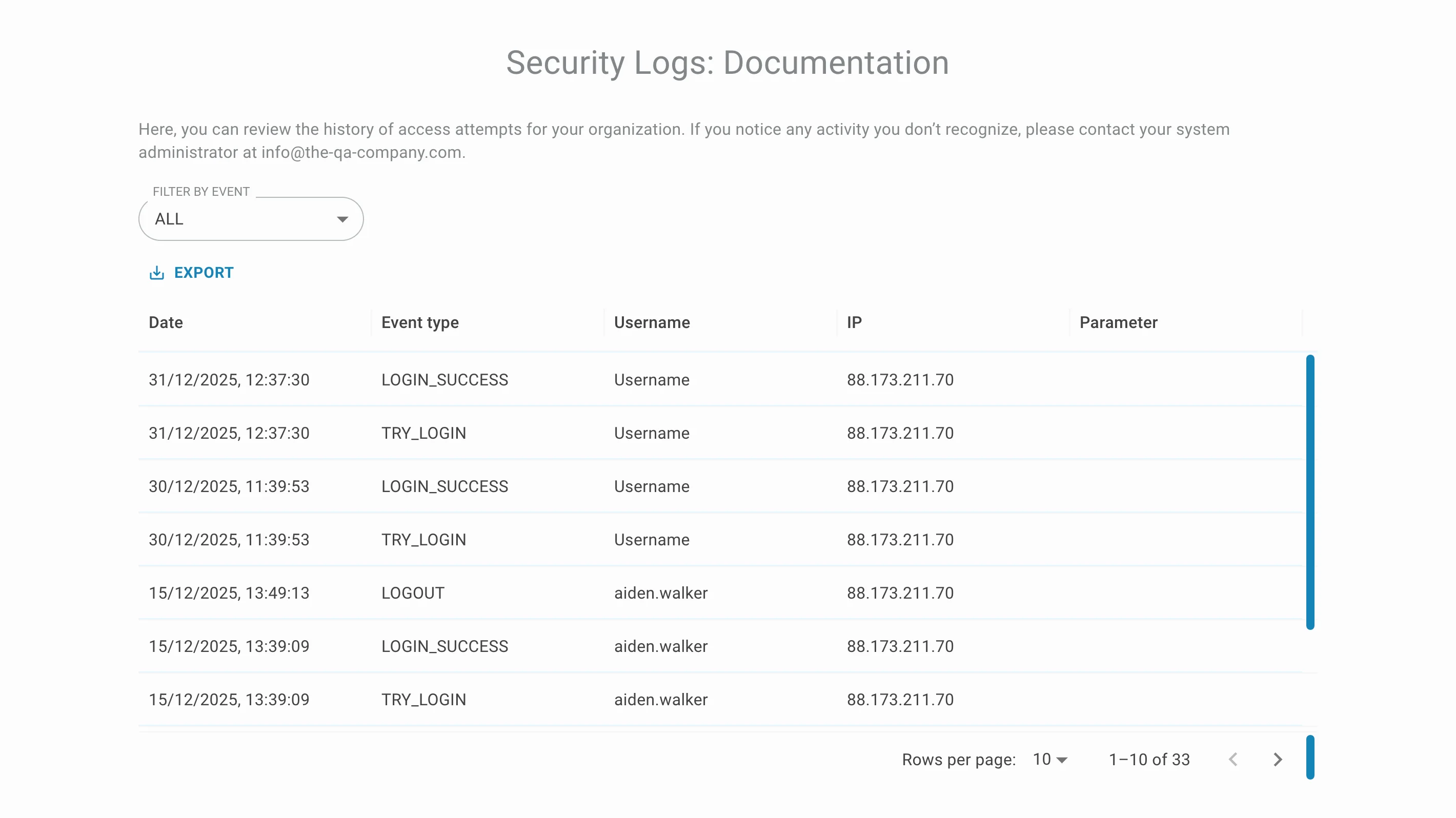
What a log entry contains
Each row of the table describes one event:
- Date — the date and time the event was recorded.
- Event type — what happened, for example Login success, Login attempt or AI chat.
- Username — the display name or username of the account that triggered the event.
- IP — the client IP address the request came from.
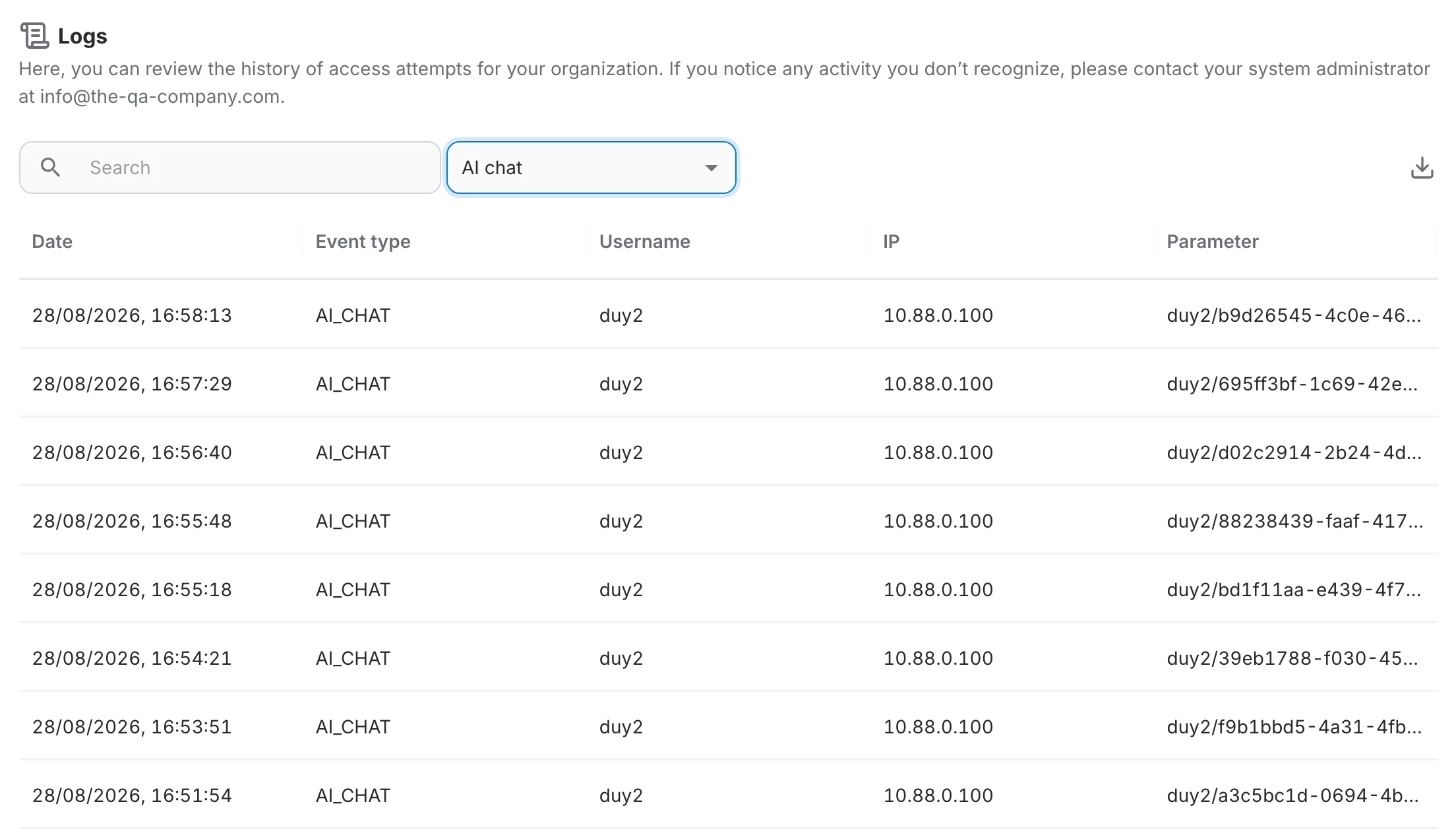
- Parameter — extra context for events that have it, such as the assistant an AI chat or search ran against. Login events leave it empty.
The table is paginated. Use the Rows per page selector and the arrows at the bottom right to move through the history — the counter next to them shows how many entries the organization has in total.
Filtering by event type
Open the Filter by event dropdown to narrow the table down to a single kind of event:
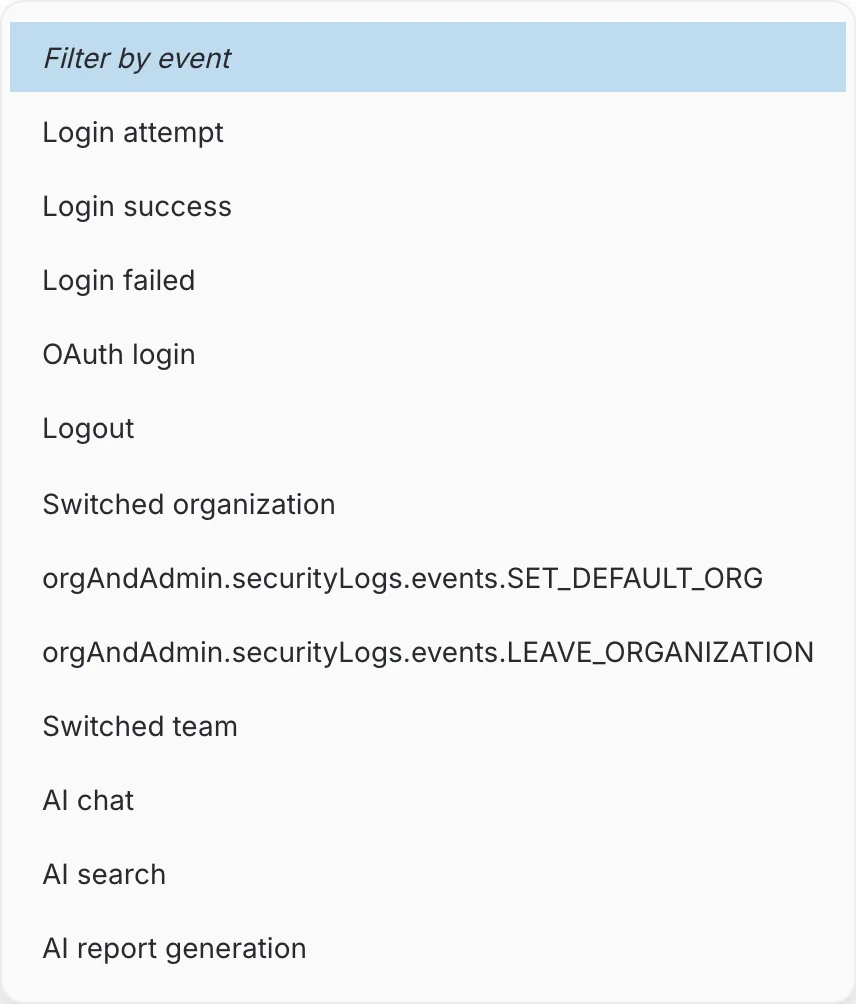
- Login attempt — a sign-in was submitted (TRY_LOGIN).
- Login success — the sign-in was accepted (LOGIN_SUCCESS).
- Login failed — the credentials were rejected.
- Password change failed — someone tried to change their password with a wrong current password.
- OAuth login — the user signed in through an OAuth provider such as Google or Microsoft.
- Logout — the user signed out.
- Logout from all devices — the user signed out of every device at once.
- Switched organization — the user moved to another organization workspace.
- Set default organization — the user made an organization their default workspace.
- Leave organization — the user left the organization.
- Switched team — the user moved to another team workspace.
- AI chat — a chat request was sent to an AI assistant.
- AI search — a semantic search request was run.
- AI report generation — a report was generated by an assistant.
Pick the empty Filter by event entry at the top of the list to go back to all events. For AI events the Parameter column shows which assistant was used:
Administrator actions
The log also records changes made by administrators. For these events, Username is the administrator who made the change, and Parameter says what was changed:
- User activated, User deactivated, User blocked, User unblocked, User role changed — a platform administrator changed the account of a user whose default organization is this one. Parameter: the user's username; for a role change, username -> new role.
- API key created / API key deleted — an API key was created or deleted in the organization. Parameter: the key's name.
- LLM endpoint updated, LLM endpoint activated, LLM endpoint deactivated — a language model was edited, or turned on or off for the organization or one of its teams. Parameter: the model's name.
- Retention policy updated — the organization's conversation retention policy changed (Parameter: organization and its id), or the retention of Communication messages (Parameter: communication and its id).
A team's log shows the administrator actions on that team's API keys and LLM endpoints. Changes to OAuth2 providers, the system retention policy and assistants' retention policies are recorded only in the platform administrators' log.
Searching the logs
The Search field filters the history as you type — use it to follow a single user, an IP address or a parameter value across all event types.
Exporting the logs
The download icon on the right of the toolbar exports the history as a CSV file named logs.csv. The export contains the same columns as the table plus the internal user id, and it always covers the full history — not just the page you are looking at.