
Communication
Communication is the QAnswer messaging module: direct and group chats between the members of your organization, next to your AI assistants. You can reply to, react to and forward messages, mention people, share files, and see who is online.
Before you start
Communication is a module that an organization administrator switches on. If you do not see it, ask them to follow Enable Communication. Chats belong to an organization: you chat with the members of the organization selected in your workspace.
Opening Communication
When you have more than one module, the top of the navigation drawer shows the module switcher instead of the logo. Click it and pick Communication.
The Communication screen
The screen has three parts:
- The chat list, on the left: the New chat button, your status, and all your chats, most recent first, each with its last message. The magnifier searches your chats and their messages, and the bell sets your notifications.
- The open chat, in the middle: its messages, and the message field at the bottom.
- The chat information, on the right: the chat's members and settings. Open or close it with the i button at the top right of the chat.
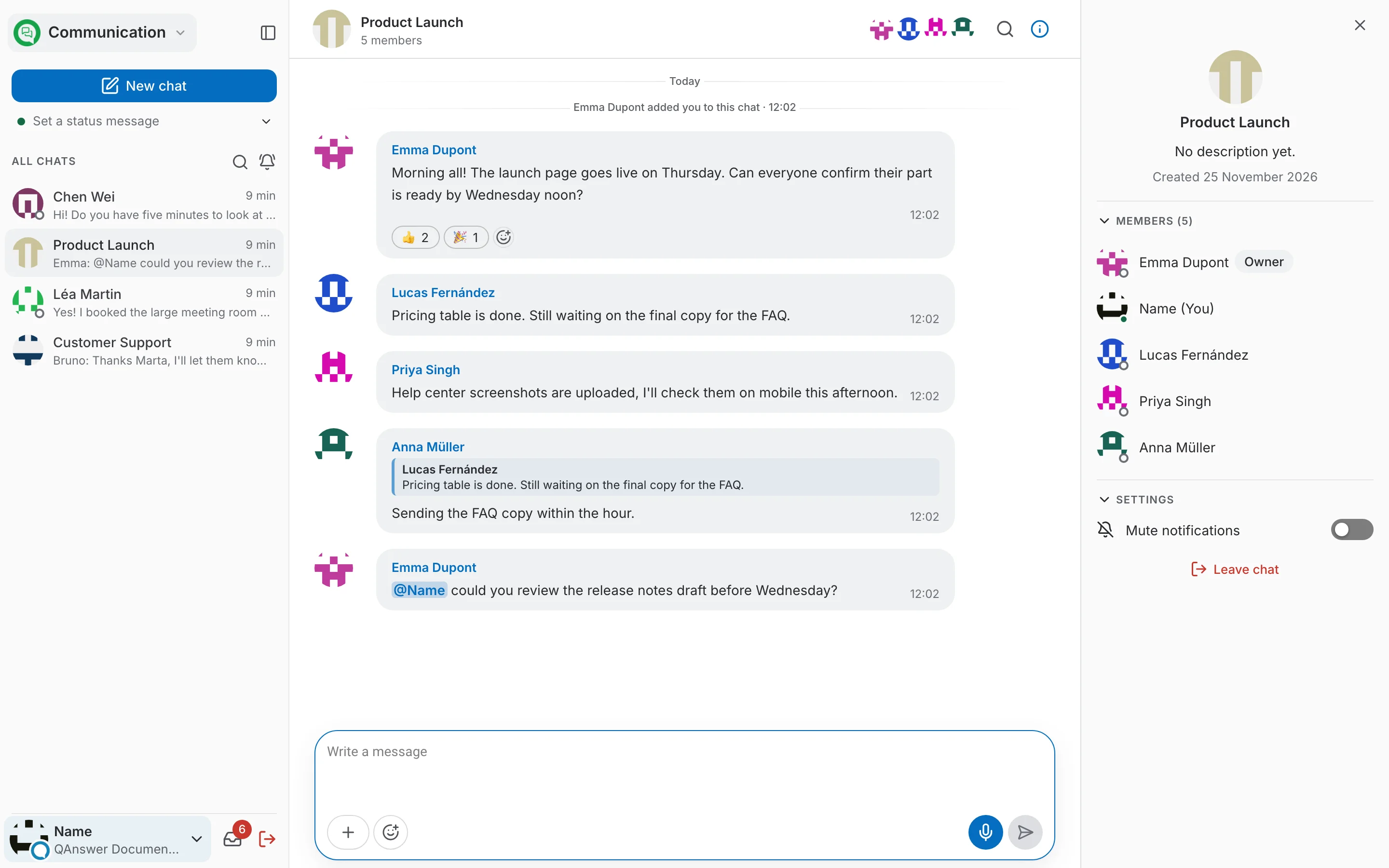
Finding a chat or a person
Press Ctrl K (⌘ K on a Mac) to jump to a chat or a person: type a name, move with the arrow keys and press Enter to open it. Picking a person you have no chat with yet starts one.
In this section
- Chats — start a chat, write, mention, reply, react and forward, manage a group, mute, leave or close a chat.
- Status and Notifications — your status, a status message, and how new messages notify you.