
Status and Notifications
Your status
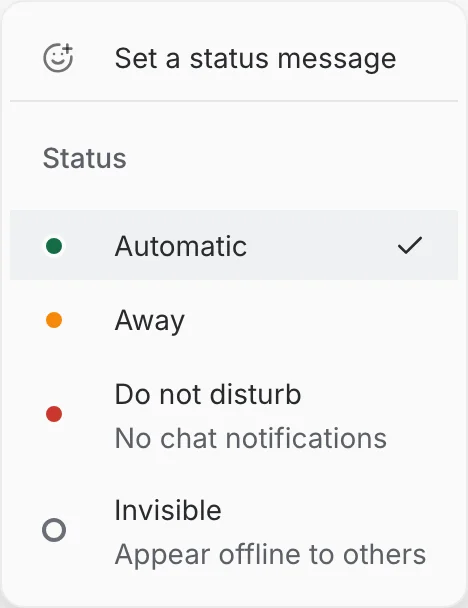
A dot on each person's picture shows whether they are online. Set yours in the menu under New chat:
- Automatic — QAnswer sets it from your activity.
- Away.
- Do not disturb — no chat notifications.
- Invisible — you appear offline to others.
A status message
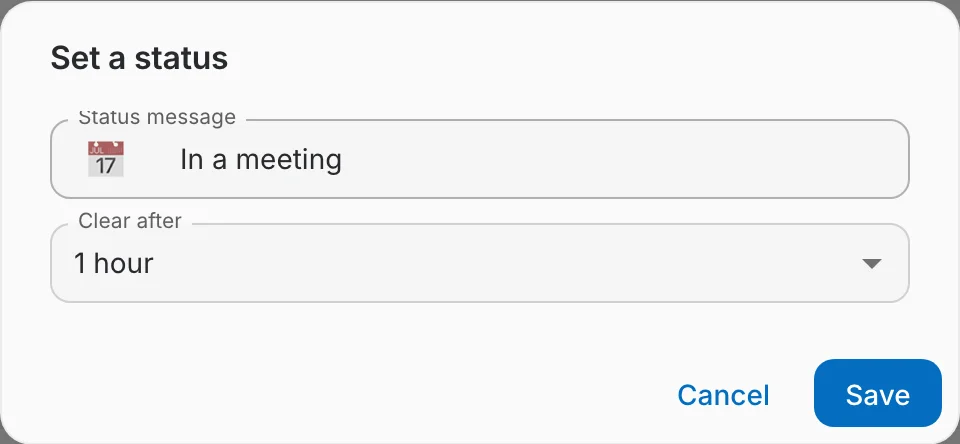
Choose Set a status message to tell others what you are up to. Type a message with an emoji, or pick a suggestion such as In a meeting or On vacation, then choose in Clear after when it disappears: after 30 minutes, 1 hour, 4 hours or 1 day, or never.
Notifications
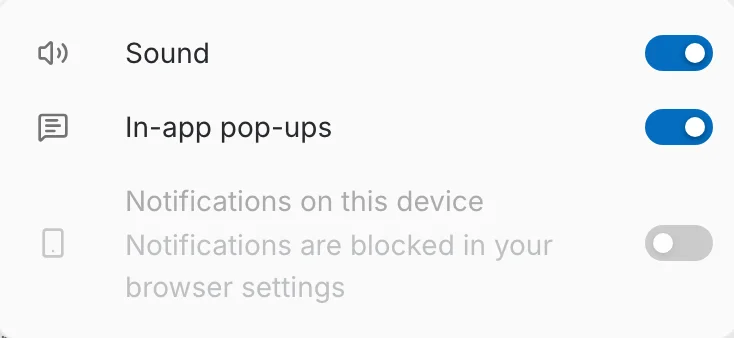
Click the bell above the chat list to choose how new messages reach you:
- Sound — a sound when a message arrives.
- In-app pop-ups — a pop-up inside QAnswer.
- Notifications on this device — your system's notifications, also when QAnswer is not in front. Your browser must allow notifications for QAnswer; on a phone or a tablet, add QAnswer to the Home Screen first (see Install App).
Unread messages
A chat with unread messages shows how many in the chat list, and a separate badge counts the unread messages that mention you. Do not disturb and muting a chat silence notifications, but mentions of you still notify you in a muted chat.