Chats
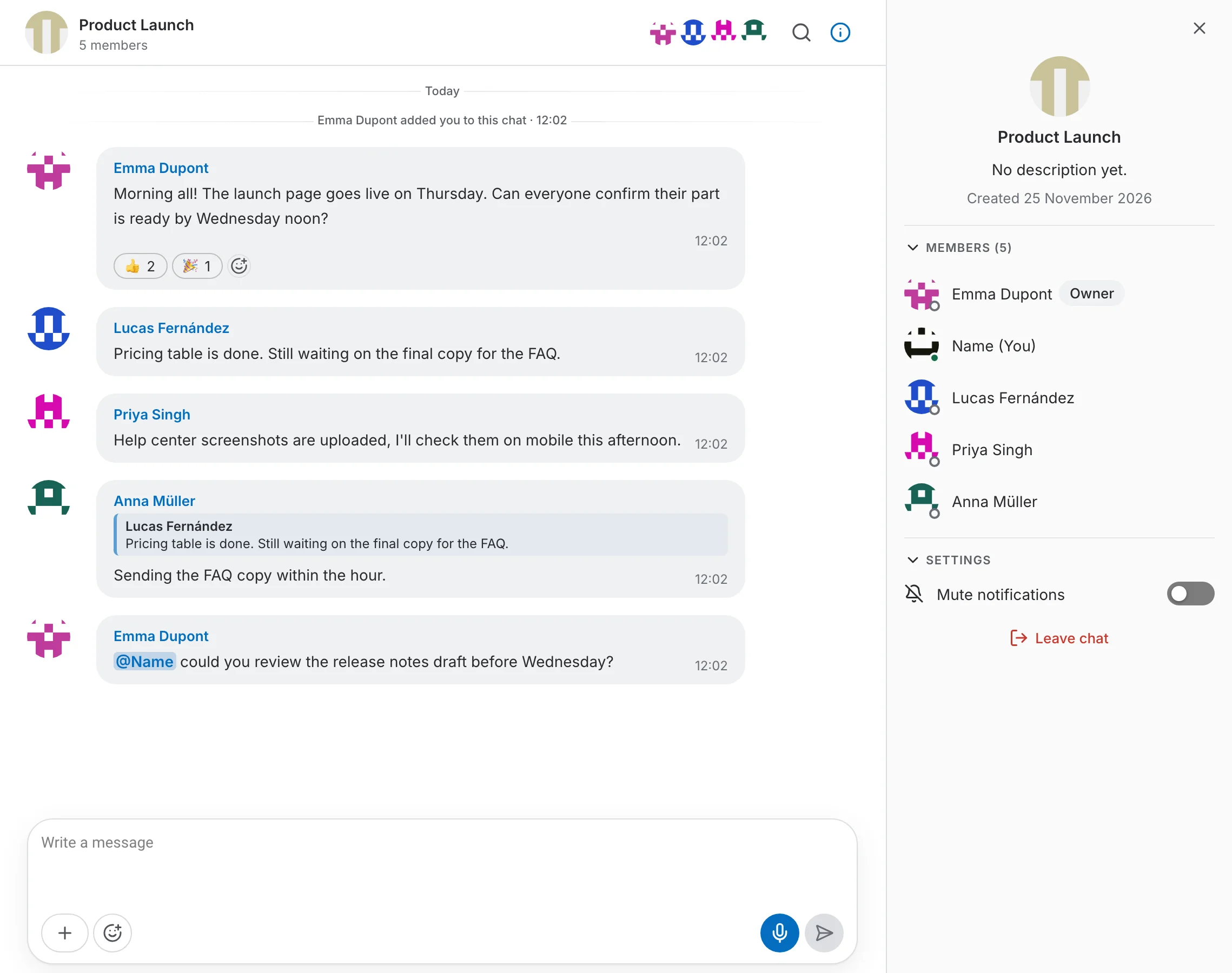
A chat is either a direct chat with one colleague or a group of several people. Everyone in a chat sees all its messages. Everything happens on the same page: the chat list on the left, the open chat in the middle, and its information panel on the right when you open it.
Starting a chat
- Click New chat at the top of the chat list.
- In Add people, type a name and pick a colleague. Only members of your organization can be added.
- With one person, click Start chat: you always get the same direct chat with them. With two people or more, the button becomes Create group.
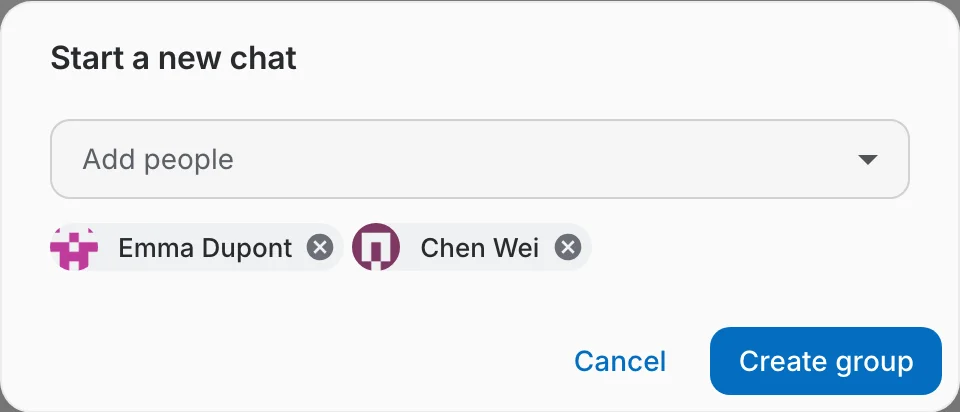
From a direct chat, Create a group starts a group with that person and the people you add. If a group with exactly these people already exists, QAnswer offers to open it instead.
Writing a message
Type in the message field at the bottom of the chat and press Enter to send. The field also has:
- + to attach files, up to 10 per message. You can also drop files onto the chat. Images show in the chat and audio files play there.
- the smiley, to insert an emoji.
- the microphone, to dictate: speak, and your words are written as text. It uses your organization's speech-to-text provider.
Mentioning people
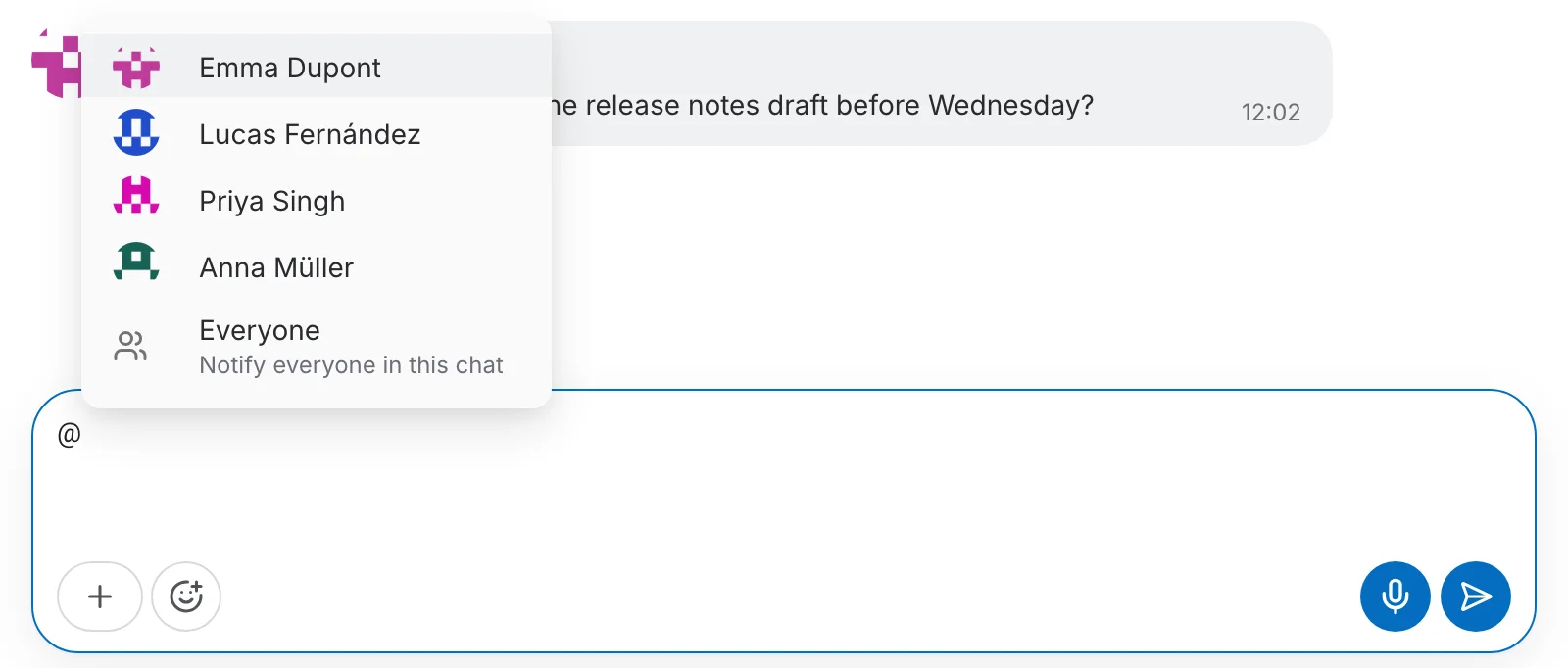
Type @ and pick a member of the chat: they are notified, even if they muted the chat. In a group, Everyone notifies all its members. A mention of you is highlighted in the message.
Replying, reacting and forwarding
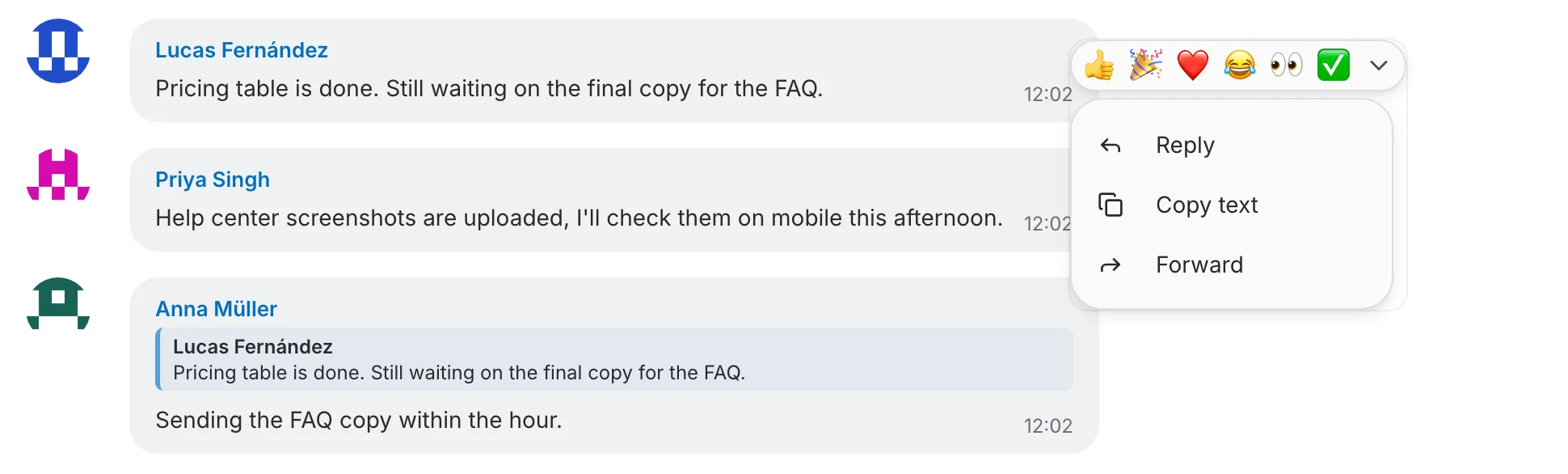
Hover over a message to show its actions:
- A reaction — pick an emoji in the bar, or open the full list with the arrow. Reactions show under the message with their count; click one to add or remove yours.
- Reply — your message quotes the one you answer.
- Copy text — copy the message.
- Forward — send the message, with its files, to one or more of your other chats. It shows whom it was forwarded from.
- On your own messages, Edit message changes the text (marked edited) and Delete message removes it, with its attachments, for everyone in the chat.
Following the conversation
- … is typing shows when someone is writing.
- Your messages show Delivered, then Seen by with the names of the people who read them.
- A red New messages line marks where you stopped reading, and a button takes you to the latest message.
- The magnifier at the top of a chat searches its messages.
Managing a group
Whoever creates a group is its owner and first admin. The admins of a group can:
- Edit group — change its name, description and picture. Every member sees a line in the chat when the group is renamed.
- Add people of the organization, up to 100 members in a group.
- Remove from chat — take someone out of the group.
- Delete chat — delete the group with its messages and files, for every member. This cannot be undone.
The owner can also make other members admins, or take their admin rights back.
Muting, leaving and closing
- Mute notifications silences a chat, from its information panel or its ⋯ menu in the chat list. Messages that mention you still notify you.
- Mark as read, in the ⋯ menu, clears a chat's unread messages without opening it.
- Leave chat takes you out of a group: you stop receiving its messages and need to be added again to come back.
- A direct chat cannot be left or deleted. Close chat removes it from your list until a new message arrives; its history is kept.
Chat information
Click i at the top right of a chat to show its information: its picture, name and description, its Members (the owner is marked Owner) and its Settings.
The panel opens on the right of the chat, which stays usable beside it. Click i again, or the cross at the top of the panel, to close it.