
Broadcast
Broadcast sends a one-off announcement to your users — a scheduled maintenance window, a new assistant, a change of policy. You pick who receives it, whether it arrives as an in-app notification, an email or both, and QAnswer then reports the outcome for every single recipient.
Where to find it
Broadcast is available in two scopes, and each one only ever lists and sends what belongs to it:
- Admin panel — for platform administrators: Administration → Communication → Broadcast, with every broadcast ever sent on the instance.
- Organization settings — for organization administrators: Communication → Broadcast in the organization settings, limited to that organization. Teams have no Broadcast page of their own — a team is picked as an audience from the organization it belongs to.
Choosing the audience
The audience decides who receives the announcement. The compose dialog only offers the audiences you are actually allowed to write to.
| Audience | Recipients | Who can send it |
|---|---|---|
| All users | Every user account of the QAnswer instance. | Platform administrators only. |
| Organization | Every member of the organization you select. | Platform administrators, and administrators of that organization. |
| Team | Every member of the team you select. | Platform administrators, and administrators of the organization the team belongs to. |
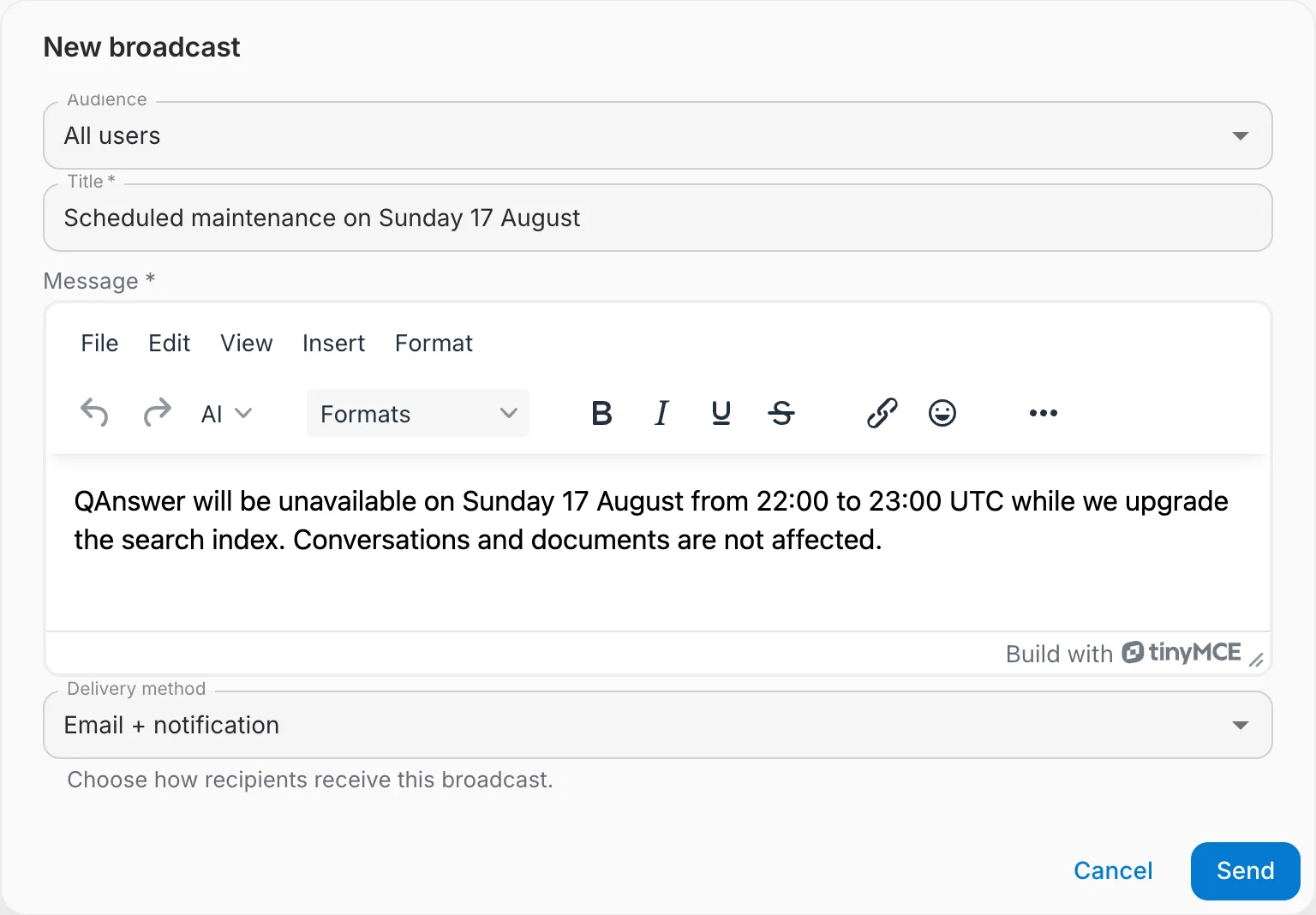
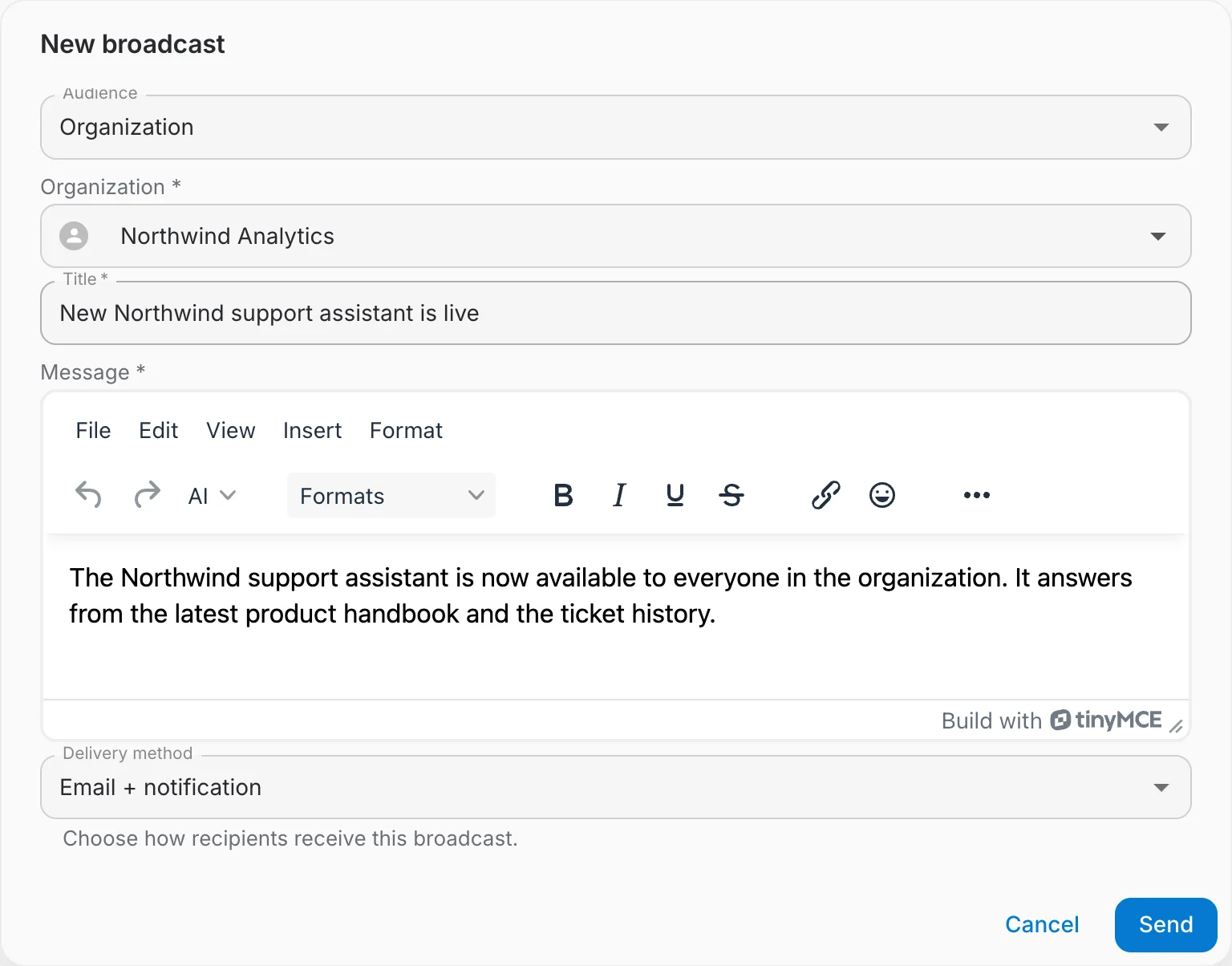
That is why the same dialog offers three audiences to a platform administrator and only two inside an organization:


Sending a broadcast
- Open the composer — select New broadcast at the top right of the Broadcast page. The button stays disabled if you have no audience available.
- Pick the audience — for Organization or Team, a second field appears — search for the target by name and select it.
- Write the title — up to 255 characters. It is the headline recipients see first, so keep it specific.
- Write the message — the editor supports formatting, links and emoji, and converts Markdown when you paste it.
- Choose the delivery method and send — delivery starts immediately in the background. The dialog closes and the new broadcast appears at the top of the history.
Once sent, a broadcast cannot be edited, recalled or deleted. Proof-read the title and the message, and double-check the audience, before you select Send — an announcement addressed to All users reaches everybody on the instance.
Delivery methods
The delivery method decides how the announcement reaches each recipient:
- In-app notification — the message lands in the notification inbox and in the notification bell of the application. No email is sent.
- Email — the message is emailed to the address of each recipient's account. Nothing is added to the notification inbox.
- Email + notification — both channels are used, and each one is tracked separately in the delivery report.

The email channel uses the platform mail configuration. Set it up under Contact & E-Mail before sending an email broadcast — without a working mail server, the email channel fails for every recipient.
What recipients see
On the in-app channel, recipients receive a notification carrying the title and the full formatted message:
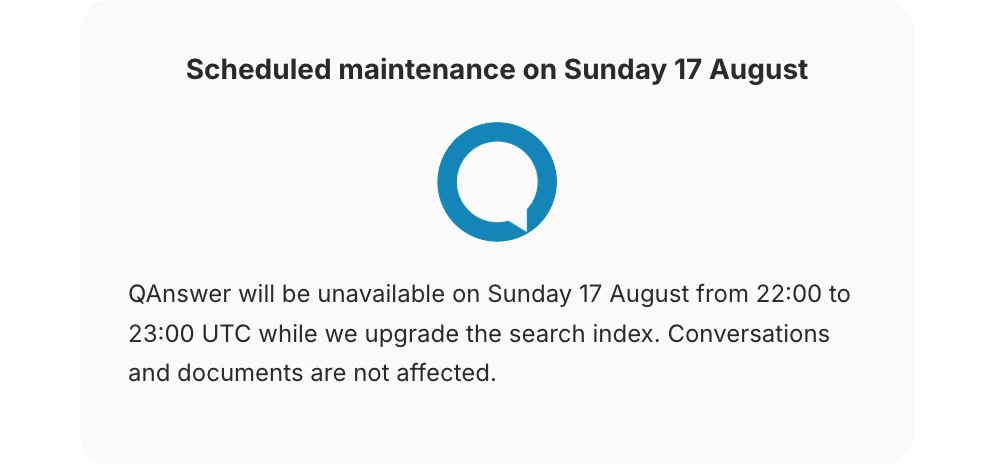
The announcement stays available afterwards in the notification inbox, so a user who was offline when it was sent still finds it.
Tracking what was sent
The Broadcast page lists everything sent from the current scope, newest first, with the delivery counters of each run:
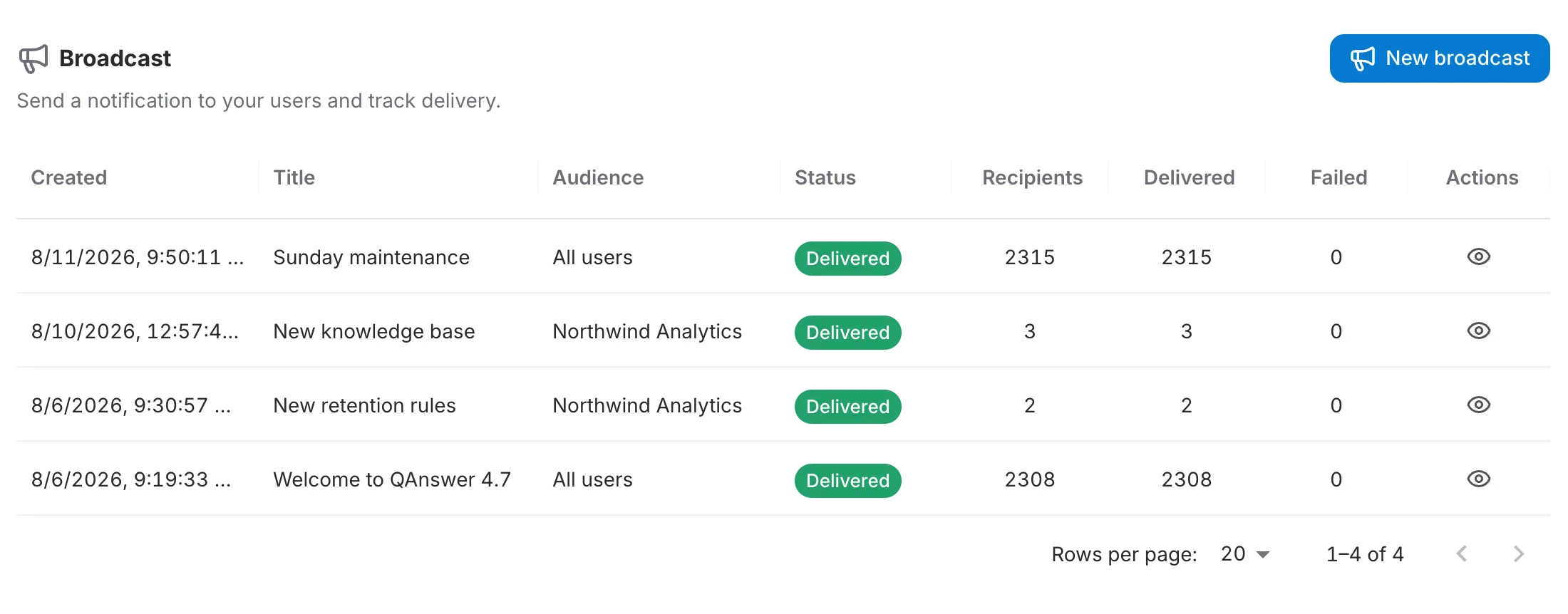
- Created — when the broadcast was created.
- Title — the headline given in the composer.
- Audience — All users for a platform broadcast, otherwise the name of the target organization or team.
- Status — the delivery state, described in the next section.
- Recipients — how many users the broadcast was addressed to.
- Delivered — how many of them it reached.
- Failed — how many it could not reach. A non-zero count is highlighted.
- Actions — View details opens the per-recipient report. A retry icon appears next to it when at least one delivery failed.
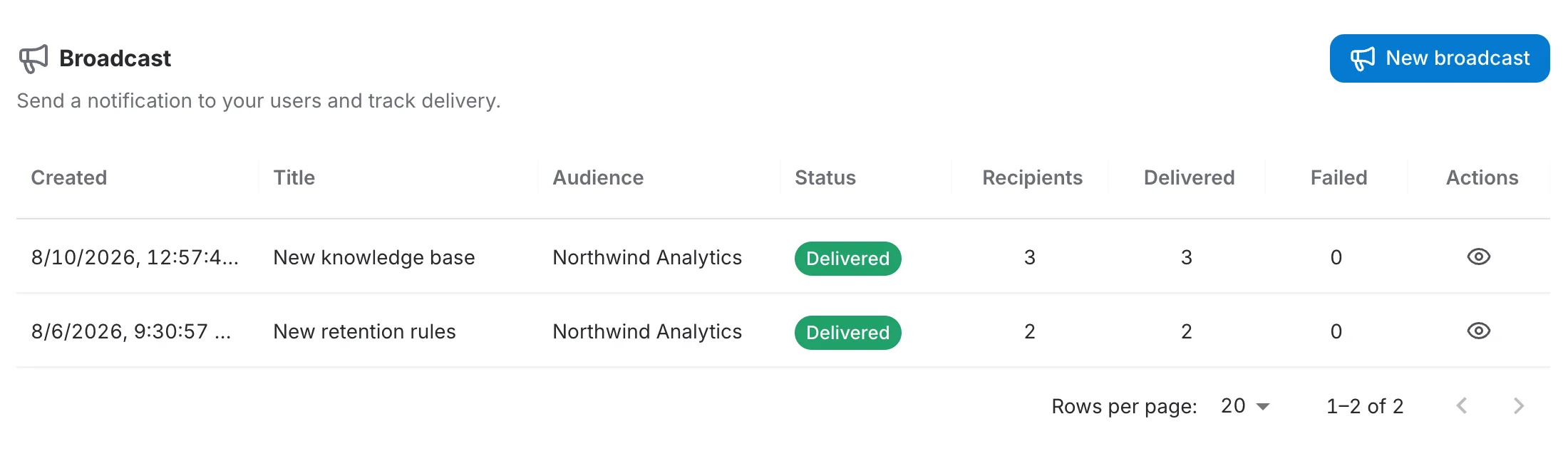
Opened from an organization, the same page lists only that organization's broadcasts — an organization administrator never sees what other organizations sent:
Delivery statuses
| Status | Meaning |
|---|---|
| Pending | Created and queued. Delivery has not started yet. |
| In progress | Delivery is running and the counters are still climbing. |
| Delivered | Every recipient was reached. |
| Partial failure | Some recipients were reached, others were not. |
| Failed | No recipient could be reached. |
A large broadcast takes a while to go out. You do not need to reload: as long as you keep the page open, the status and the counters of a broadcast you sent are updated live while delivery progresses.
Reading the delivery report
View details opens the full report of a broadcast — the message that was sent, the channel it used, and the outcome recipient by recipient:
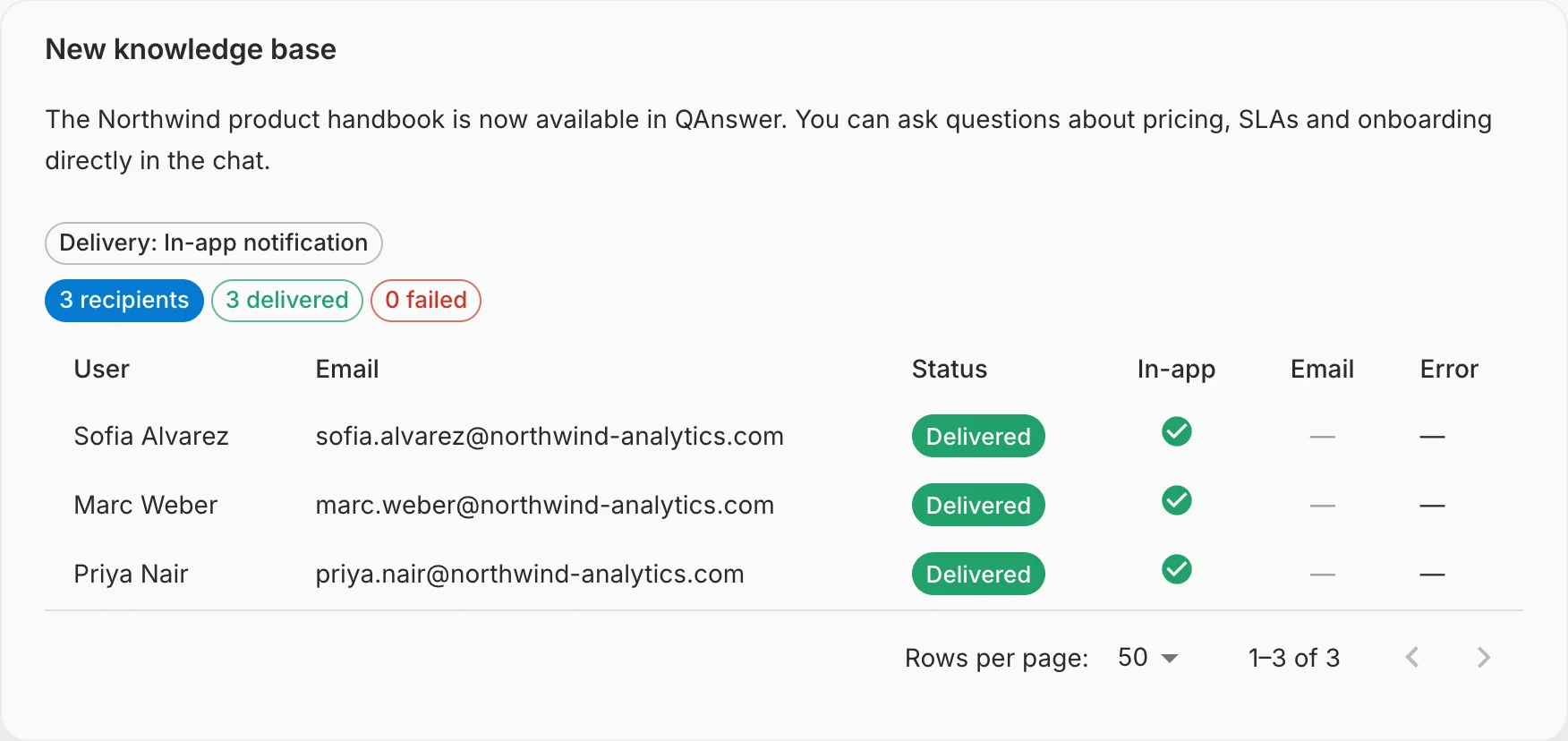
- The recipients, delivered and failed chips summarise the run. Selecting the delivered or failed chip filters the rows of the current page down to that outcome.
- The Delivery chip repeats which channel the broadcast used.
- Each row gives the user, their email address, the overall status, and one column per channel: In-app and Email.
- In a channel column, a green check means the channel succeeded, a red cross means it failed, and a dash means that channel was not part of this broadcast. When a delivery fails, the Error column carries the reason.
- A platform broadcast can have thousands of recipients, so the table is paginated — 25 to 200 rows per page.
Retrying failed recipients
When a broadcast ends with failures, a retry icon appears in the Actions column of the history. It re-attempts delivery for the failed recipients only, so nobody is notified twice. The icon is unavailable while a broadcast is still pending or in progress.
Read the Error column first. A retry fixes a temporary problem — a mail server that was briefly unreachable, for instance. It cannot fix an invalid recipient address, which simply fails again.
A broadcast is read once, then scrolls away. For a service window, combine it with the maintenance banner, which stays on screen for the whole duration and is also visible to users who are not signed in.