Admin Panel
The Admin Panel is the central place to manage a self-hosted QAnswer deployment: users, organizations, login/OAuth access, LLM providers, platform configuration, statistics, security logs, and more.
Cloud
On Cloud, it is not possible to become an admin, so the Admin Panel is not accessible.
On-Premises
On Premise, only an administrator account can access the Admin Panel . See Installation for the default admin credentials and how to change them.
Accessing the Admin Panel
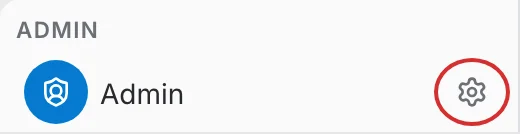
Click your workspace name at the bottom of the left sidebar to open the workspace panel, then click the settings icon next to Admin to open the Admin Panel.
Open the workspace menu
The panel lists the Admin entry at the top, above the organizations and teams you belong to. Select the settings icon on that row.
Admin Panel
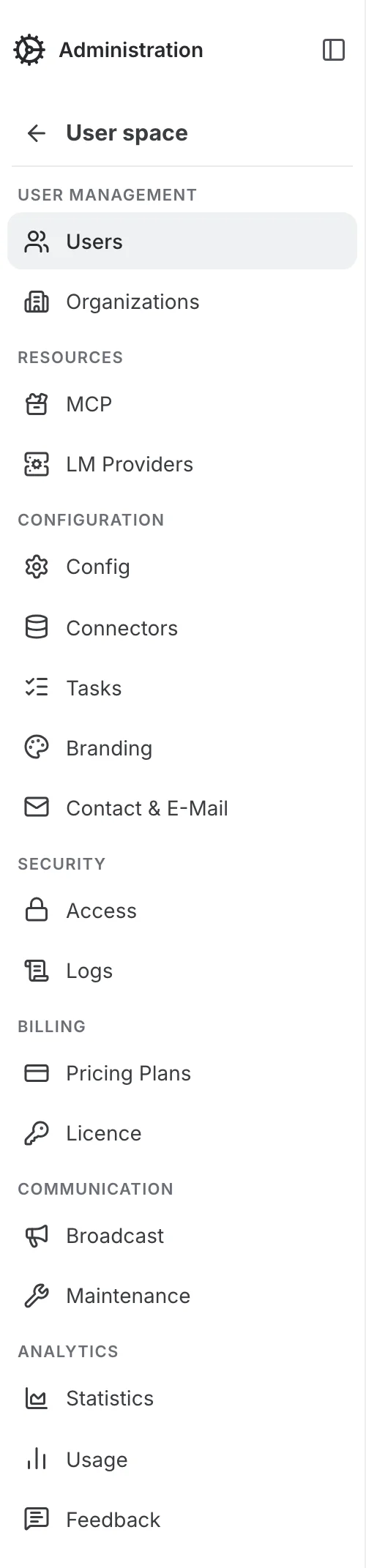
The Admin Panel opens on the Users page and replaces the user-space sidebar with its own, which groups every platform-wide setting: User Management, Resources, Configuration, Security, Billing, Communication and Analytics.